
UniPlayer
Updated: July 28, 2026
Installation
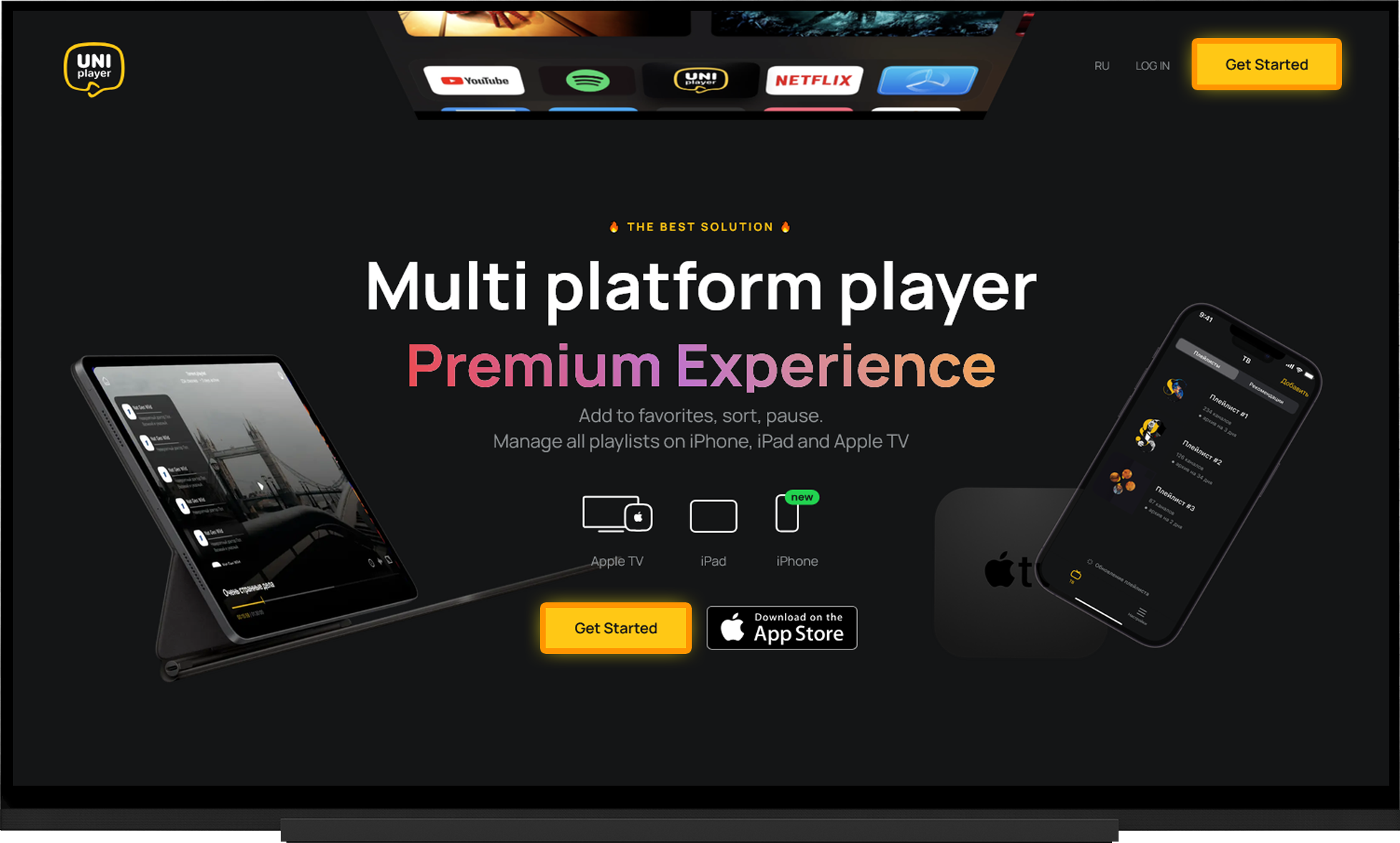
UniPlayer is a modern IPTV player for Apple TV, iPhone, and iPad. It supports M3U playlists, EPG (TV Guide), Catch-up TV, favorites, cross-device synchronization, and hardware video decoding.
A free trial is available for new users.
Installation
- Open the App Store on your device.
- Search for UniPlayer
- Install the application.
Adding a Playlist
- Go to the official UniPlayer website.
- Click "Get Started".
- Create an account. You can also sign up using your Apple ID.
- New users receive a 30-day free trial with full access to all player features.
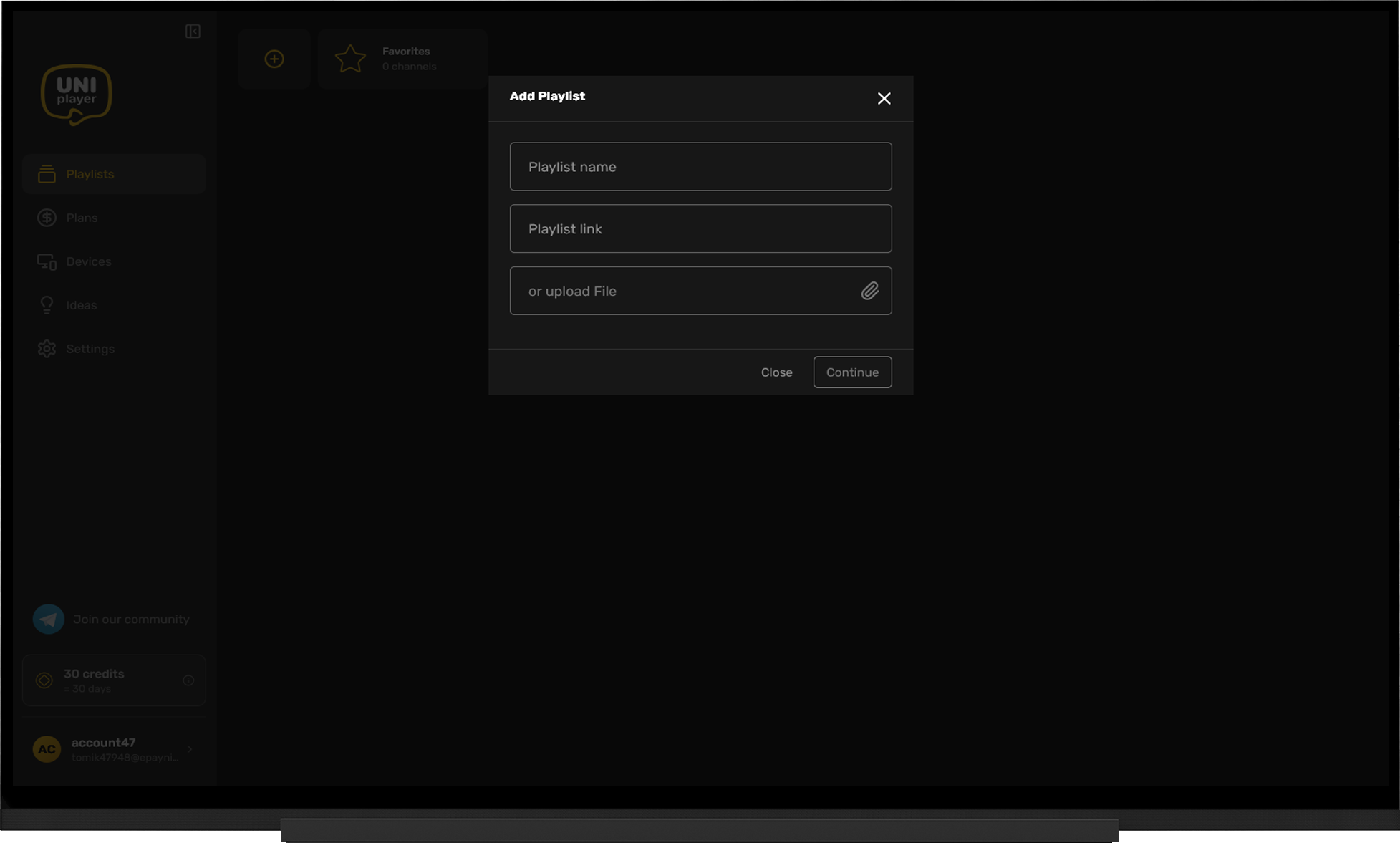
- Go to "Playlists".
- Click the "+" button.
- In the dialog that appears, enter: any playlist name; the playlist URL or select a playlist file.
- Click "Continue".
- On the next screen, you can optionally add an external EPG source.
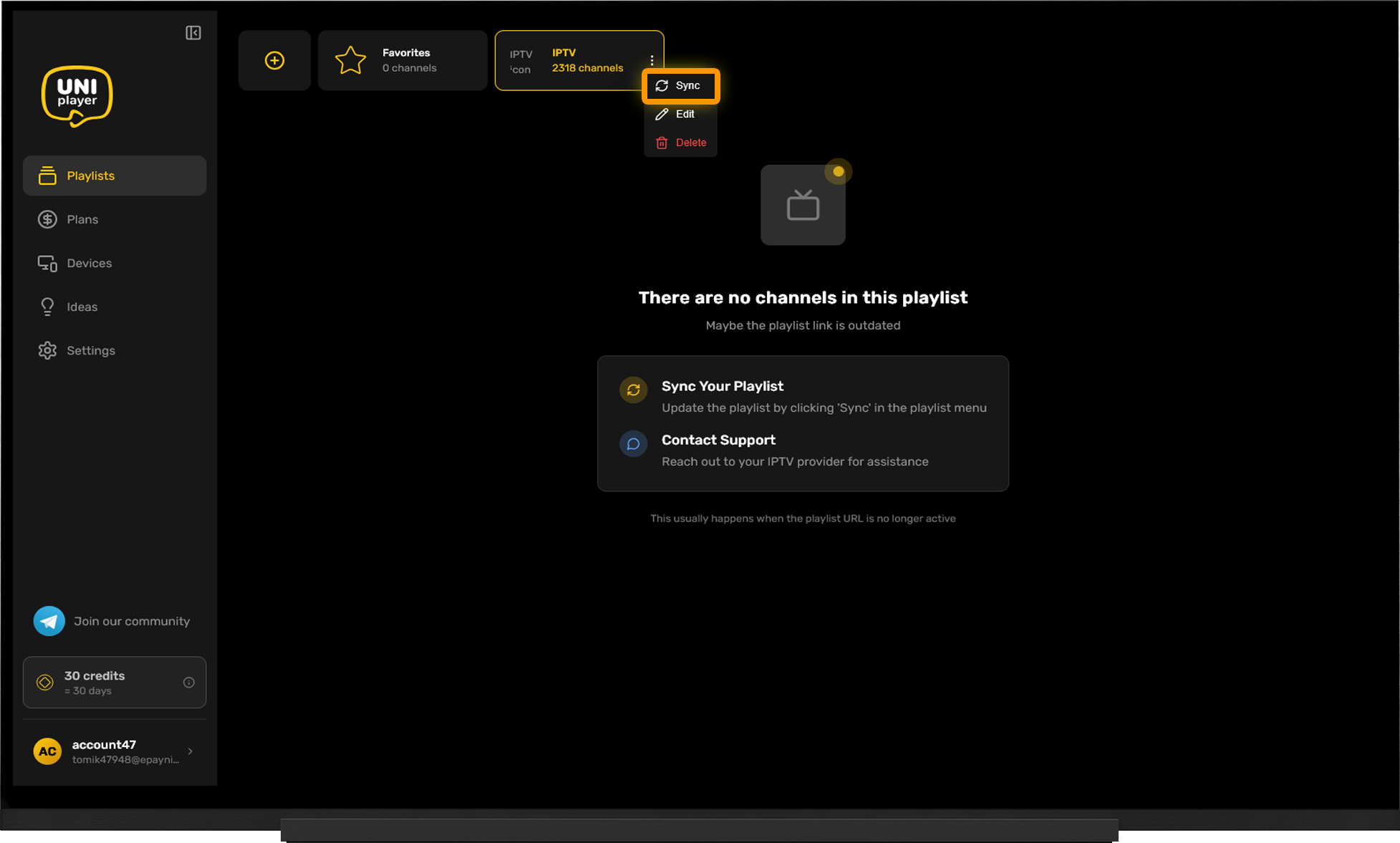
After saving the playlist, it will appear as a tile in the Playlists section.
- Open the playlist's context menu (the "three dots").
- Select "Sync".
- Wait for the playlist to finish syncing.
- Launch UniPlayer on your device.
- Sign in using your UniPlayer account credentials.
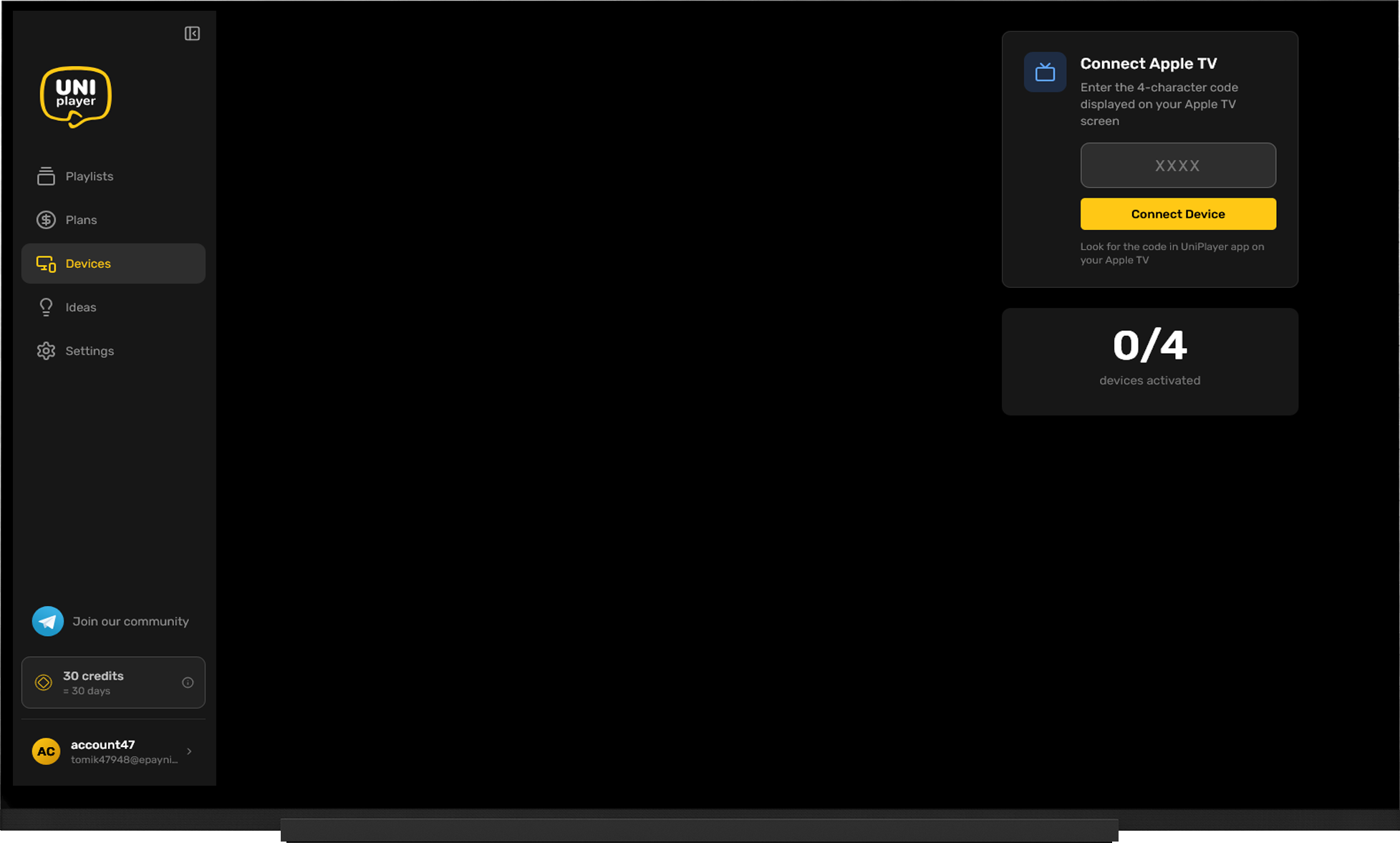
- After signing in, a 4-digit code will be displayed. Save this code.
- Go to the Devices section in your UniPlayer account.
- Enter the 4-digit code and add your device.
- Once synchronization is complete, the playlist will appear in the player on your device.
Note:
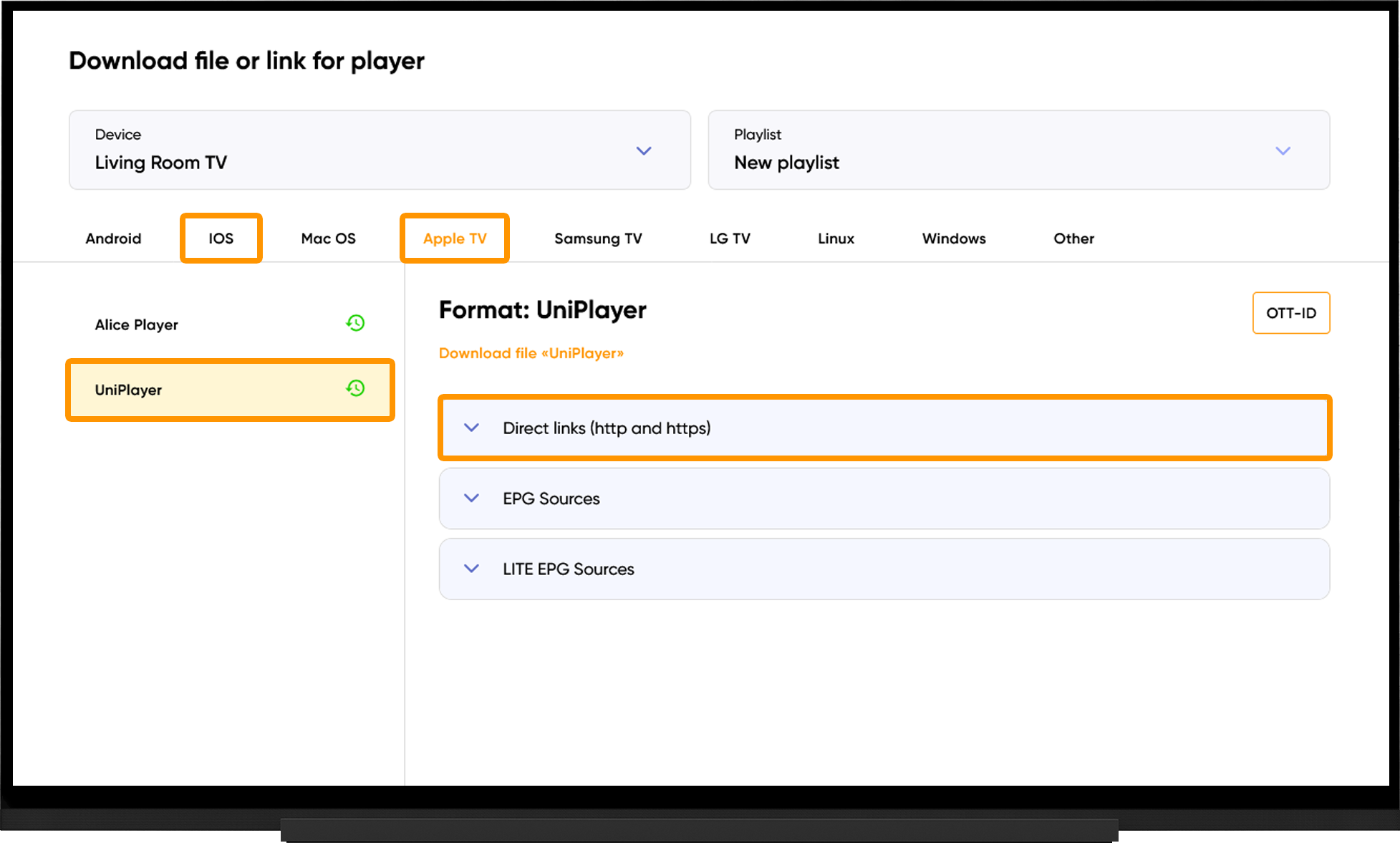
To get your playlist link or playlist file, go to the My Devices section and click "Download" next to your device:
- Select your device type.
- Choose UniPlayer.
- Under "Direct links (http and https), either copy the playlist link, or click "Download File", depending on your preferred method of adding the playlist.
EPG (TV guide)
By default, UniPlayer uses its own EPG (TV Guide) source.
If you prefer, you can disable UniPlayer's EPG and use either the EPG source embedded in the playlist, or any external EPG source.
To do this, press and hold the playlist in the player to open the context menu, then select "Add EPG Source".
The embedded EPG source is available only when using the playlist URL or playlist file specifically generated for UniPlayer.
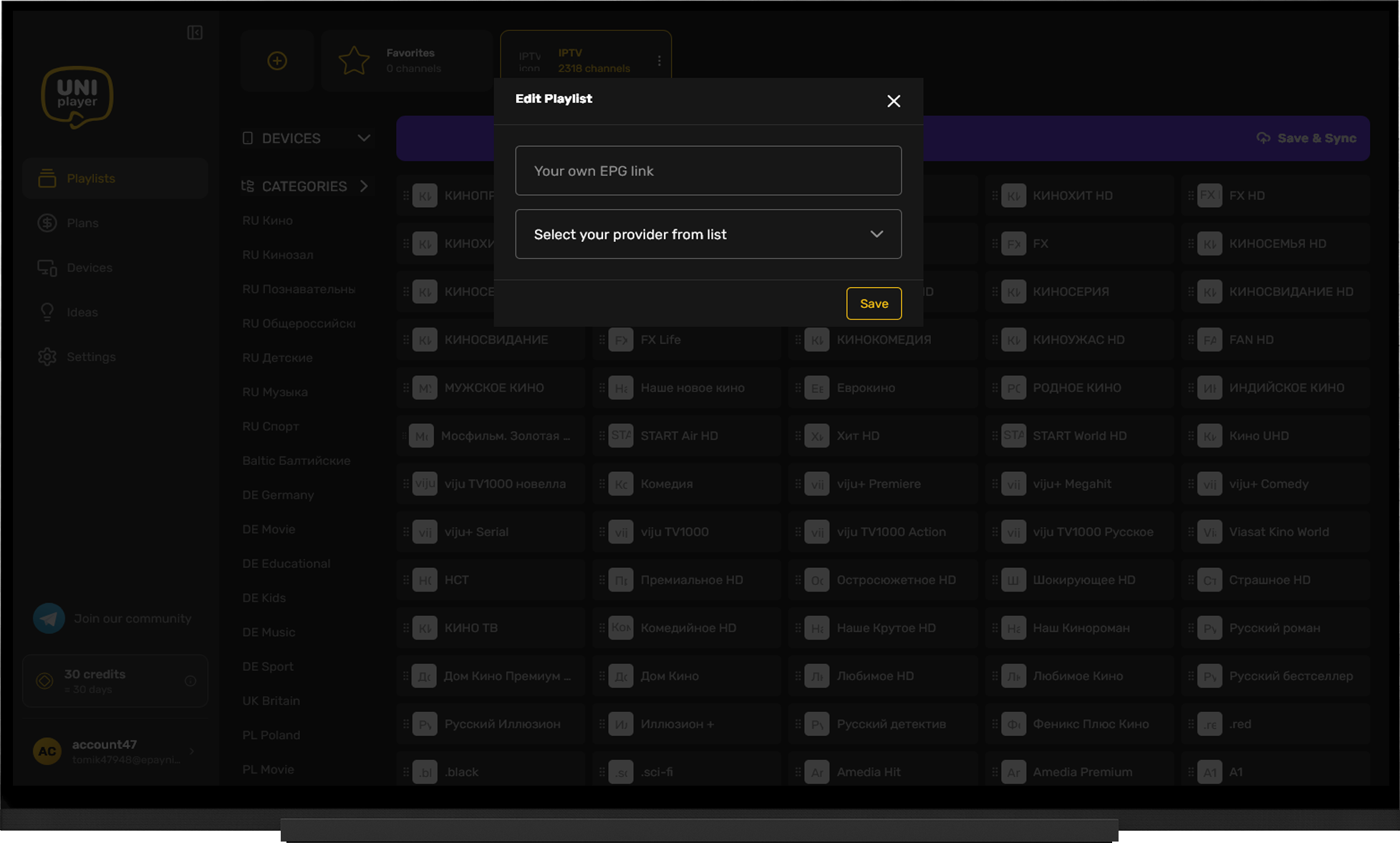
You can also add an external EPG source from your UniPlayer account either while creating the playlist or later:
- Go to My Playlists.
- Click the "three dots" next to the playlist.
- Select Edit.
- Enter the EPG source link and save your changes.
Note:
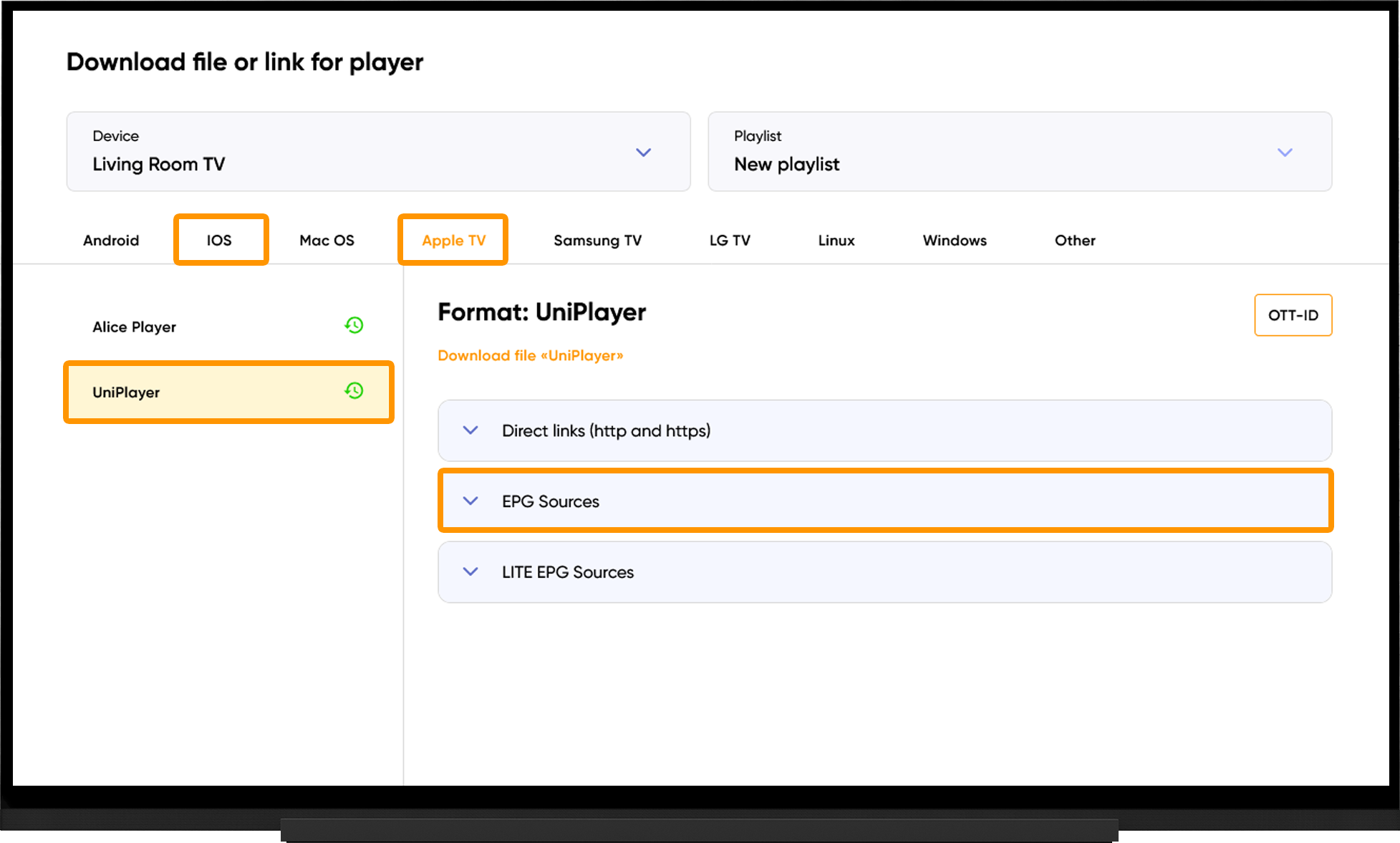
To get the EPG source link, go to the My Devices section and click "Download" next to your device. On the playlist download page, expand the EPG Sources section.
Frequently asked questions
Playlist Won't Load:
- Make sure the playlist link is correct. Links are case-sensitive.
- Try using both HTTP and HTTPS playlist links.
- Run the server selection tool, switch to the recommended server, and restart the application after 10 minutes.
Video Buffering:
- Run the server selection tool, switch to the recommended server, and restart the application after 10 minutes.
Playback / Decoding Issues:
- By default, UniPlayer automatically selects the best playback engine for each channel. You can change the playback engine manually by pressing and holding the playlist or a specific channel to open the context menu. From there, choose one of the three available players or switch back to Auto.
Please note that the Standard Player does not support MPEG-TS streams and cannot decode 4K H.265 video. If you changed the playback engine manually, try switching it back to Auto.