
TiviMate
Updated: July 18, 2026
Installation
TiviMate is one of the most popular and user-friendly IPTV players for Android TV devices. It features a modern, intuitive interface inspired by traditional cable TV, complete with an Electronic Program Guide (EPG), TV guide, and mini-player.
The player supports Catch-up TV, Picture-in-Picture (PiP) mode, parental controls, and automatic playlist updates.
Please note that most advanced features are available only in the Premium version of TiviMate.
Installing the Player
Installation from Google Play Store
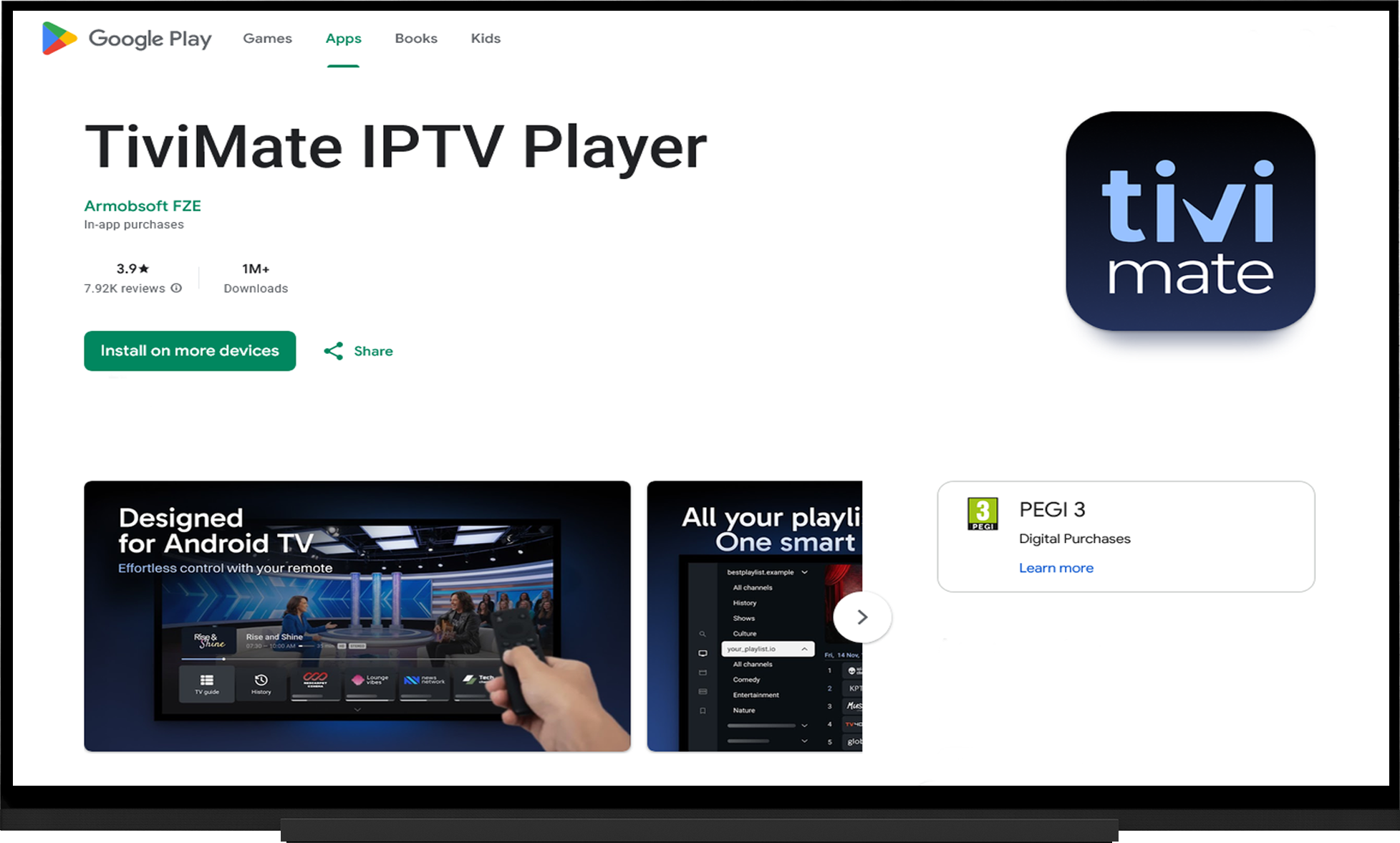
Installing from an APK File:
- Download the APK file from the developer's official website
- If you downloaded the file on another device, transfer it to your IPTV device (for example, using a USB flash drive).
- Open the APK file using any file manager on your device.
- If prompted, allow installation from unknown sources.
Adding a Playlist
When you launch the application for the first time, it will prompt you to create a playlist:
- Select "Add Playlist".
- Choose "M3U Playlist".
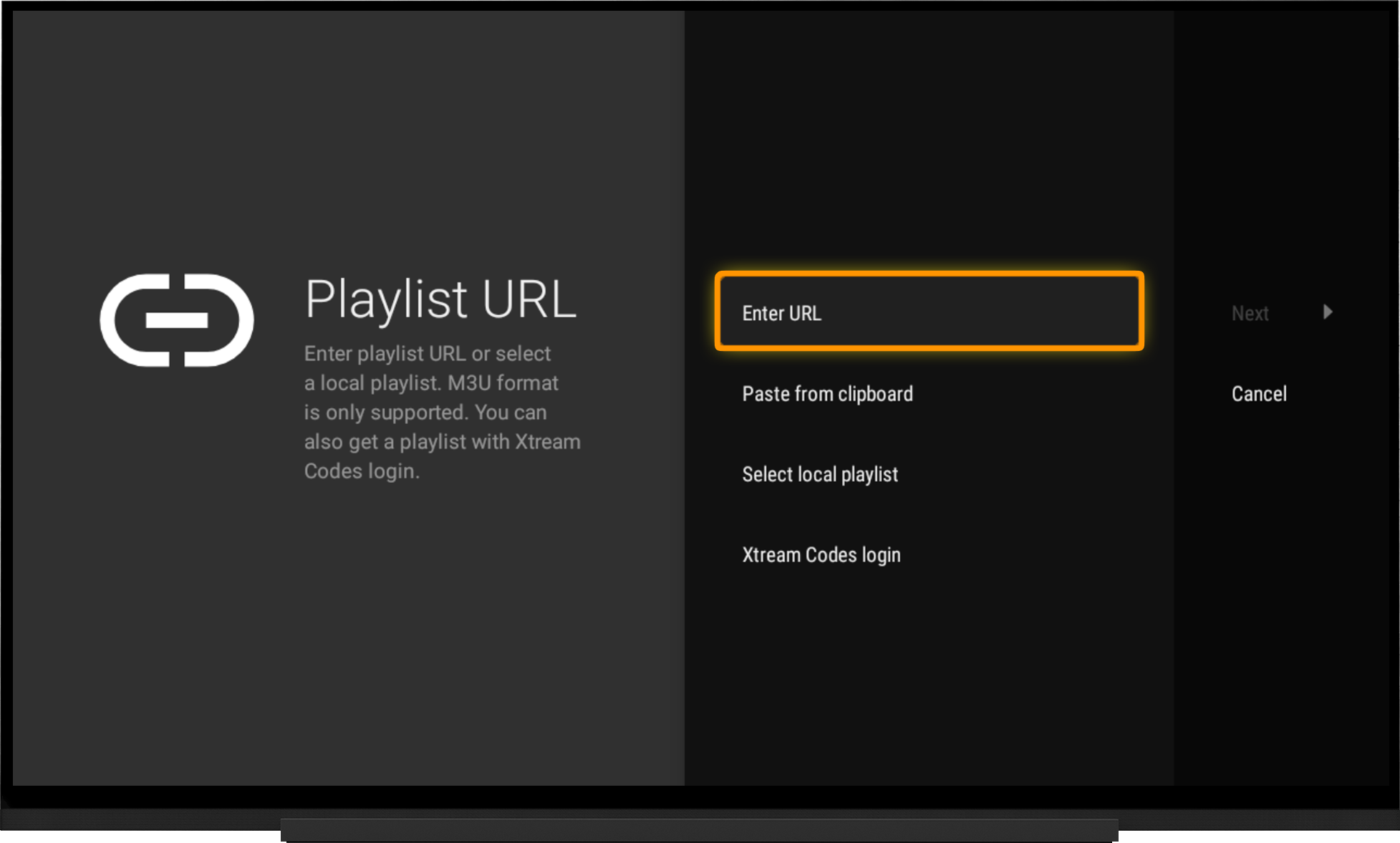
On the next screen, choose one of the following options:
- Enter URL - manually enter the playlist URL.
- Paste from Clipboard - paste a previously copied playlist URL.
- Select Local Playlist - create a playlist using a playlist file stored on your device.
Select the appropriate option, enter the playlist URL or choose the playlist file, then click Next. Wait for the playlist to finish loading.
Note:
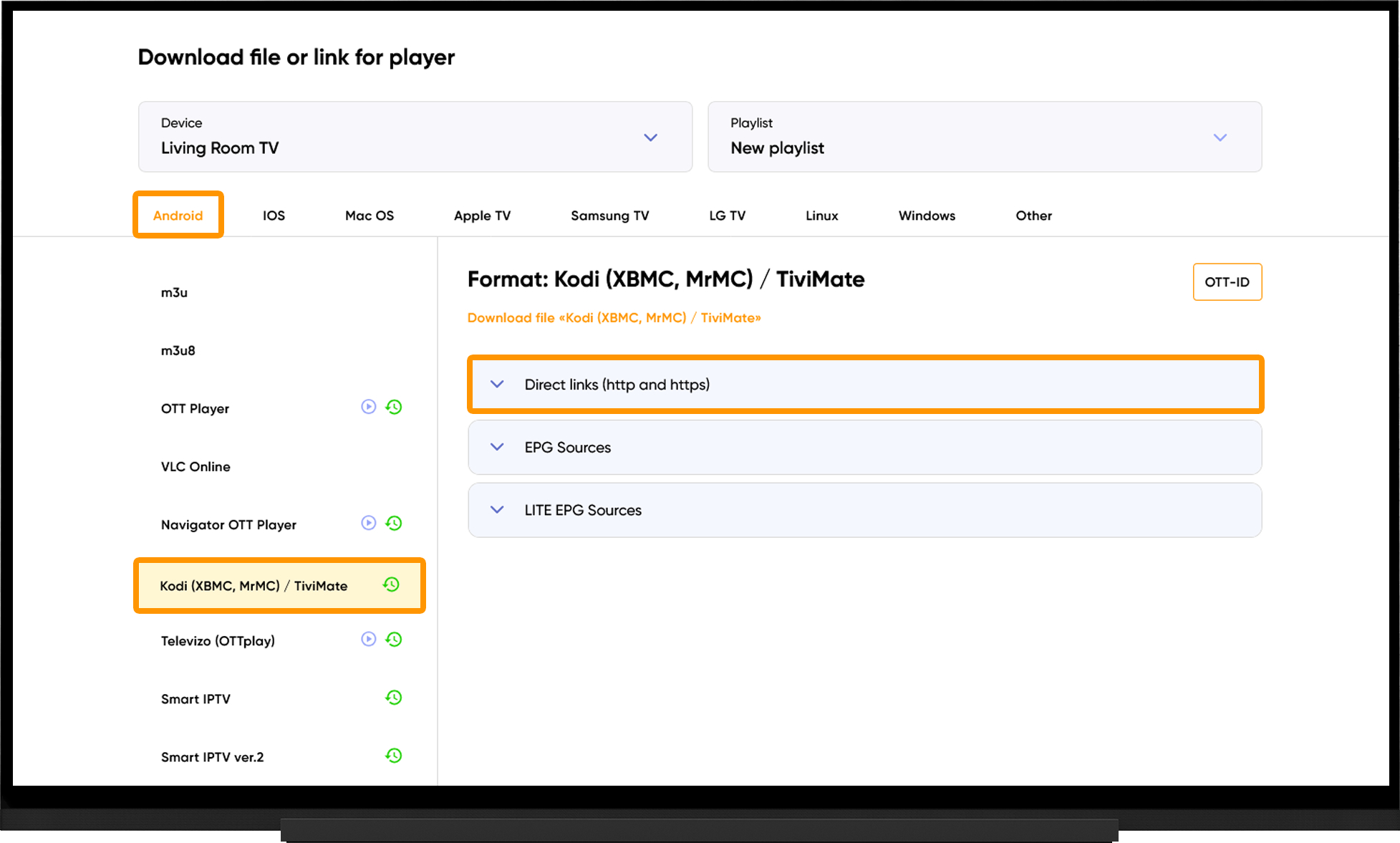
To obtain the playlist URL or playlist file, go to the My Devices section and click "Download" next to the device name:
- Select Android.
- Select "Kodi (XBMC, MrMC) / TiviMate".
- Under "Direct Links (HTTP and HTTPS)", either copy the playlist URL or click "Download File", depending on your preferred method of adding the playlist.
Catch-up TV
If you use the dedicated playlist URL for TiviMate, Catch-up TV will be available without any additional configuration.
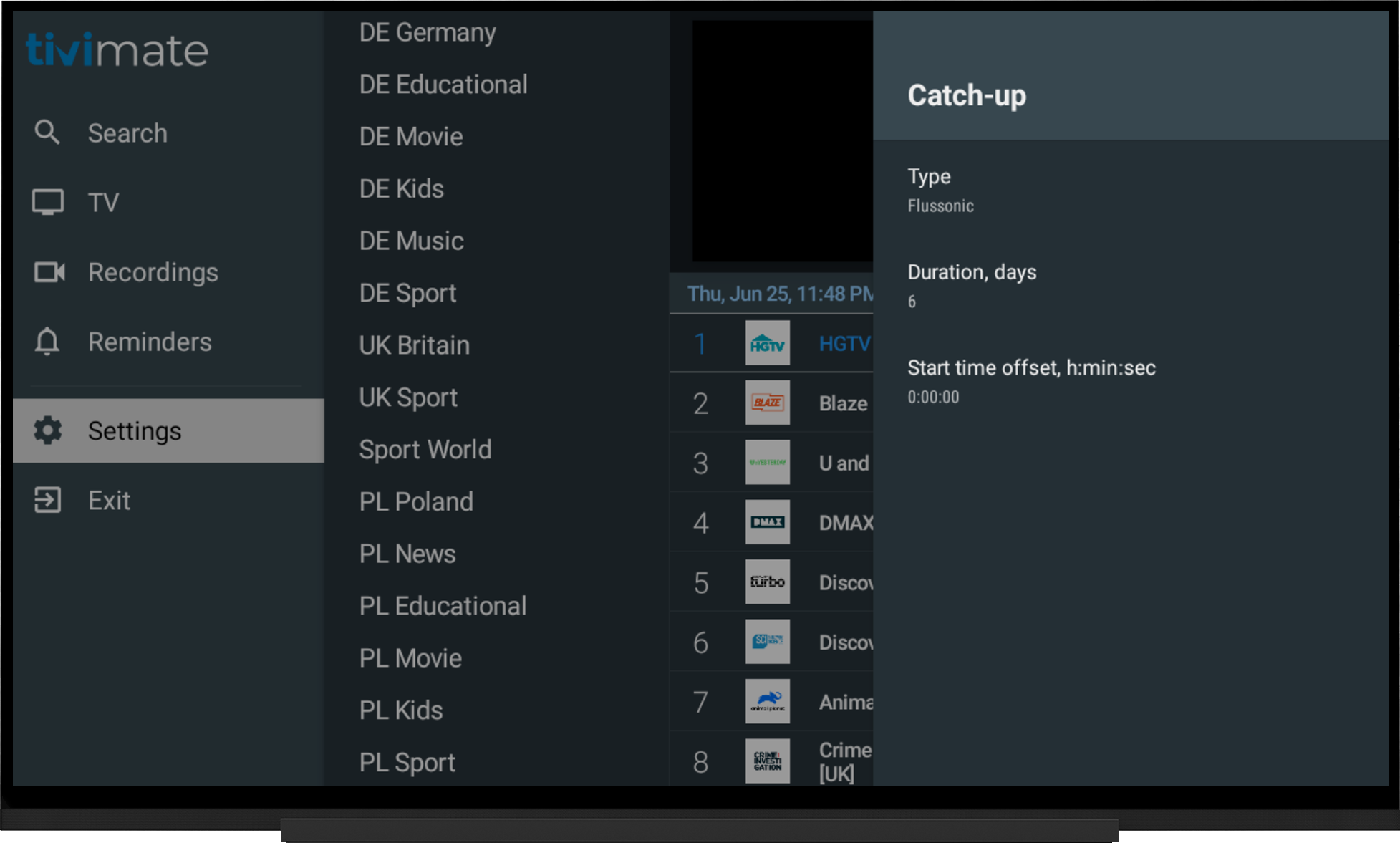
If you added the playlist using a standard M3U URL, configure Catch-up TV as follows:
- Go to Settings.
- Select "Playlists".
- Choose your playlist.
- Open "Catch-up".
- Set Type to Flussonic.
- Set Duration, days to 6.
EPG (TV guide)
The EPG source will be added automatically when you use the dedicated playlist URL for TiviMate.
Please note that EPG data starts downloading automatically after the playlist is added and may take some time to complete. If the TV guide is not displayed, make sure the EPG download has finished.
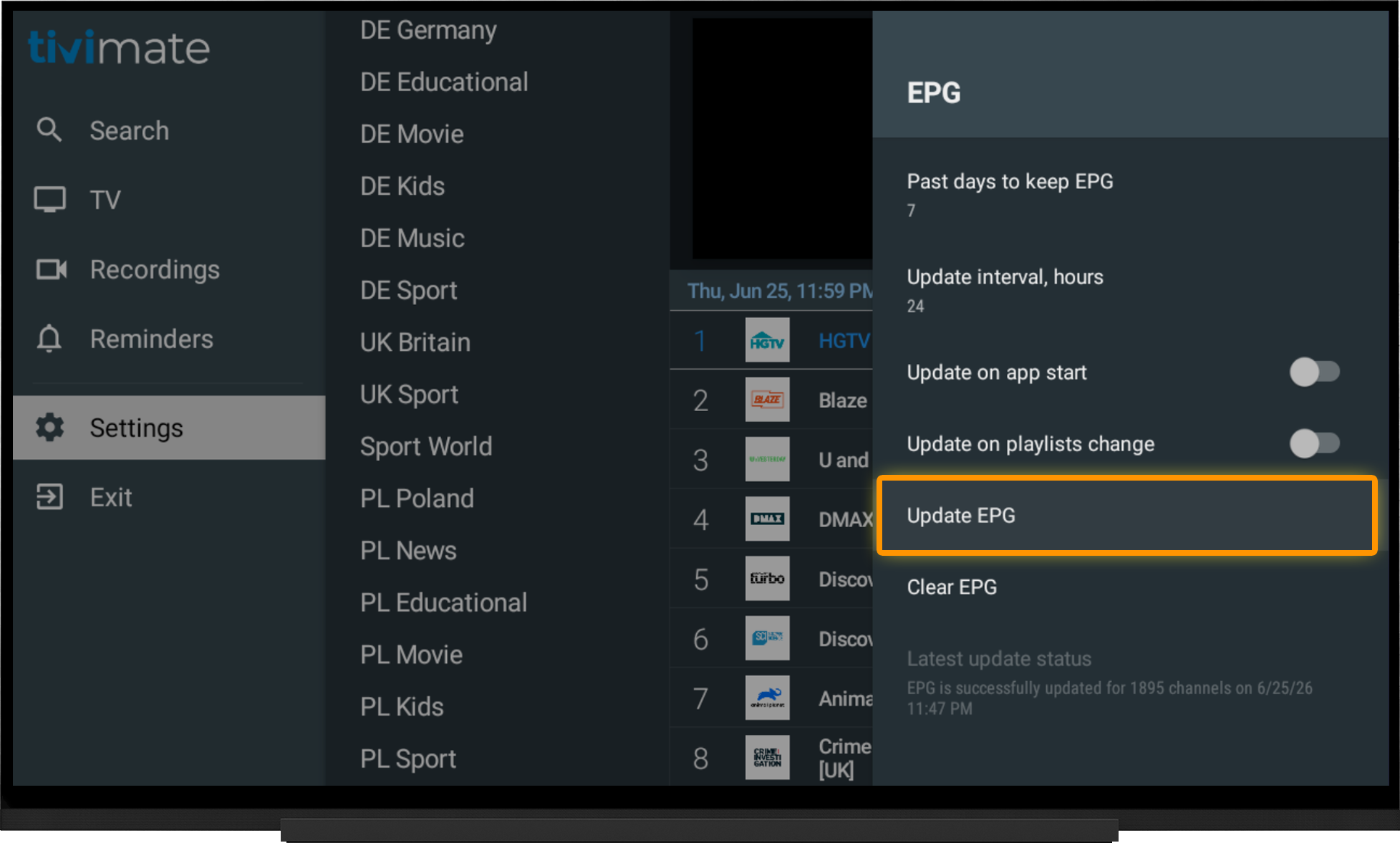
If the EPG is not displayed:
- Go to Settings.
- Select "EPG".
- Choose "Update EPG".
- Wait for the download to complete.
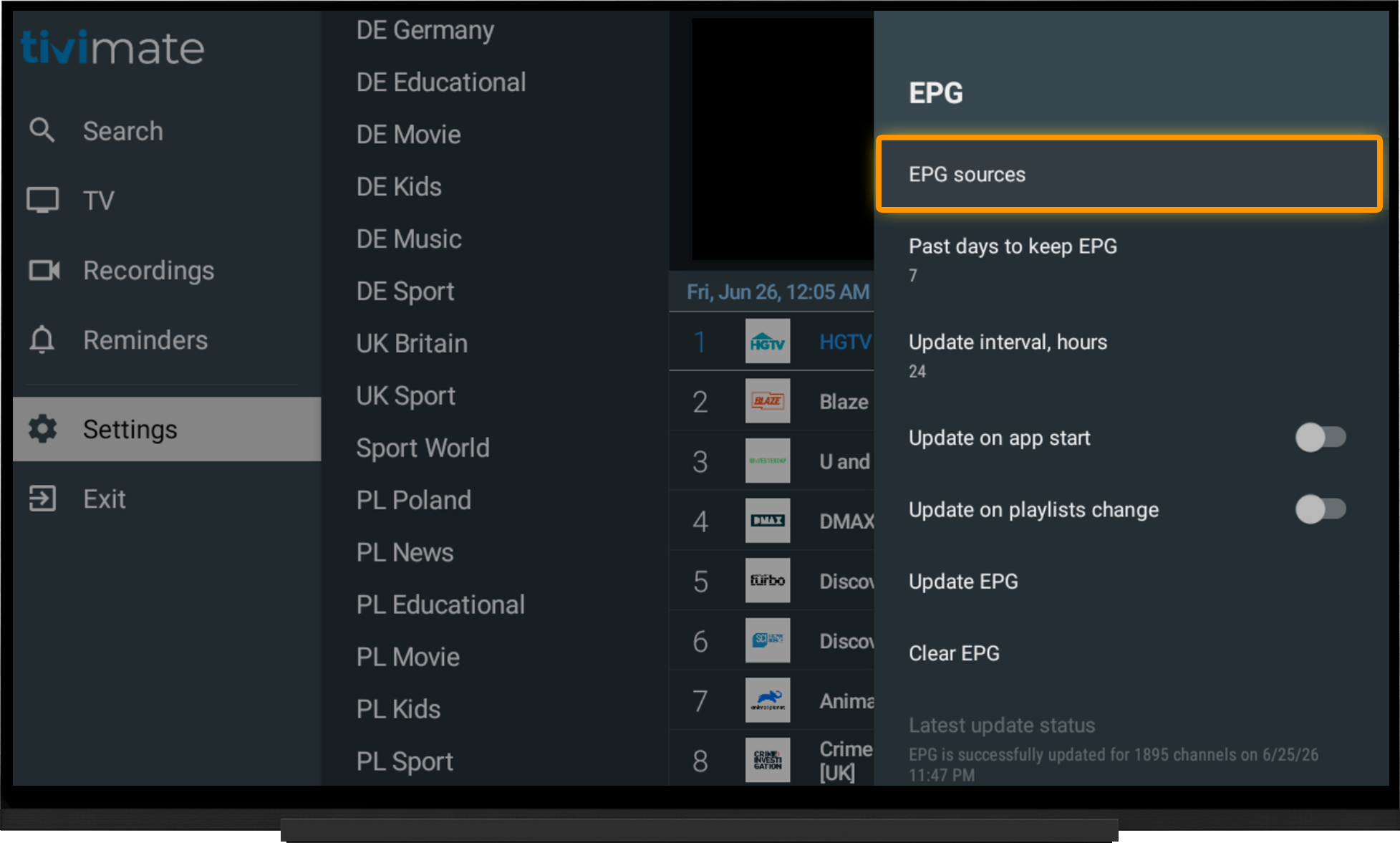
If the EPG source URL has been removed for any reason, you can add it manually:
- Go to Settings and select "EPG".
- Open "EPG Sources".
- Select "Add Source".
- Enter the EPG source URL in the appropriate field.
- Save the changes, then "Update EPG".
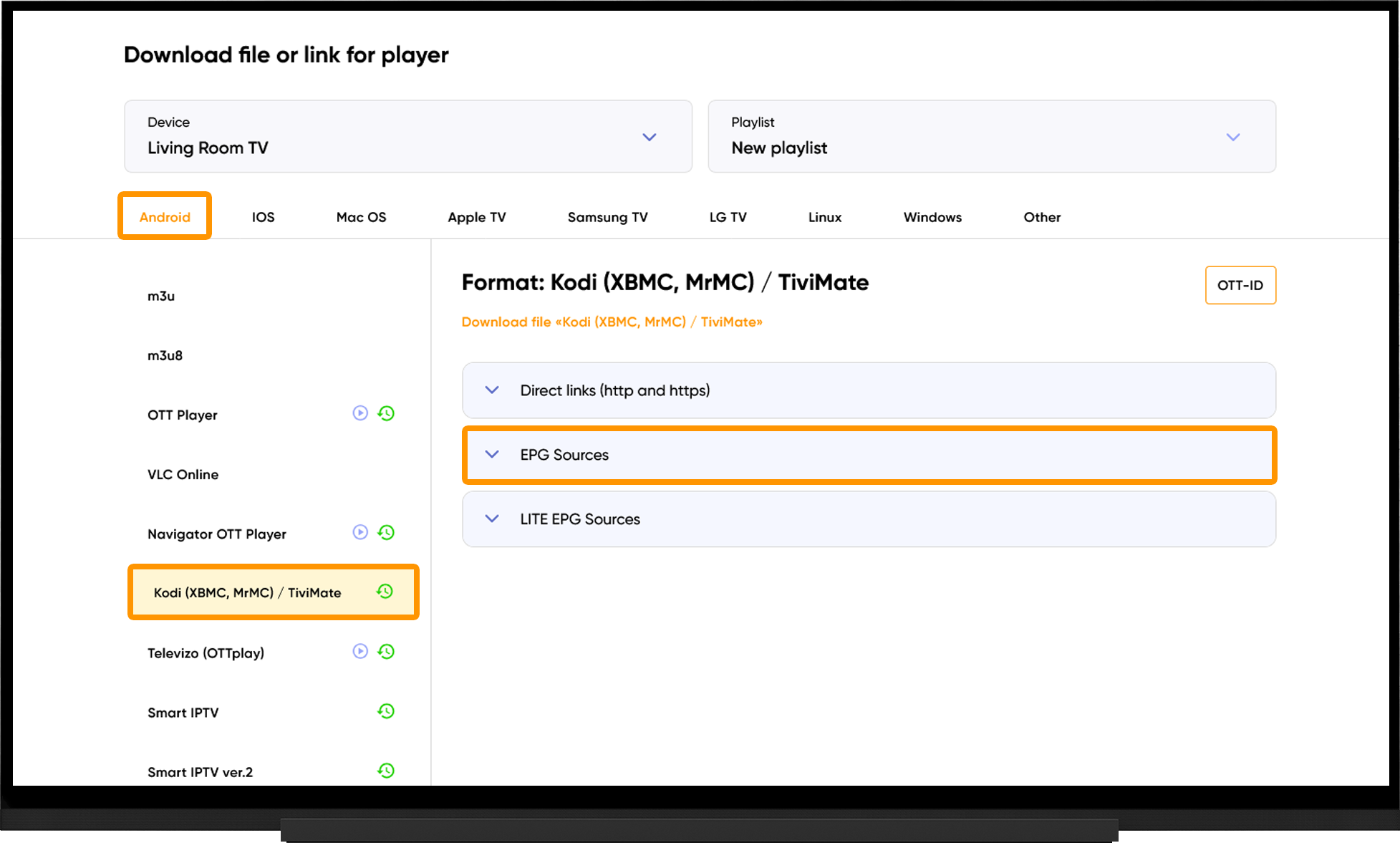
Note:
To obtain the EPG source URL, go to the My Devices page and click "Download" next to the device name. On the playlist download page, expand the "EPG Sources" section.
Media library
Please note that using more than one playlist simultaneously is available only in the Premium version.
Setting Up the Media Library:
- Open Settings.
- Select "Playlists".
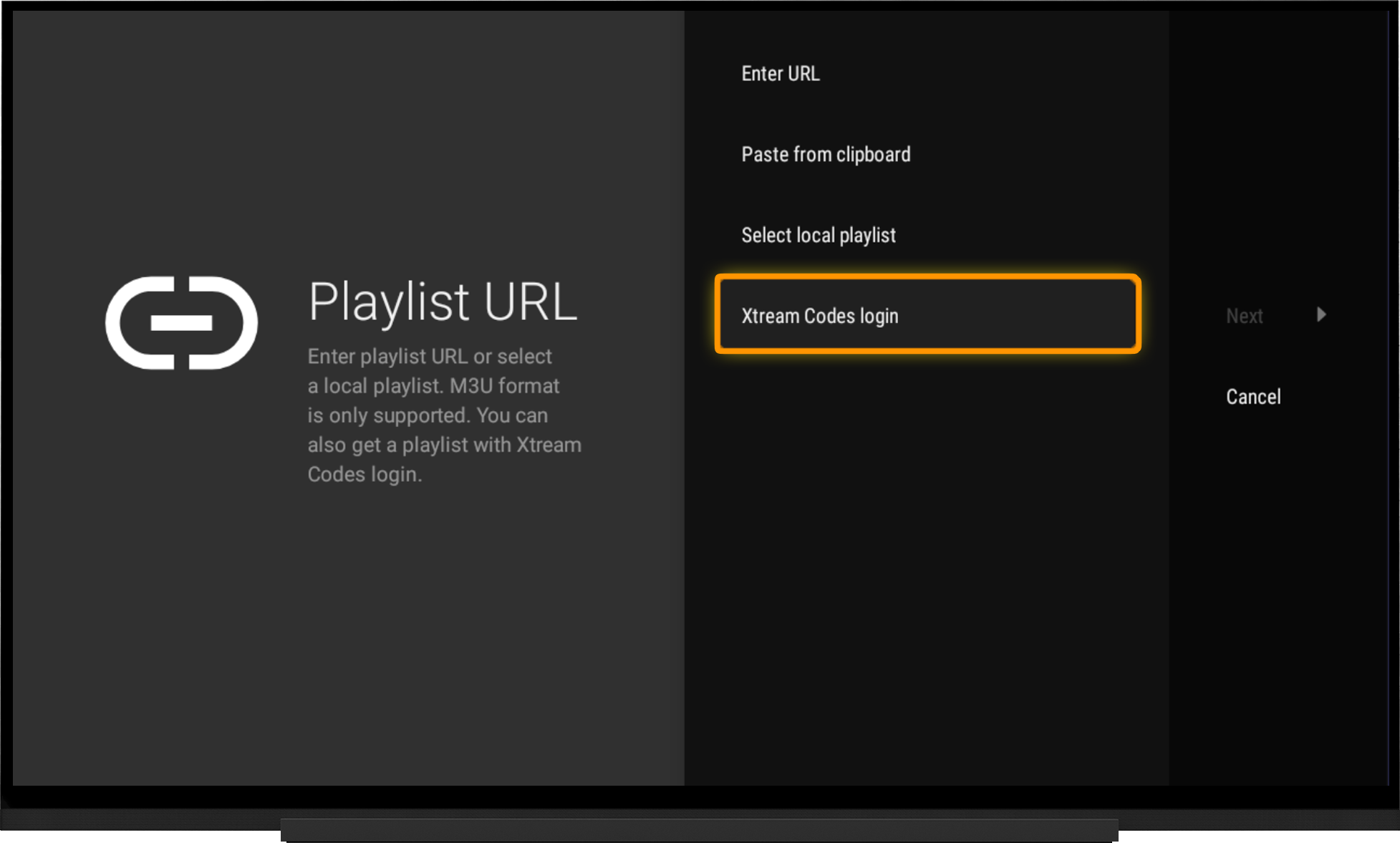
- Choose "Add Playlist".
- Set the Playlist Type to "Xtream Codes".
- Enter the following information:
- Server Address - the media library URL.
- Username - your OTT-ID.
- Password - your OTT-ID.
- Disable "Include TV Channels" and leave "Include VOD" enabled.
- Click Next.
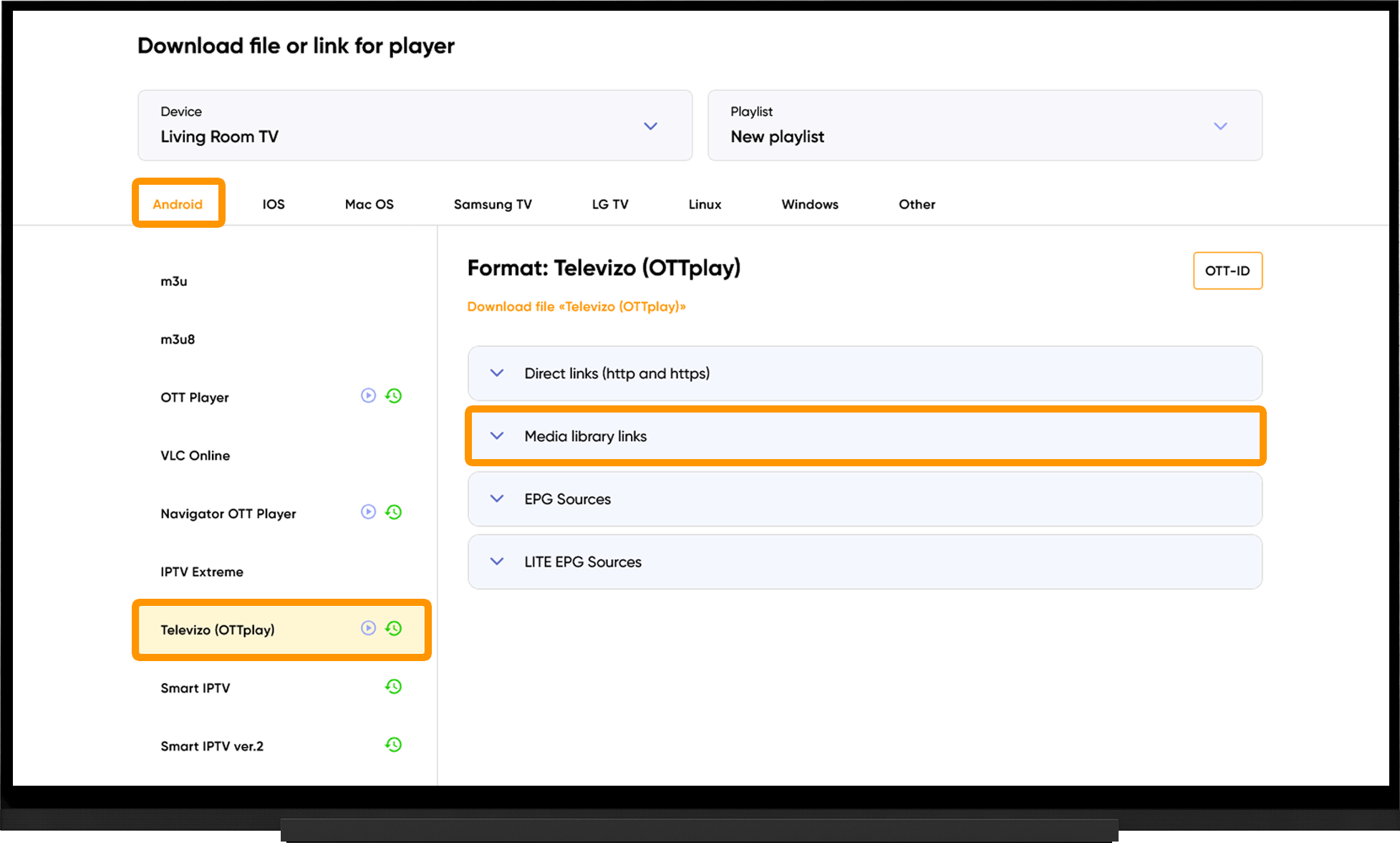
Note:
To obtain the media library URL, username, and password, go to the My Devices section and click "Download":
- Select Android.
- Select "Televizo (OTTplay)".
- Expand the "Media Library Links" section.
Frequently asked questions
Common Issues and Solutions
No Sound:
- Go to Settings.
- Select "Playback".
- Open "Audio Decoder" (Premium only).
- Change the decoding type (Software/Hardware).
- Restart the application.
Video Buffering:
- Increase the Buffer Size (Premium only).
- Run the server selection test on the website.
- Switch to the recommended server.
- Wait 10 minutes, then restart the application.
Playback Errors/Black Screen:
- Go to Settings.
- Select "Playback".
- Open "Video Decoder" (Premium only).
- Change the "Decoding Type" (Software/Hardware).
- Restart the application.
Playlist Does Not Load:
- Verify that the playlist URL is entered correctly. URLs are case-sensitive.
- Run the server selection test on the website.
- Switch to the recommended server.
- Wait 10 minutes, then restart the application.
- Try a different URL type (HTTP or HTTPS).