
Navigator OTT Player
Updated: August 03, 2026
Installation
OTT Navigator is one of the most popular IPTV players for Android and Android TV, combining high performance, extensive customization options, and a user-friendly interface. The player supports M3U playlists, catch-up TV, Electronic Program Guide (EPG), favorites, and channel search. Its key features include convenient navigation, advanced channel sorting capabilities, and support for multiple playlists at the same time.
Installation from App Stores:
Open the app store, search for "Navigator OTT", open the player page, and install the application.
You can also install the player using an APK file.
Important: The player developer does not have an official website. Before installing the APK, we strongly recommend ensuring that it has been downloaded from a trusted and reliable source.
Adding a Playlist via a Direct M3U URL
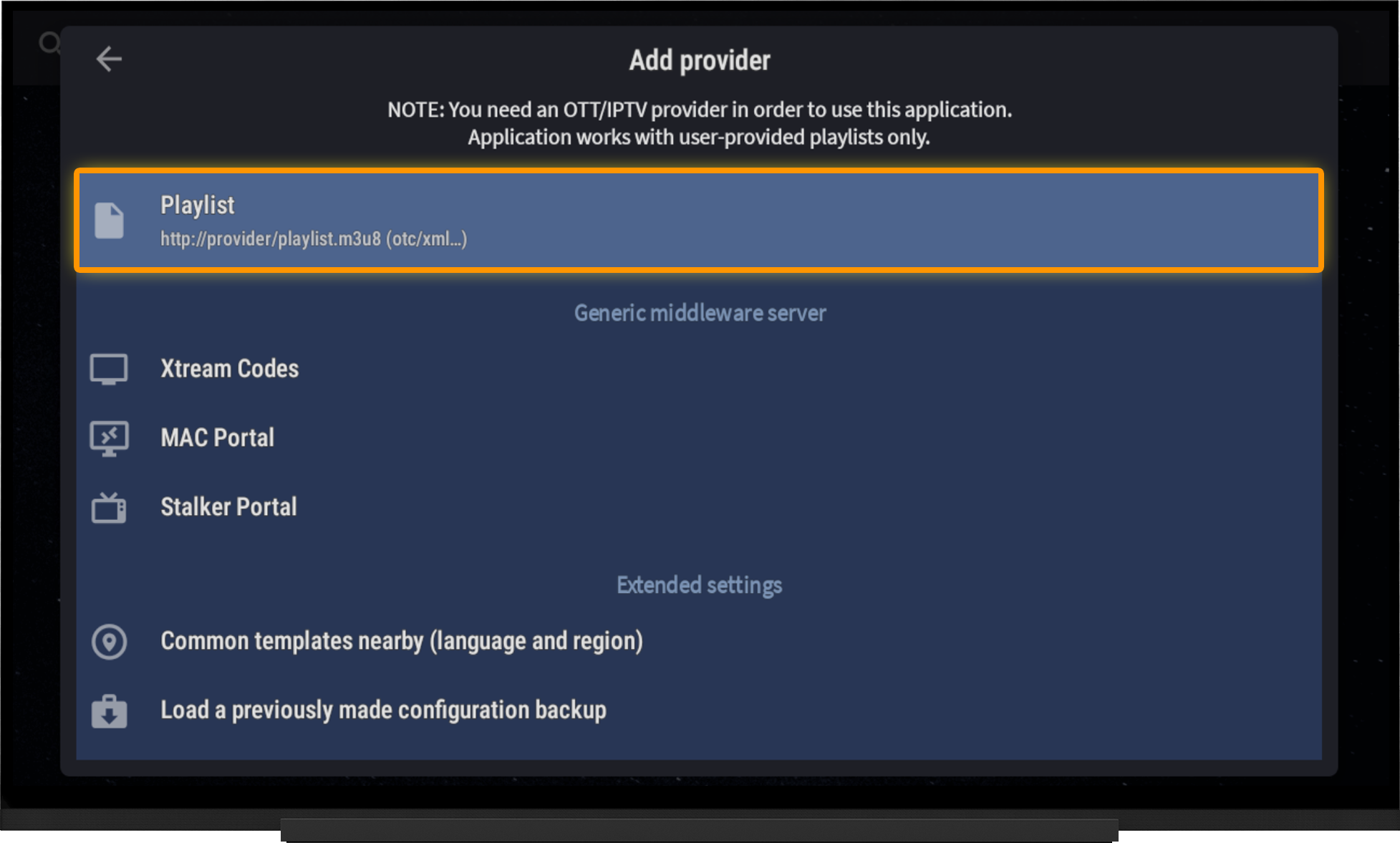
- Go to Settings.
- Select "Provider".
- Choose "Add Provider".
- Select "Playlist http://provider/playlist.m3u...".
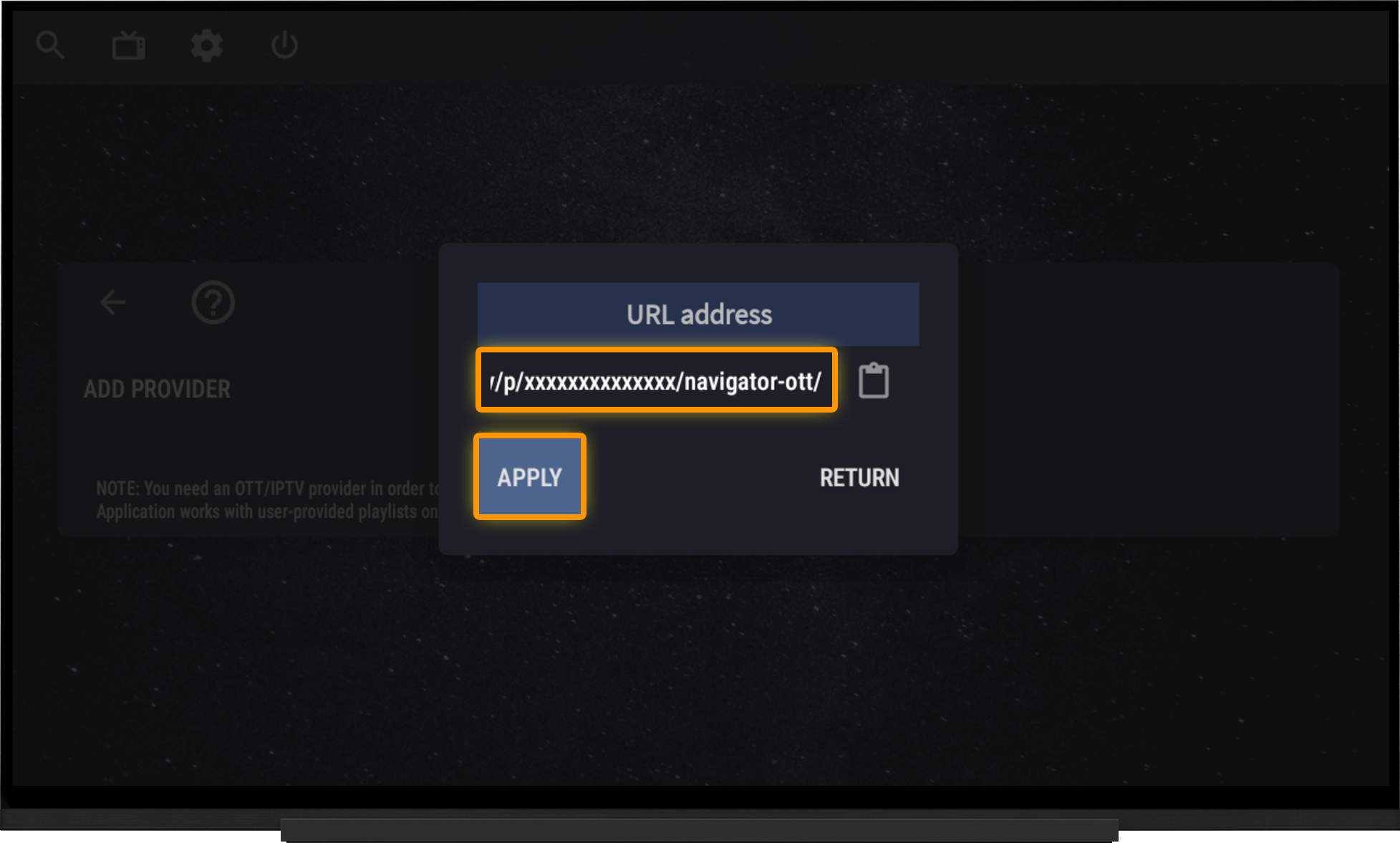
- Paste the playlist URL into the "URL address field.
- Click "Apply" and wait for the playlist to finish loading.
Adding a Playlist from a File:
- Download the playlist file to your IPTV device.
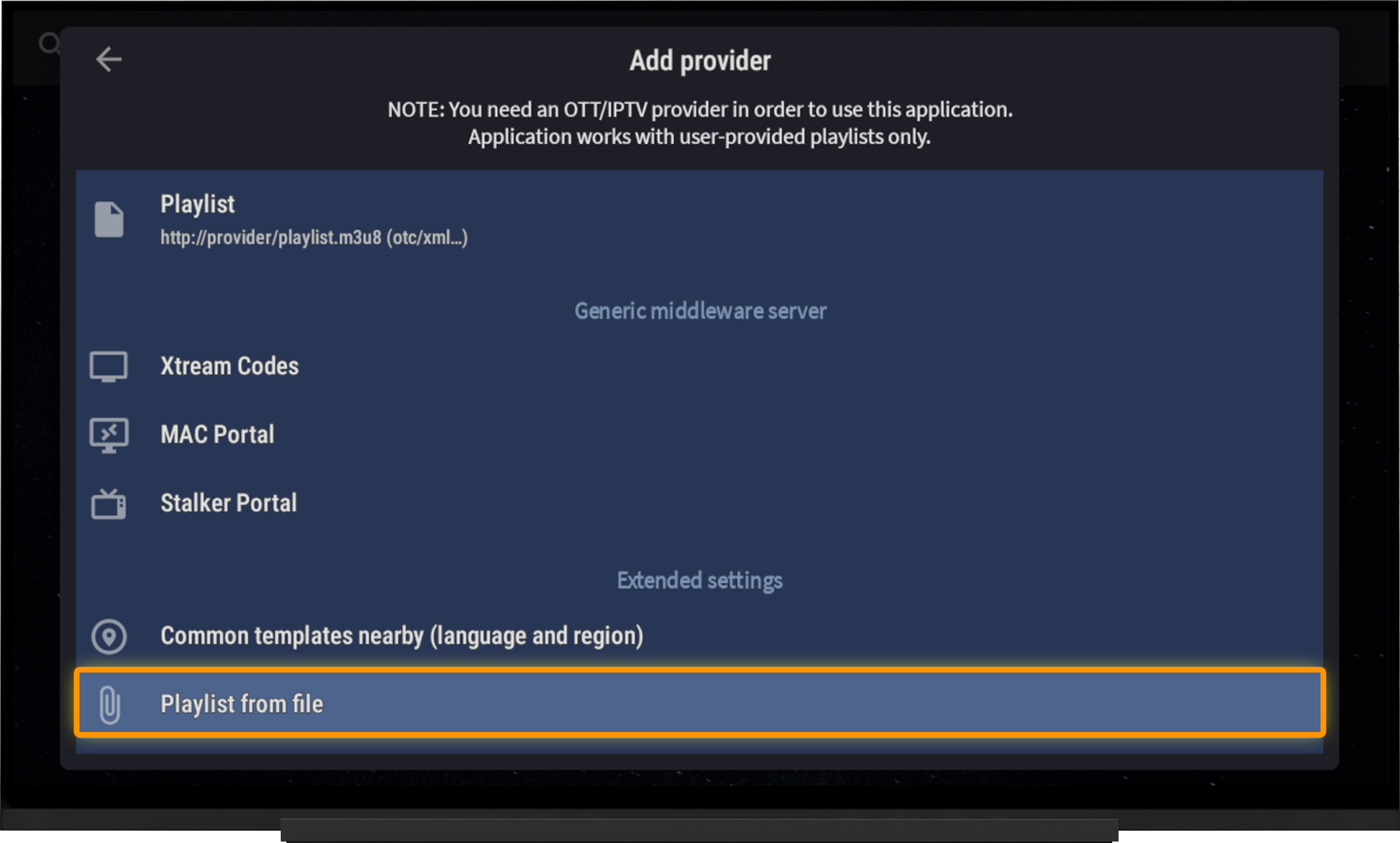
- Go to Settings.
- Select "Provider".
- Choose "Add Provider".
- Select "Playlist from file".
- Browse to and select the playlist file.
- Apply the changes.
Note:
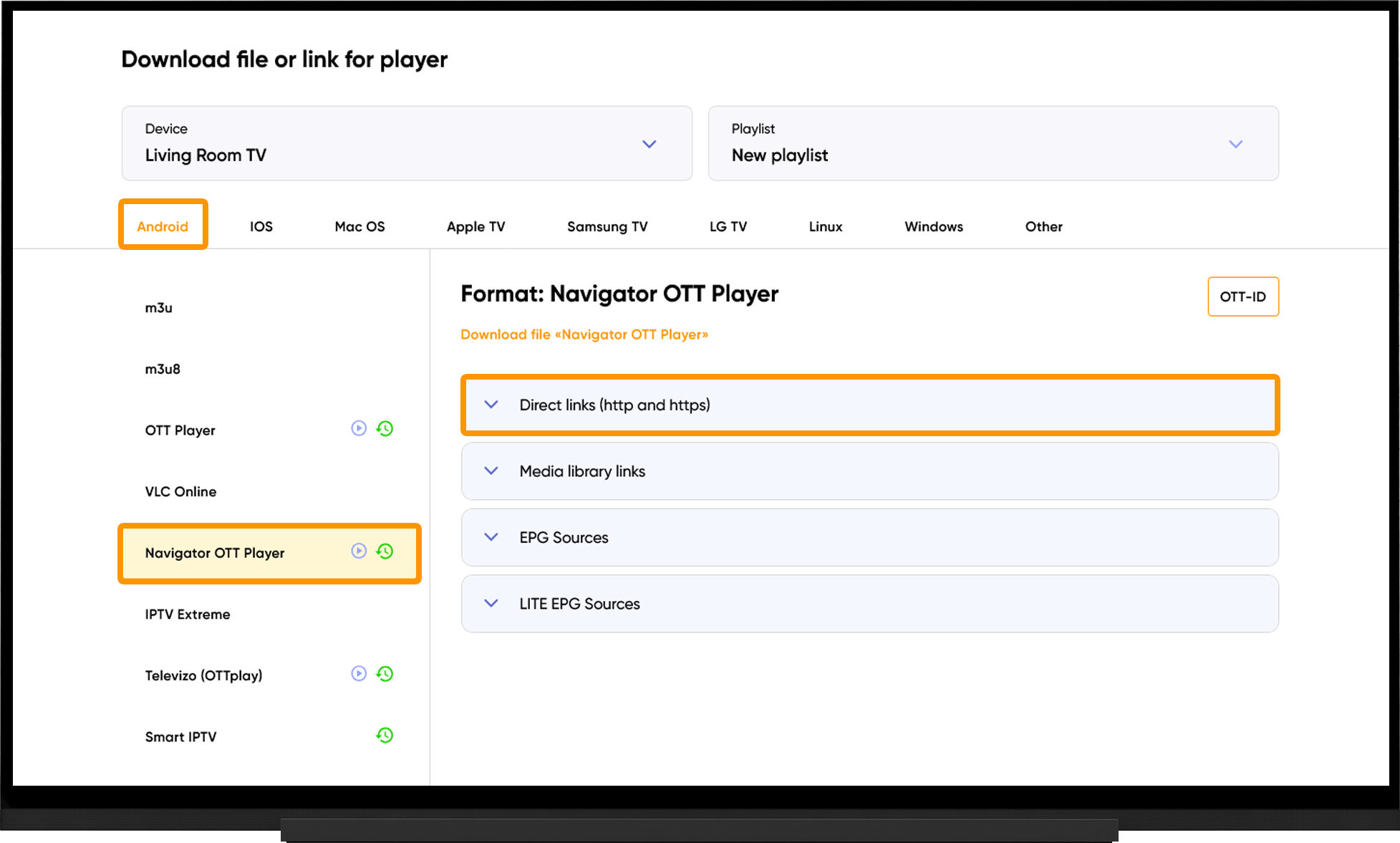
To obtain the playlist URL or playlist file, go to the My Devices section and click "Download" next to the device name:
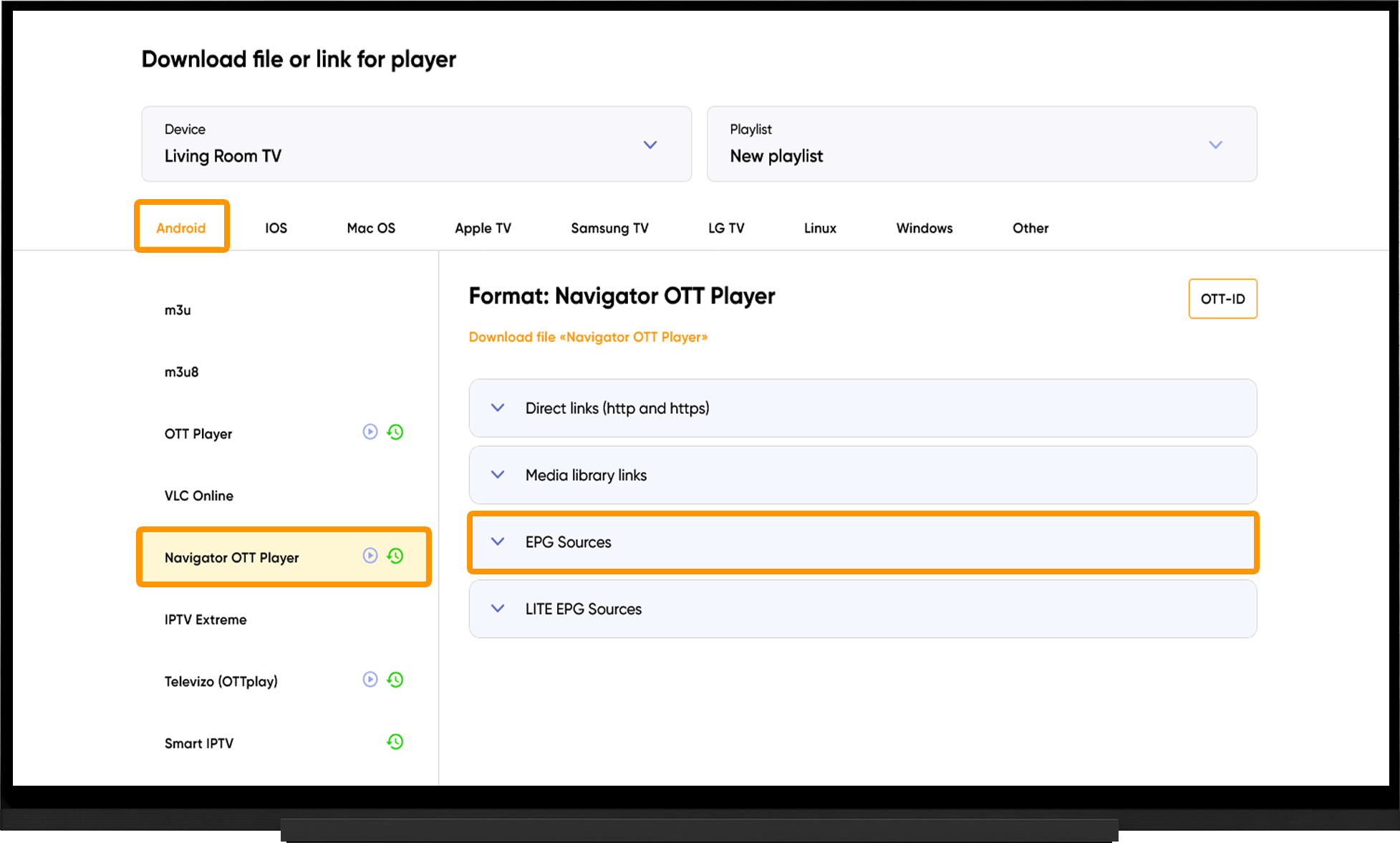
- Select Android.
- Select Navigator OTT Player.
- Under "Direct Links (http and https)", either copy the playlist URL or click "Download File", depending on your preferred method of adding the playlist.
Catch-up TV
If you use the dedicated playlist URL for Navigator OTT Player, catch-up TV will be available without any additional configuration.
If you added the playlist using a standard M3U URL, you will need to configure catch-up manually:
- Go to Settings.
- Select the added playlist.
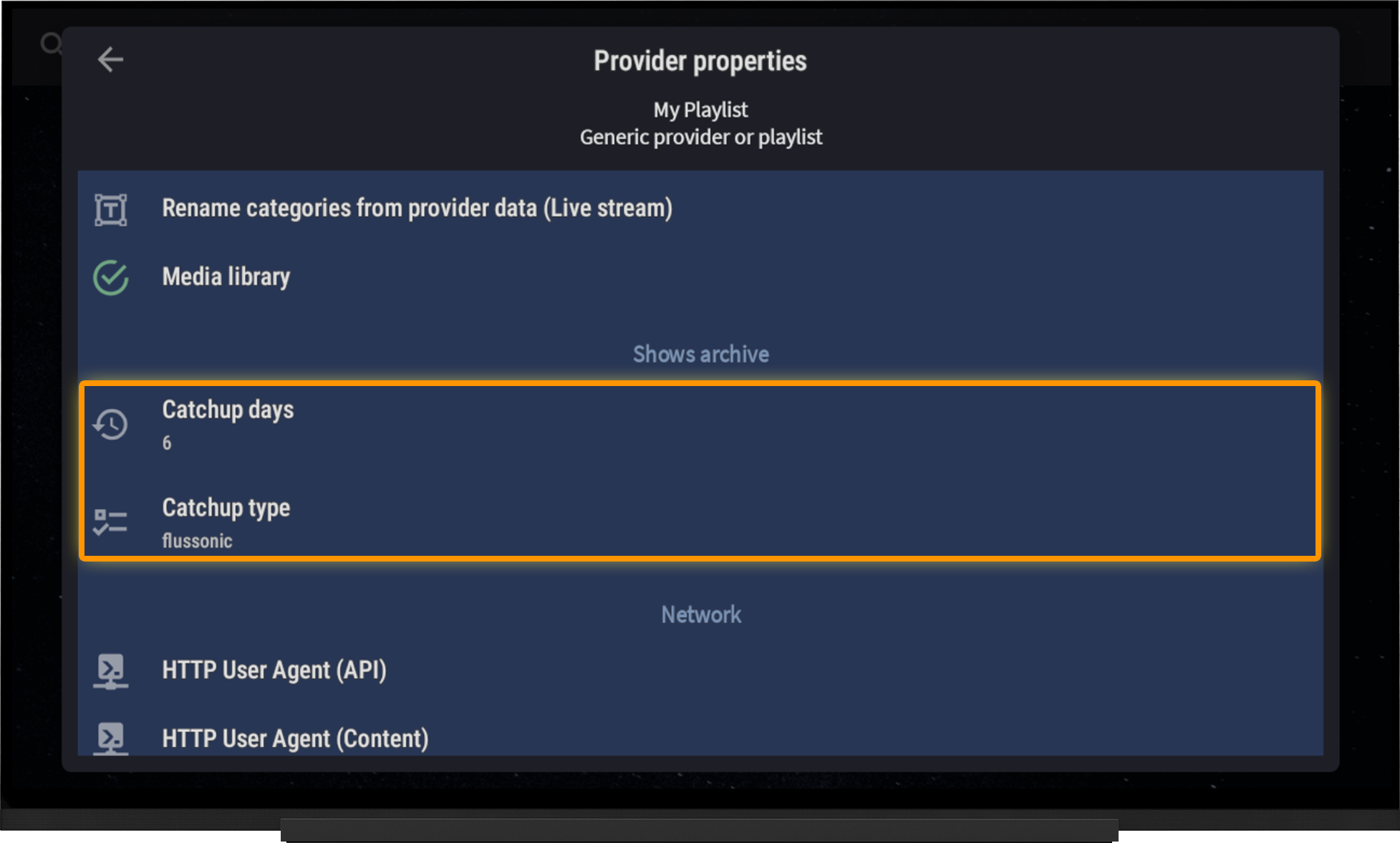
- Open "Provider Properties".
- Set "Catchup Days" to 6.
- Set "Catchup Type" to flussonic.
To access recorded programs, press the "Down" button on your remote control while watching a channel with catch-up support, then select the desired recording.
EPG (TV guide)
The EPG source will be added automatically when you use the dedicated playlist URL for Navigator OTT Player.
Please note that EPG data starts downloading automatically after the playlist is added and may take some time to complete. If the TV guide is not displayed, make sure the EPG download has finished.
If the EPG is not displayed:
- Go to Settings.
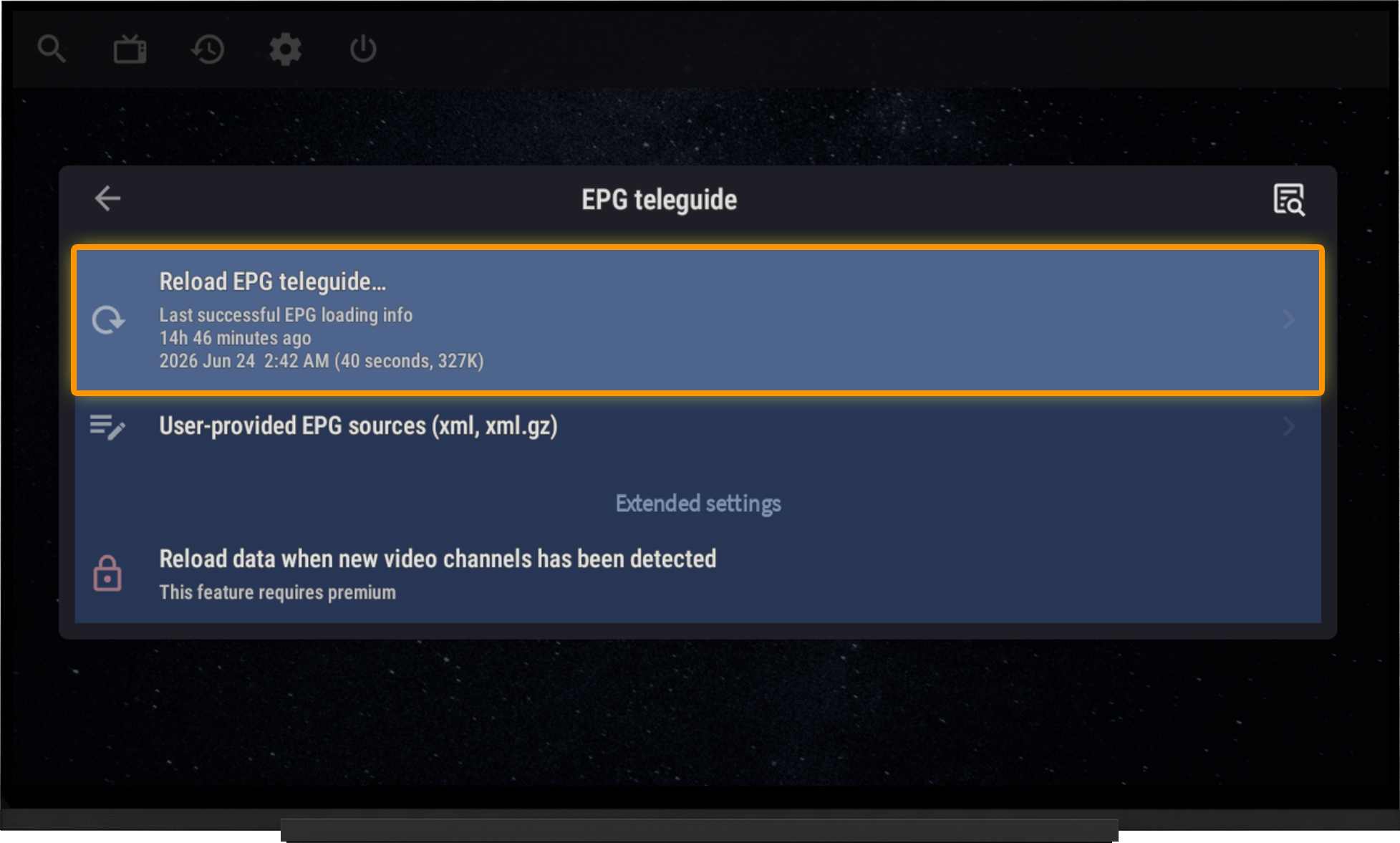
- Select "EPG Teleguide".
- Choose "Reload EPG Teleguide.
- Wait for the download to complete.
If the EPG source URL has been removed for any reason, you can add it manually:
- Go to Setting and select "EPG Teleguide".
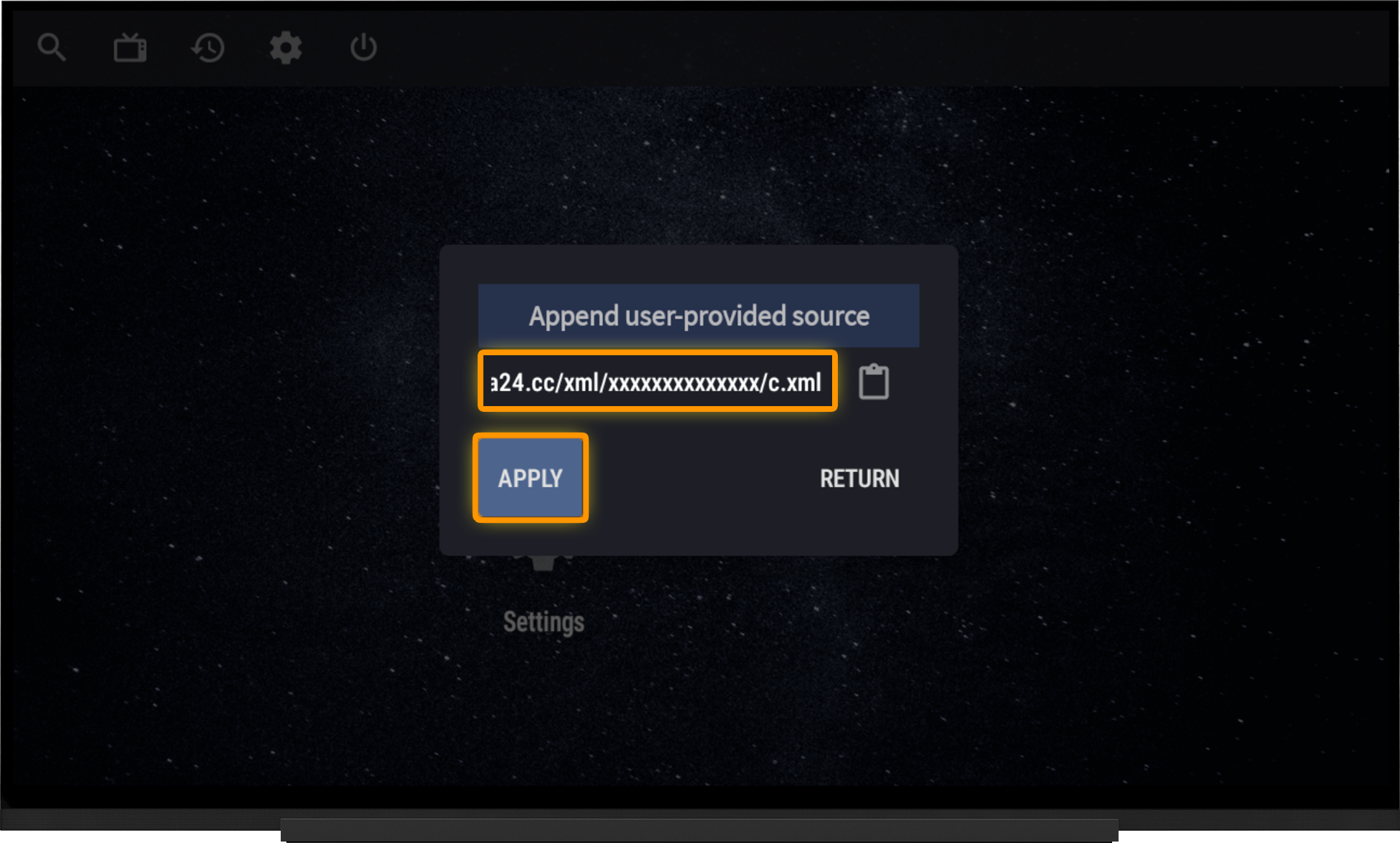
- Select "User-provided EPG Sources (xml, xml.gz)".
- Enter the EPG source URL.
- Apply the changes.
- Return to the "EPG Teleguide" section.
- Select "Reload EPG Teleguide" and wait for the download to complete.
Note:
To obtain the EPG source URL, go to the My Devices page and click "Download" next to the device name. On the playlist download page, expand the "EPG Sources" section.
Media library
To set up the media library, go to Settings and select "Media Library":
- Choose "User-Provided Media Library Sources (json, m3u, otv, xml)".
- Enter the media library URL and apply the changes.
- Return to the "Media Library" settings.
- Select "Reload Data".
- Wait for the download to complete.
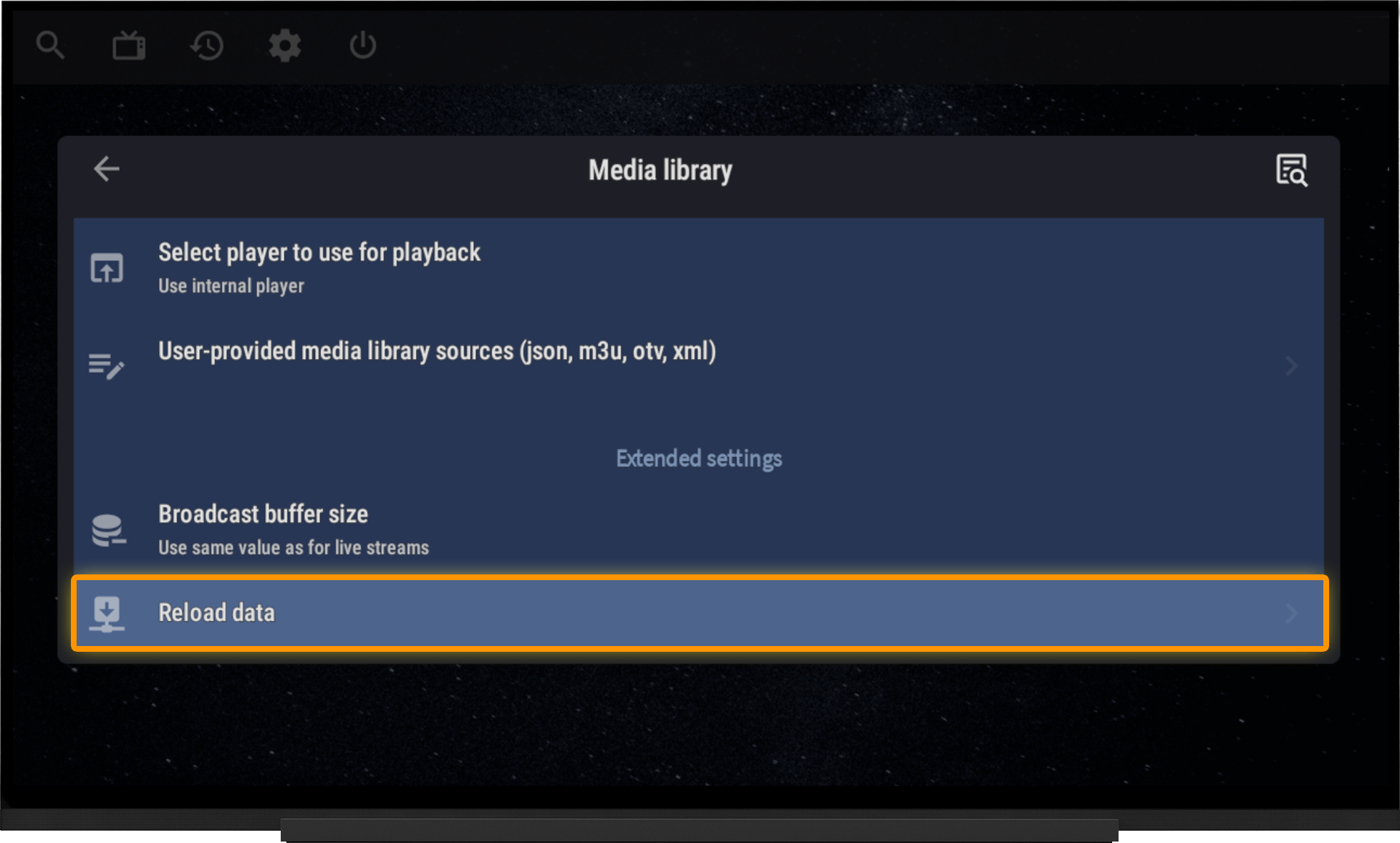
A "Media Library" icon will appear on the player's home screen. Open the folder for the media library you added.
Select the desired category and then choose the movie or TV series you want to watch.
Categories are available by genre and country. You can also search for a specific movie or TV series by title using the "Video Search" shortcut.
Note:
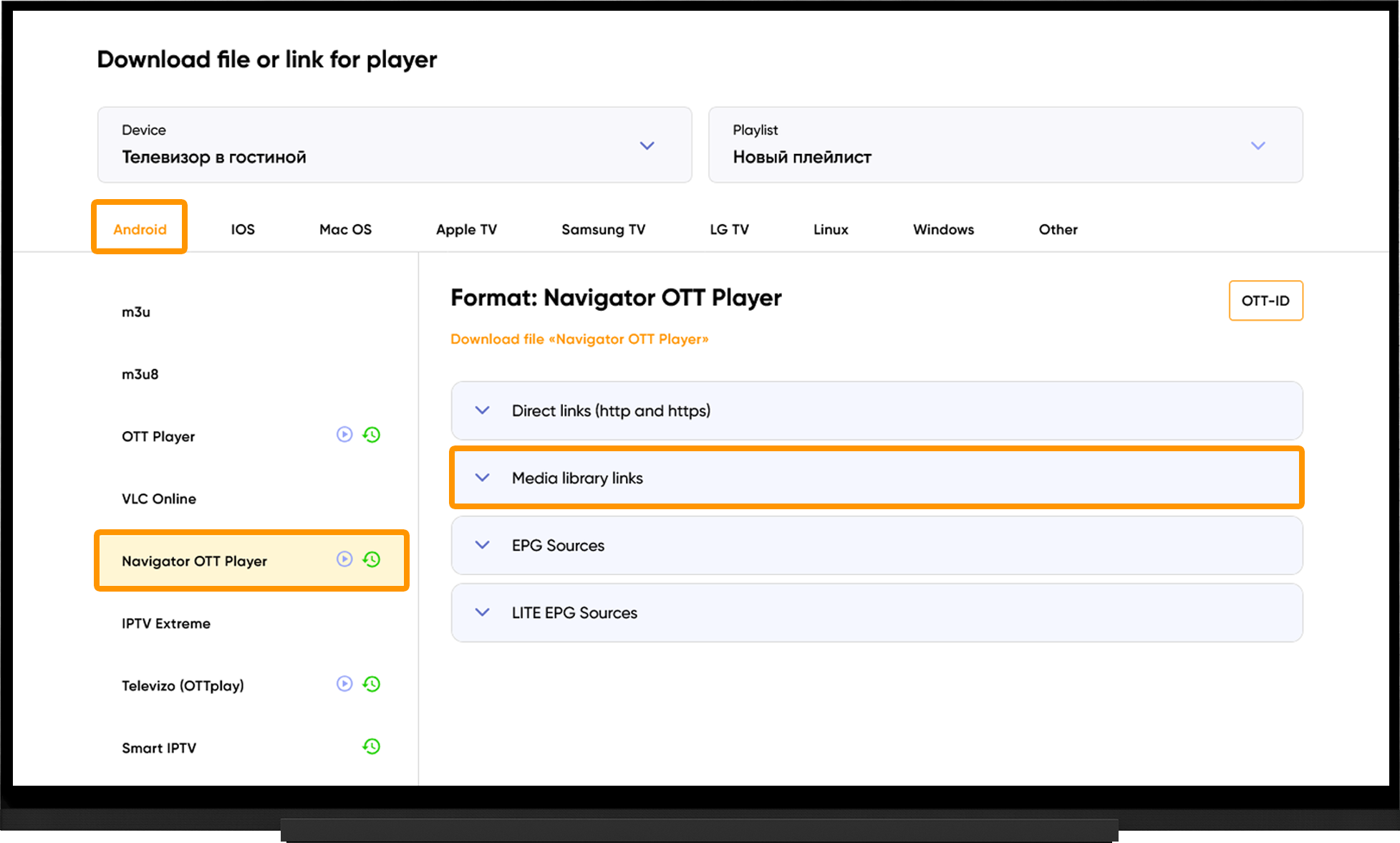
To obtain the media library URL, go to the My Devices section and click "Download":
- Select Android.
- Select Navigator OTT Player.
- Expand the "Media Library Links" section.
- Use the first URL to add the movie and TV series collection.
- The second URL provides access to the karaoke library.
Frequently asked questions
No Sound:
- Go to Settings.
- Select "Player".
- Open "Setup Codecs Preferences".
- Change decoding type (Software/Hardware).
- Restart the application.
Video Playback Is Lagging or Buffering:
- Run the server selection test on the website.
- Switch to the recommended server.
- Wait 10 minutes, then restart the application.
Playlist Does Not Load:
- Verify that the playlist URL is entered correctly. URLs are case-sensitive.
- Try a different URL type - HTTP or HTTPS.
- Run the server selection test on the website.
- Switch to the recommended server.
- Wait 10 minutes, then restart the application.