
VLC
Updated: July 27, 2026
Installation
VLC (VLC Media Player) is a free, open-source, cross-platform media player. It is considered one of the most versatile media players available, as it can play virtually any audio and video format without requiring additional codecs.
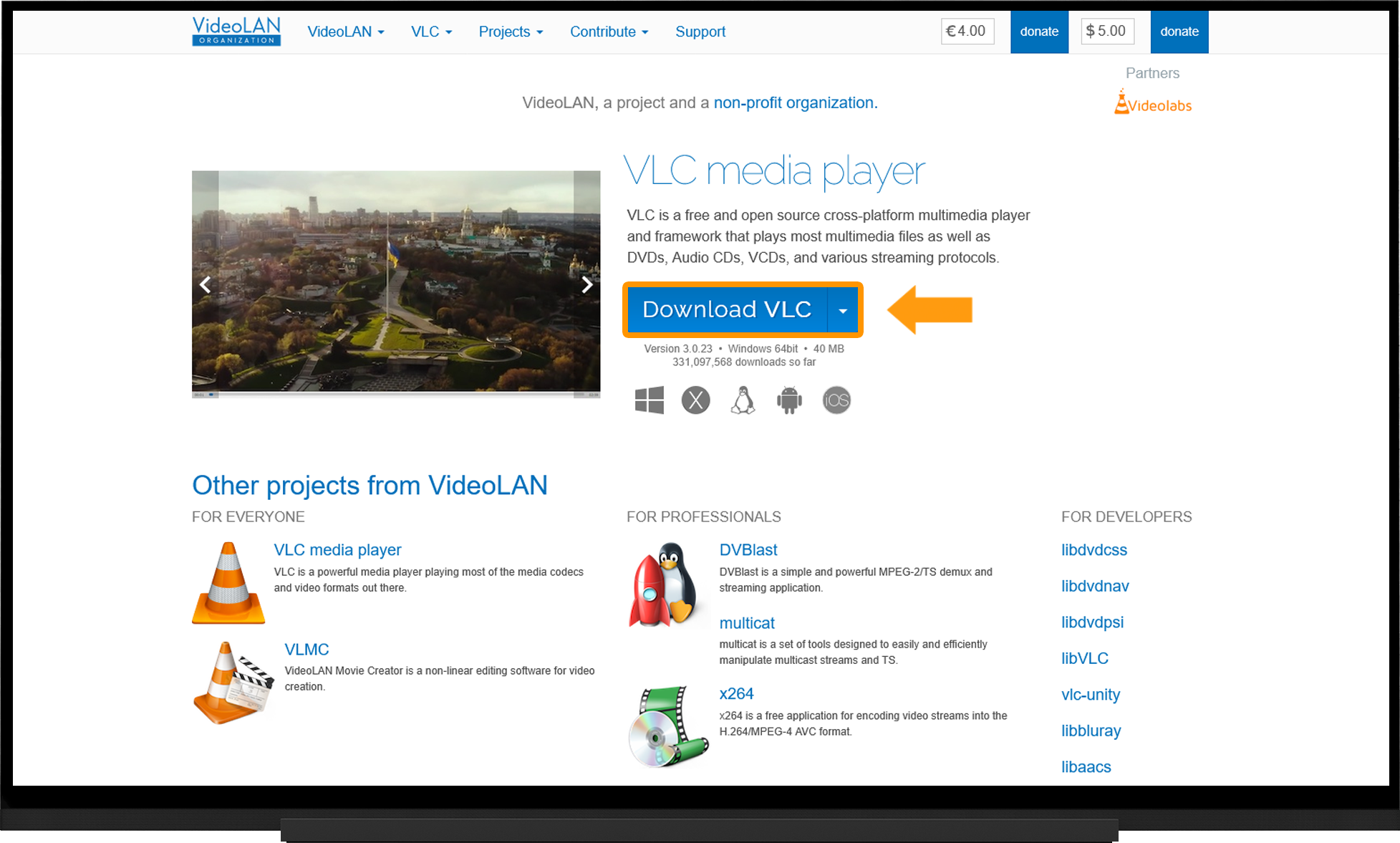
- Open the official VLC Media Player website
- On the home page, click the "Download VLC" button to download the installer.
- Run the VLC installer.
Opening a Playlist:
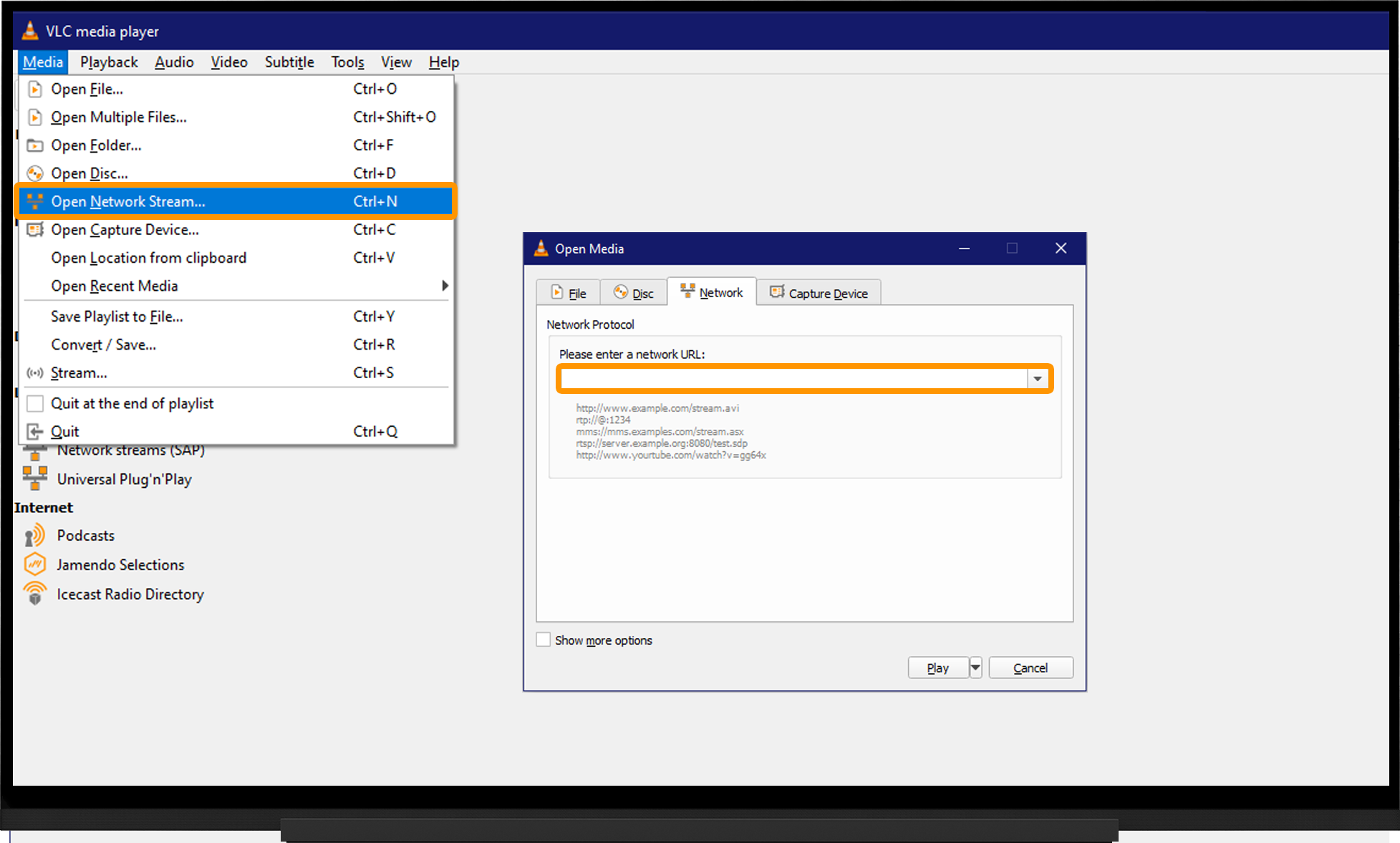
- Launch the application.
- Open the "Media" menu from the top menu bar (or press Ctrl + N).
- Select "Open Network Stream..."
- In the window that opens, go to the "Network" tab, enter the playlist URL, and click "Play".
Note:
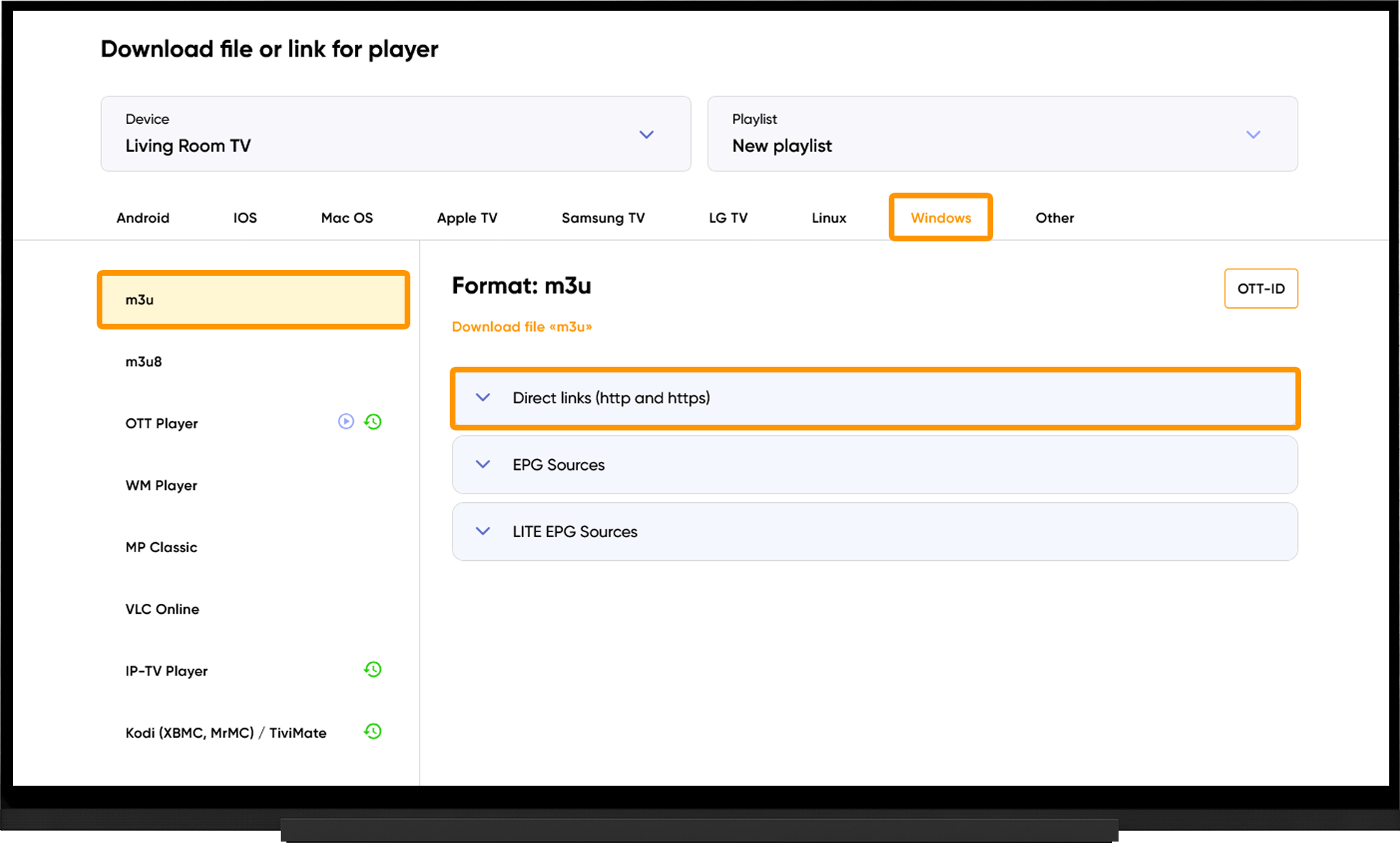
To obtain the playlist URL or playlist file, go to the My Devices section and click "Download" next to the device name:
- Select your device type.
- Choose either M3U or M3U8.
- Under "Direct Links (HTTP and HTTPS)", either copy the playlist URL or click "Download File", depending on your preferred playlist format.
Frequently asked questions
Changing the Audio Track Language:
- Open the top menu.
- Select "Audio".
- Choose "Audio Track".
Playlist Does Not Load:
- Check that the playlist URL is correct.
- Try using different playlist URL types: HTTP and HTTPS.
- Run the automatic server selection, switch to the recommended server, and restart the application after 10 minutes.
Video Buffering:
- Run the automatic server selection, switch to the recommended server, and restart the application after 10 minutes.