
OttPlayer
Updated: August 03, 2026
Installation
OttPlayer is a free, cross-platform IPTV player that lets you watch IPTV on a wide range of devices.
LG Smart TV:
On LG Smart TVs, OttPlayer is available from the official LG Content Store.
- Open the app store on your TV.
- Search for OttPlayer.
- Install the application.
- Launch the app.
Samsung Smart TV (Tizen OS) and Hisense (VIDAA OS):
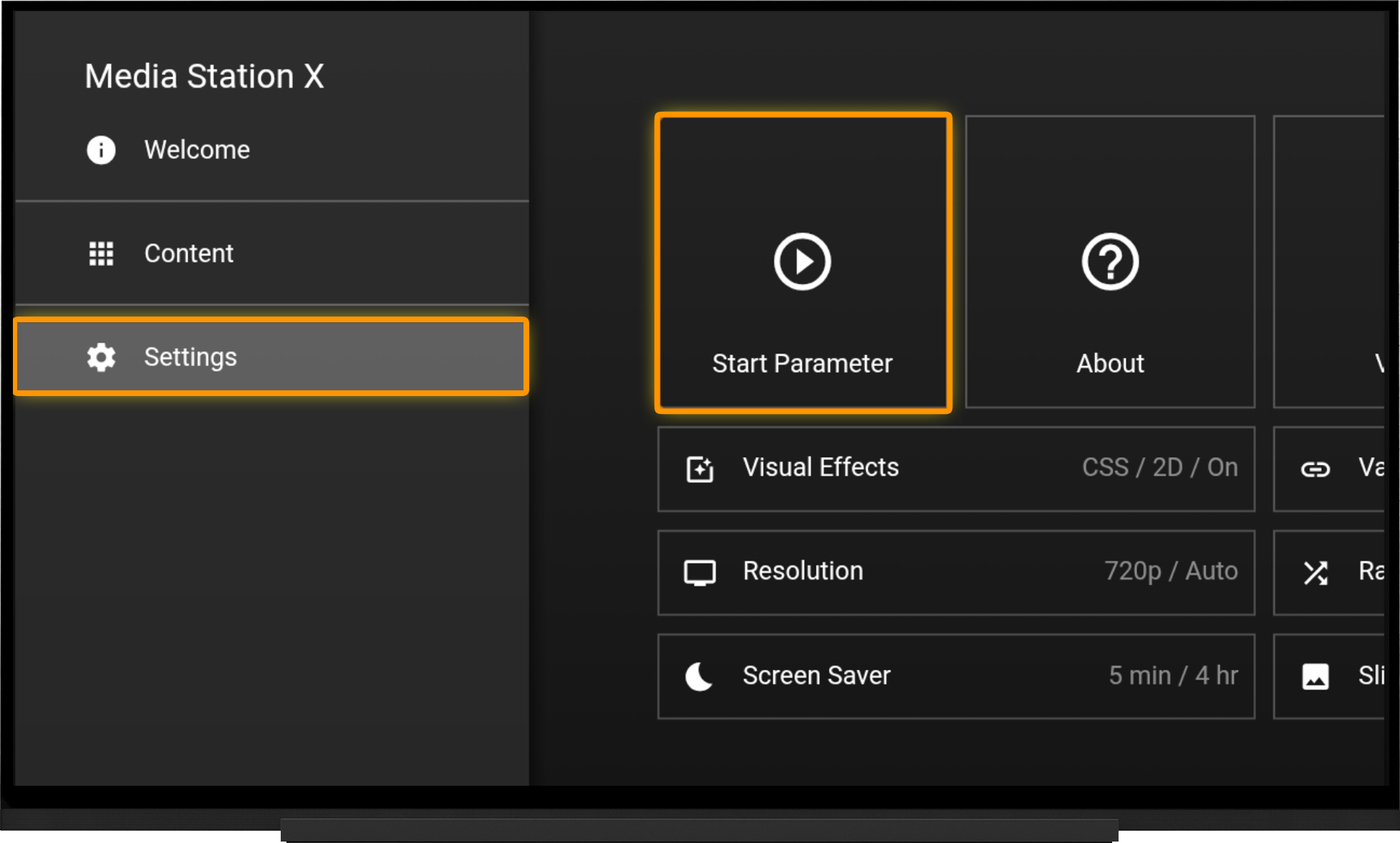
On Samsung and Hisense TVs, OttPlayer can be installed using the Media Station X (MSX) cross-platform web application. Install Media Station X from your TV's app store. Launch the application and open the following menu:
- Settings
- Start Parameters
- Setup
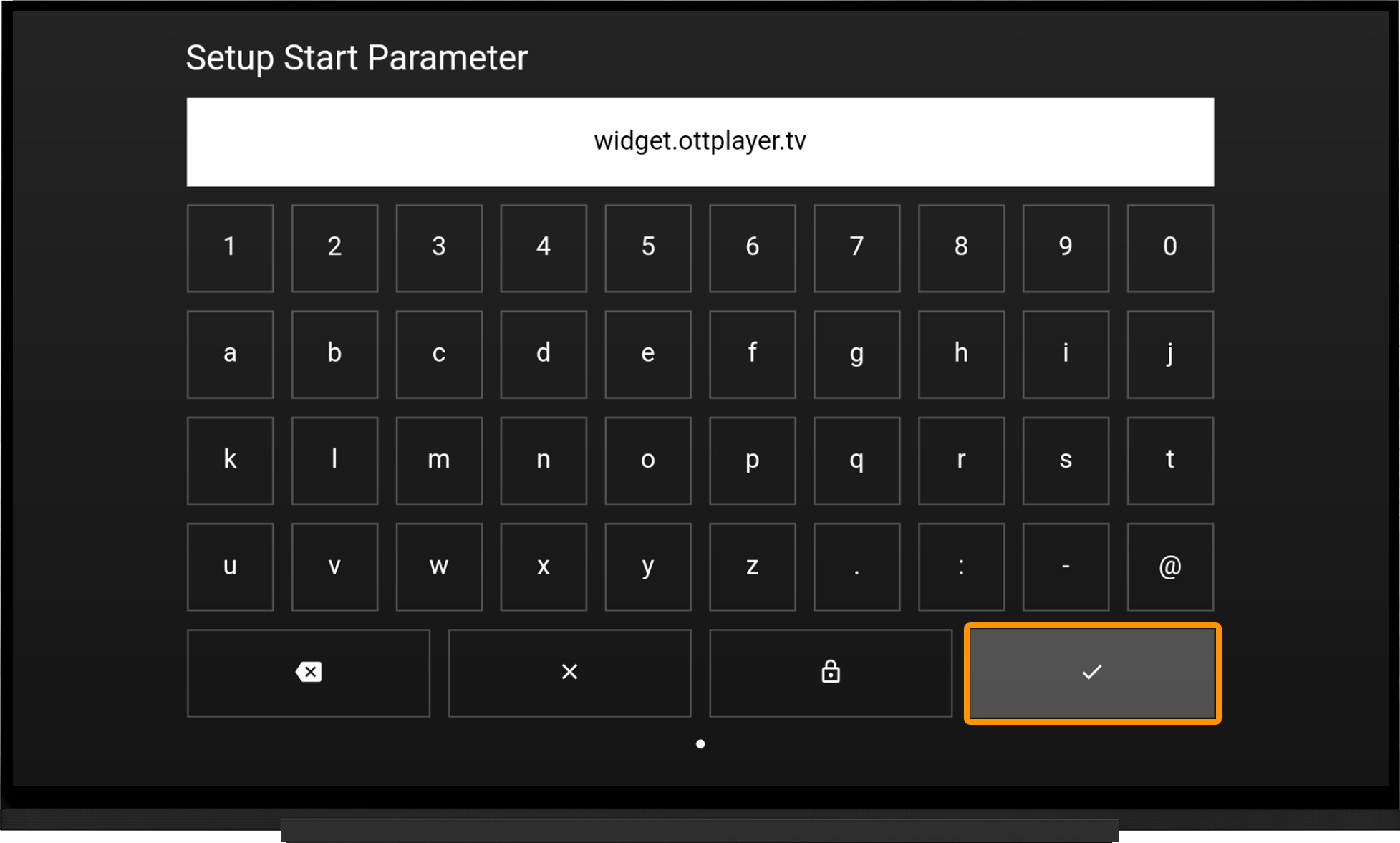
- Enter: widget.ottplayer.tv
- Click the checkmark button to confirm.
- When prompted, select Yes.
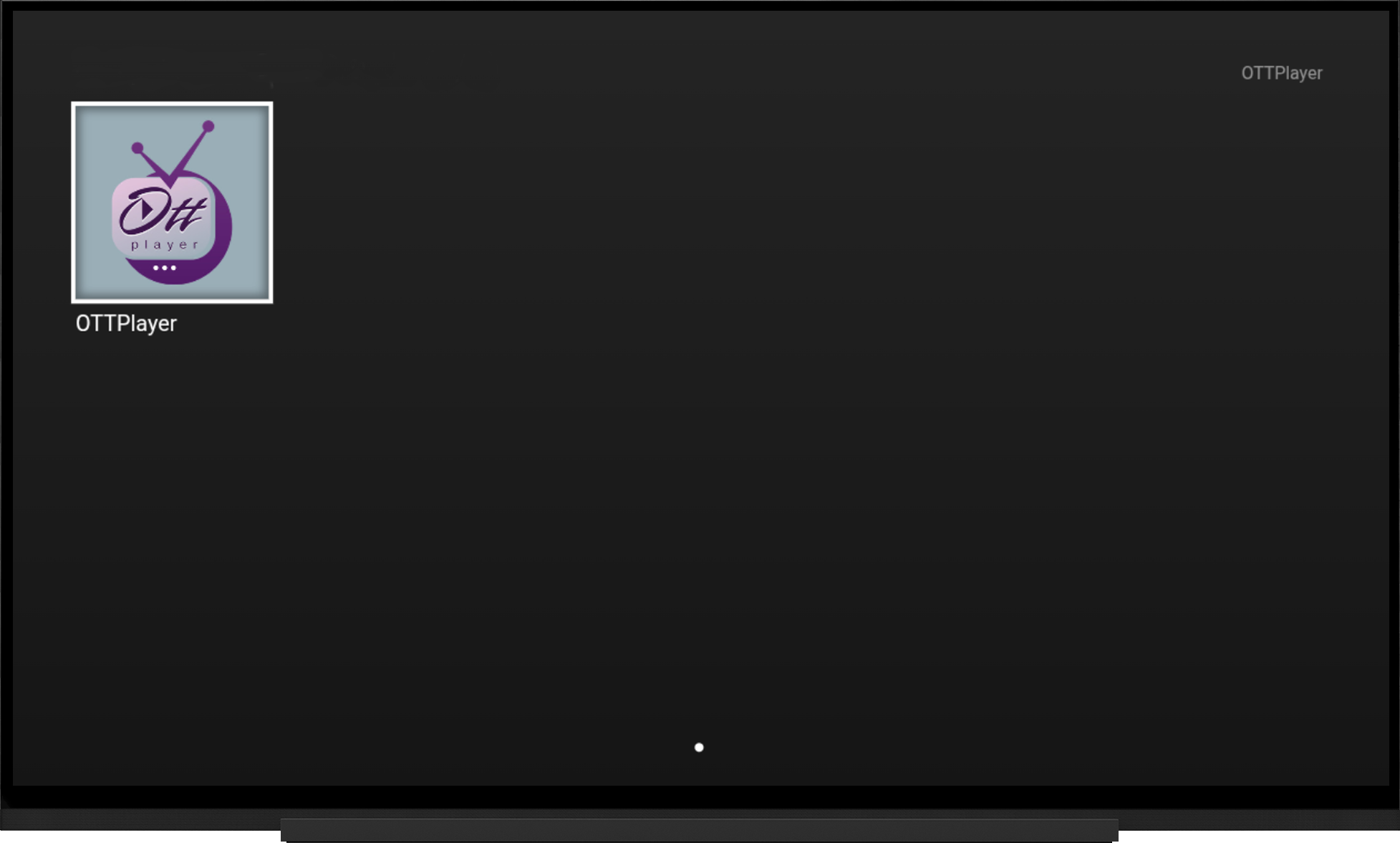
After the installation is complete, an OttPlayer shortcut will appear on the Media Station X home screen.
Adding a Playlist in Your OttPlayer Account
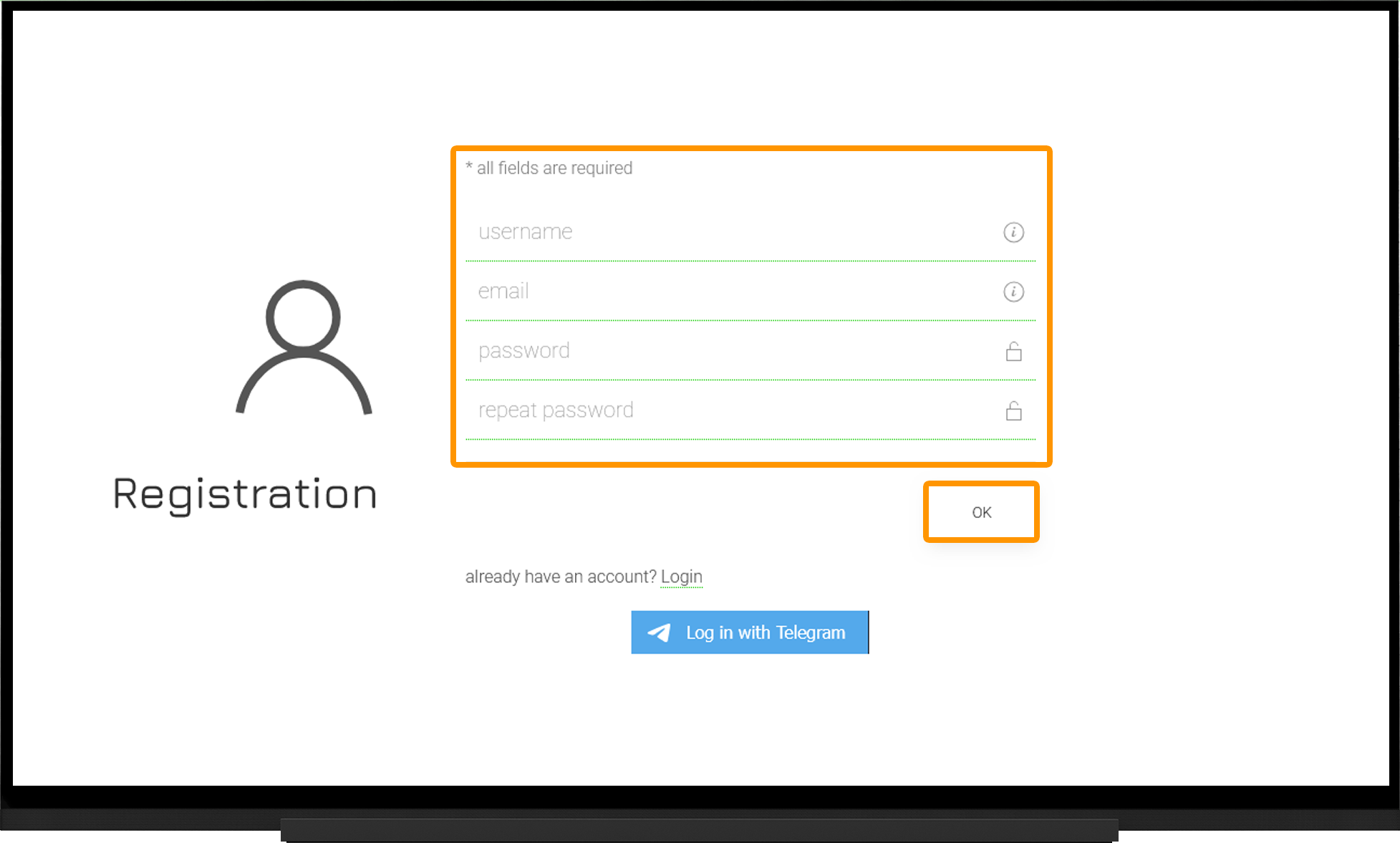
- Go to the official OttPlayer website and open the Registration page.
- Fill out the registration form with the required information.
- Click OK.
- Confirm your registration using the verification link sent to the email address you used to sign up.
- Sign in to the OttPlayer website using your email address and password.
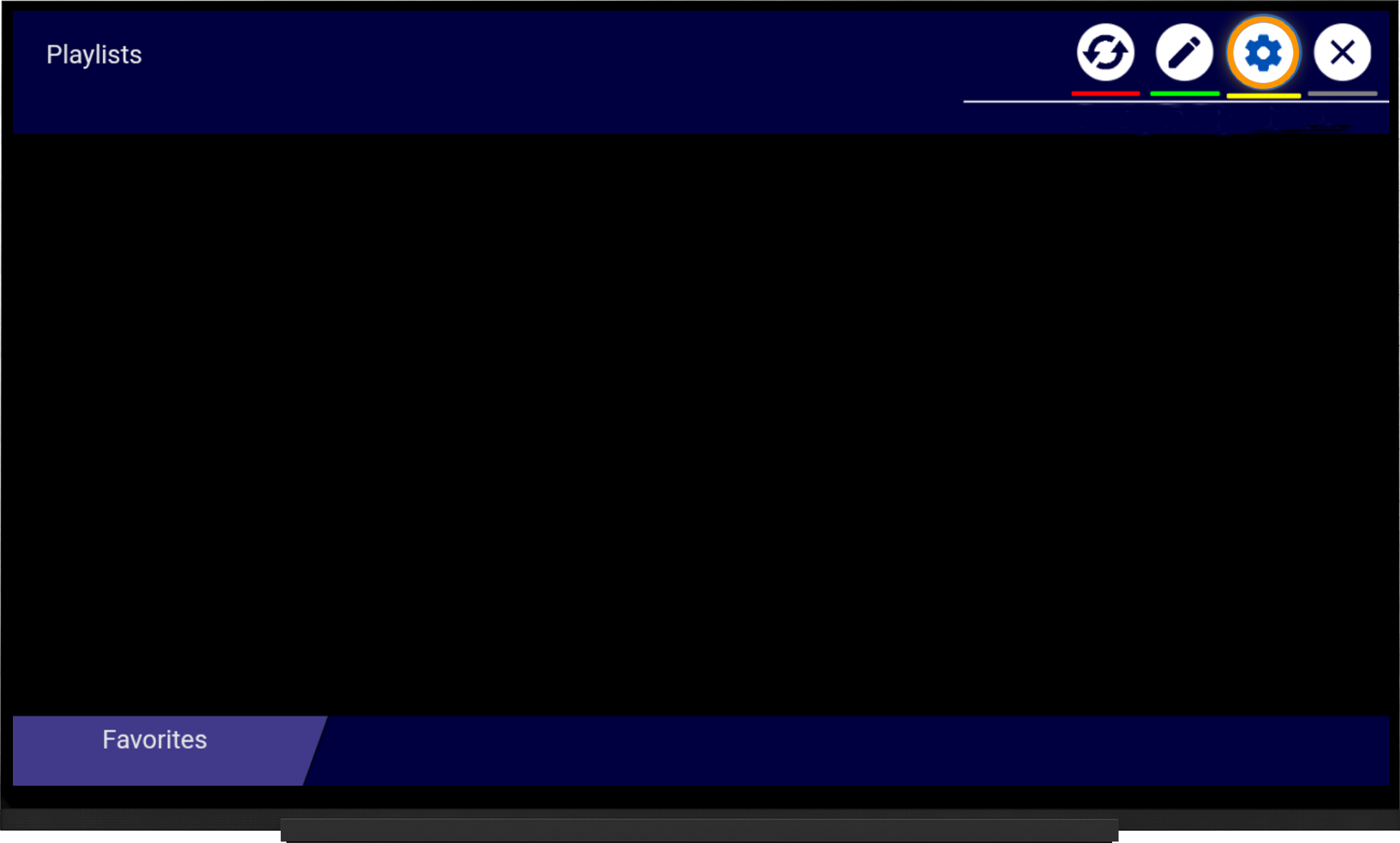
- Launch OttPlayer on your device and open Settings (the "gear" icon in the upper-right corner).
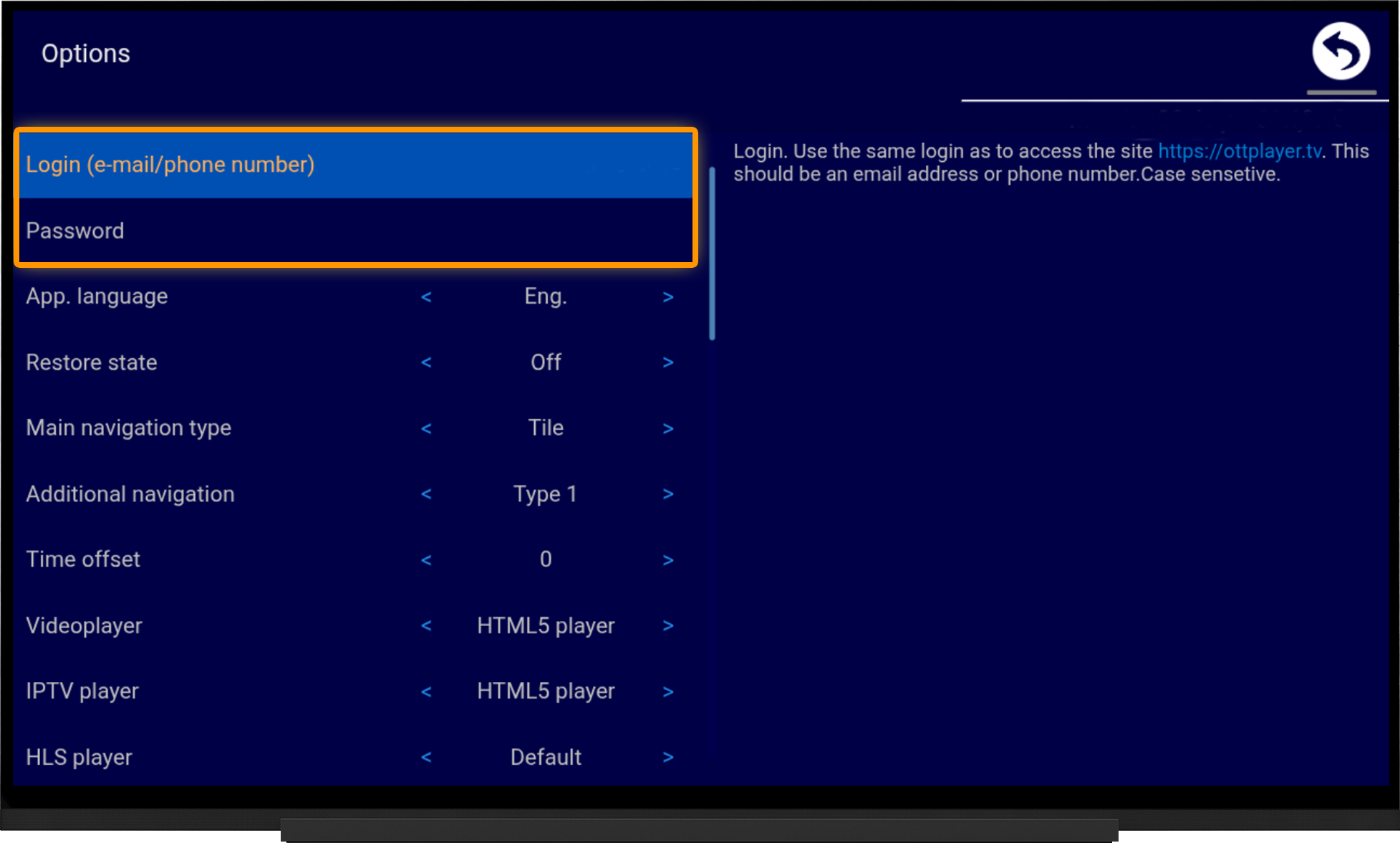
- Enter your email address and password in the corresponding settings fields.
- Return to the OttPlayer home screen.
- After signing in, the application will prompt you to create a new device. Click OK and enter any device name.
- The newly created device will appear in the Devices section of your OttPlayer account.
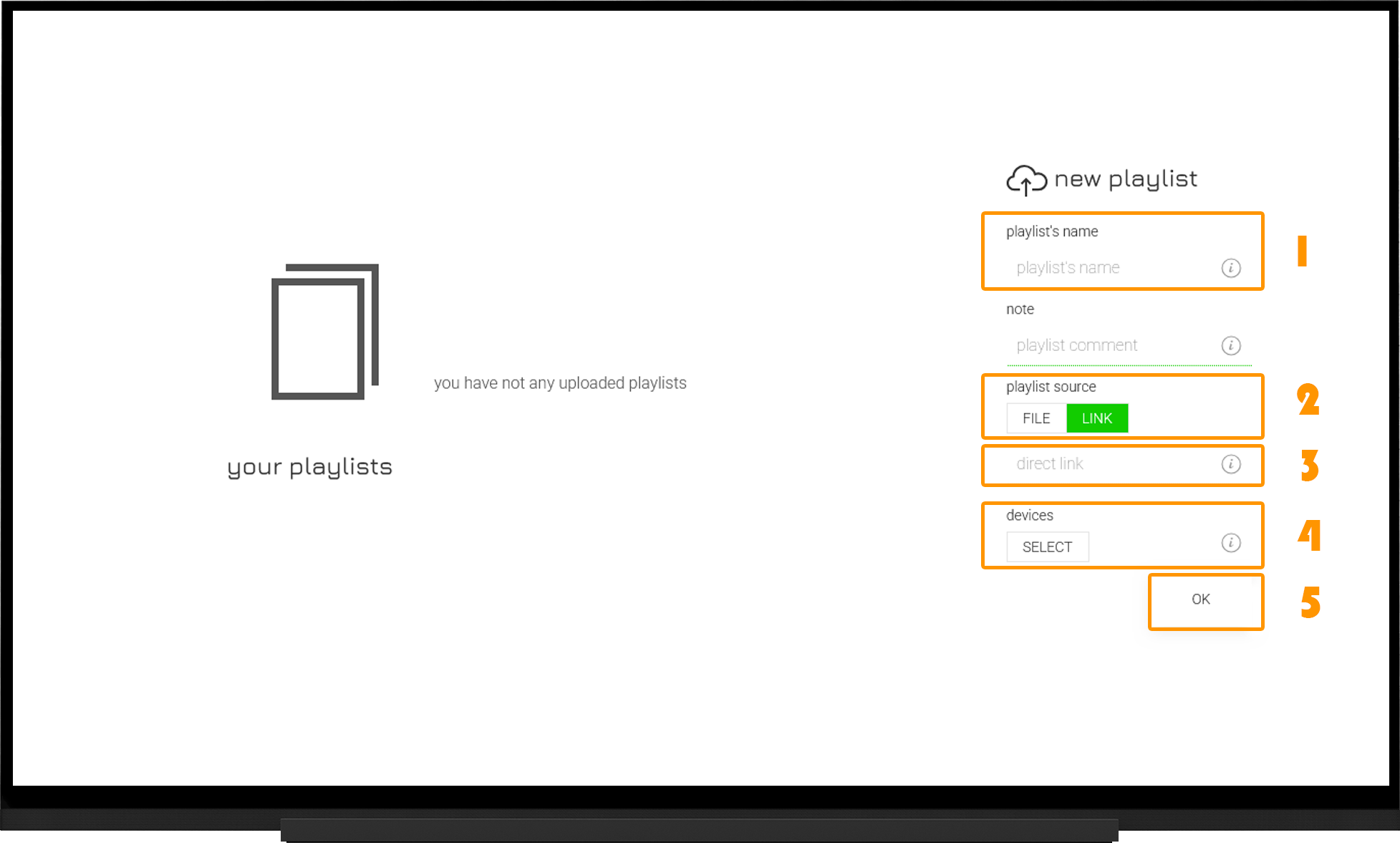
In your OttPlayer account, go to the Playlists section:
- Playlist Name - enter any name (for example, IPTV).
- Playlist Source - select Link.
- Direct Link - paste your OttPlayer playlist link.
- Devices - click "Select" and choose the device you added earlier.
- Click OK and wait for the playlist to finish loading.
After the playlist is uploaded successfully, a green notification will appear at the top of the page.
If the playlist is not created after clicking OK, try creating it again.
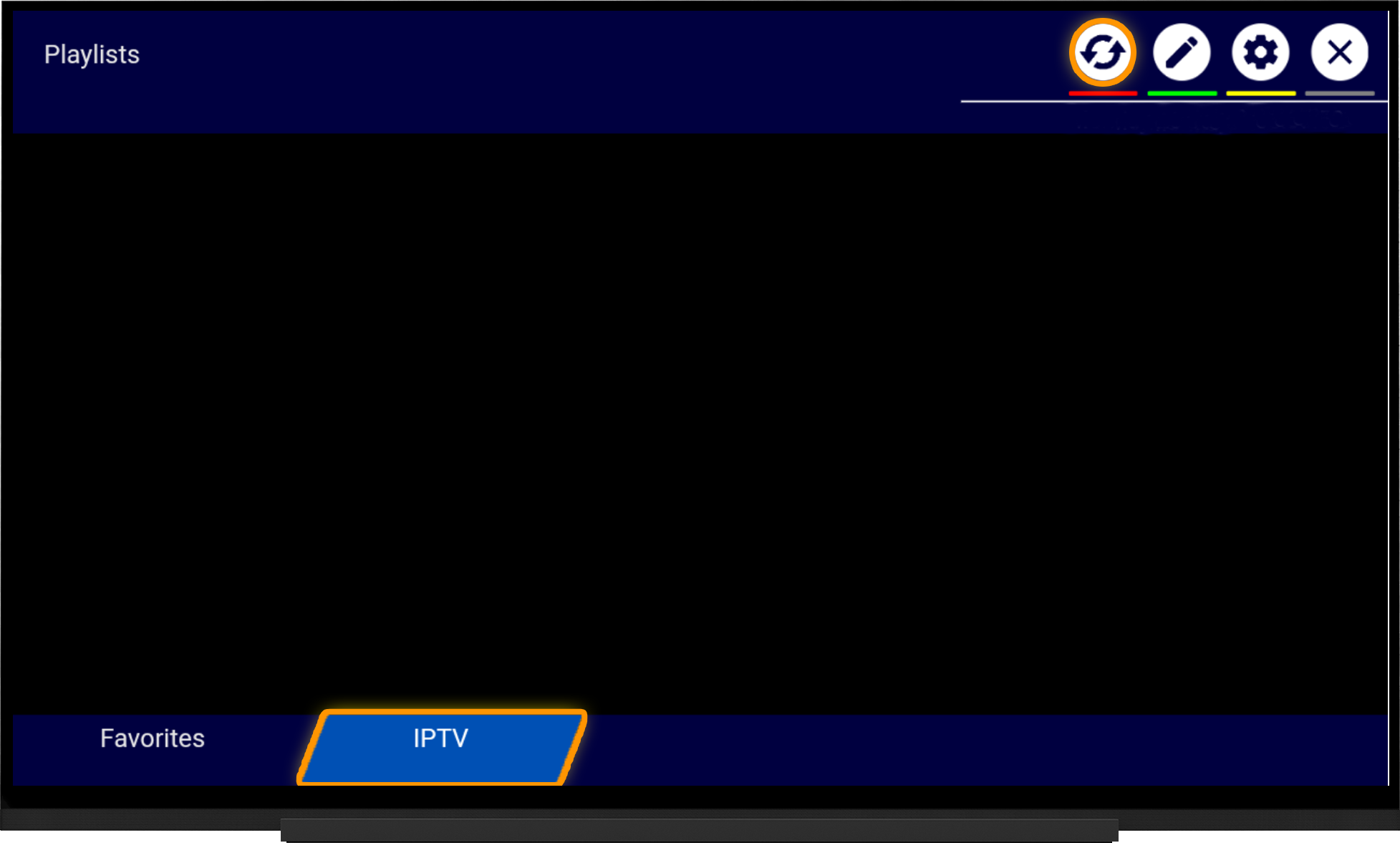
Return to OttPlayer on your TV. On the main screen, press the Sync button (the icon with two circular arrows). Once synchronization is complete, your playlist will appear at the bottom of the screen. Select it to start watching.
Adding a Local Playlist
You can also add a playlist directly in OttPlayer:
- Tap the Edit button (the "pencil" icon) at the top of the screen.
- In the Playlist Editor section, tap the "+" button.
- Enter your OttPlayer playlist link.
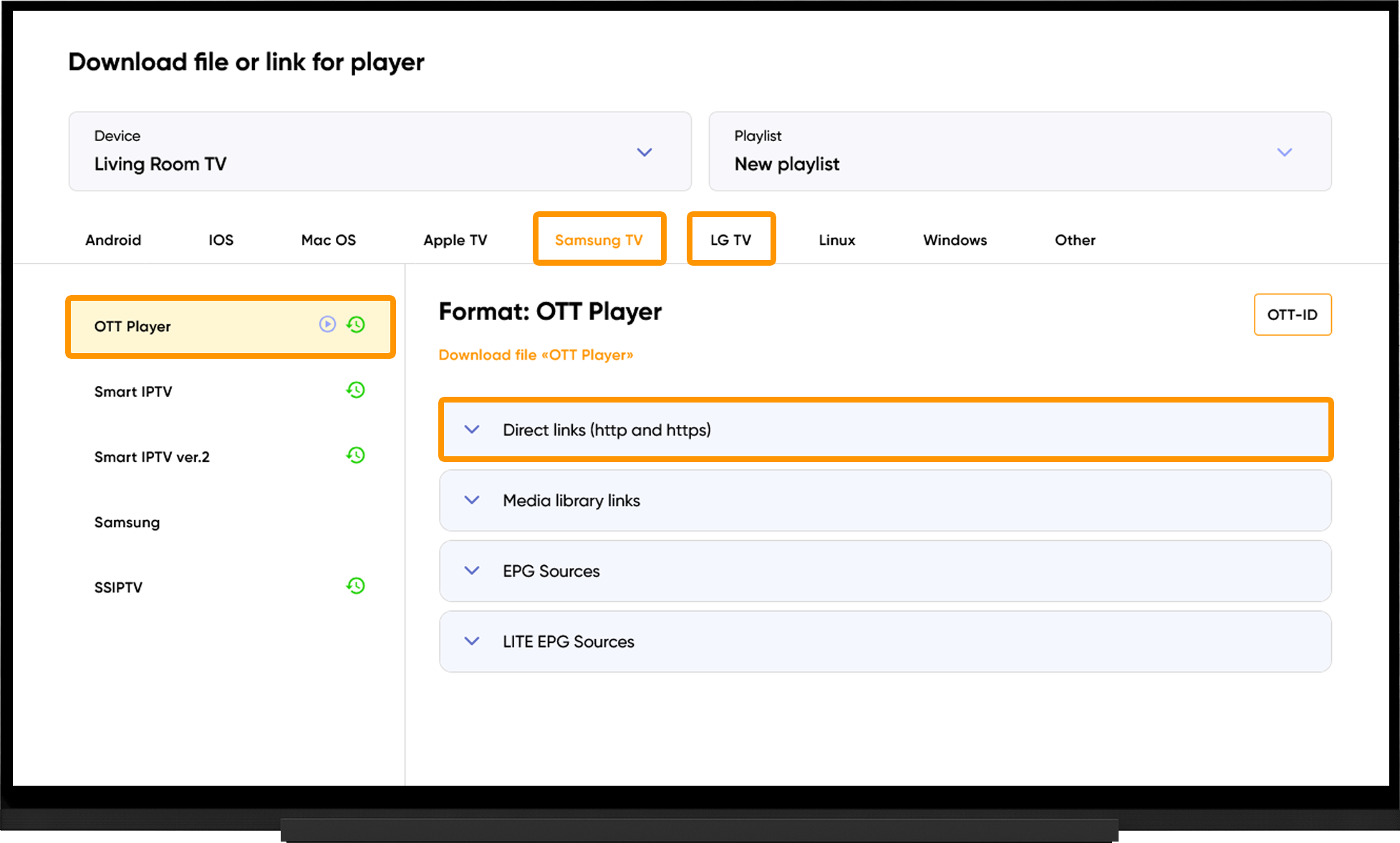
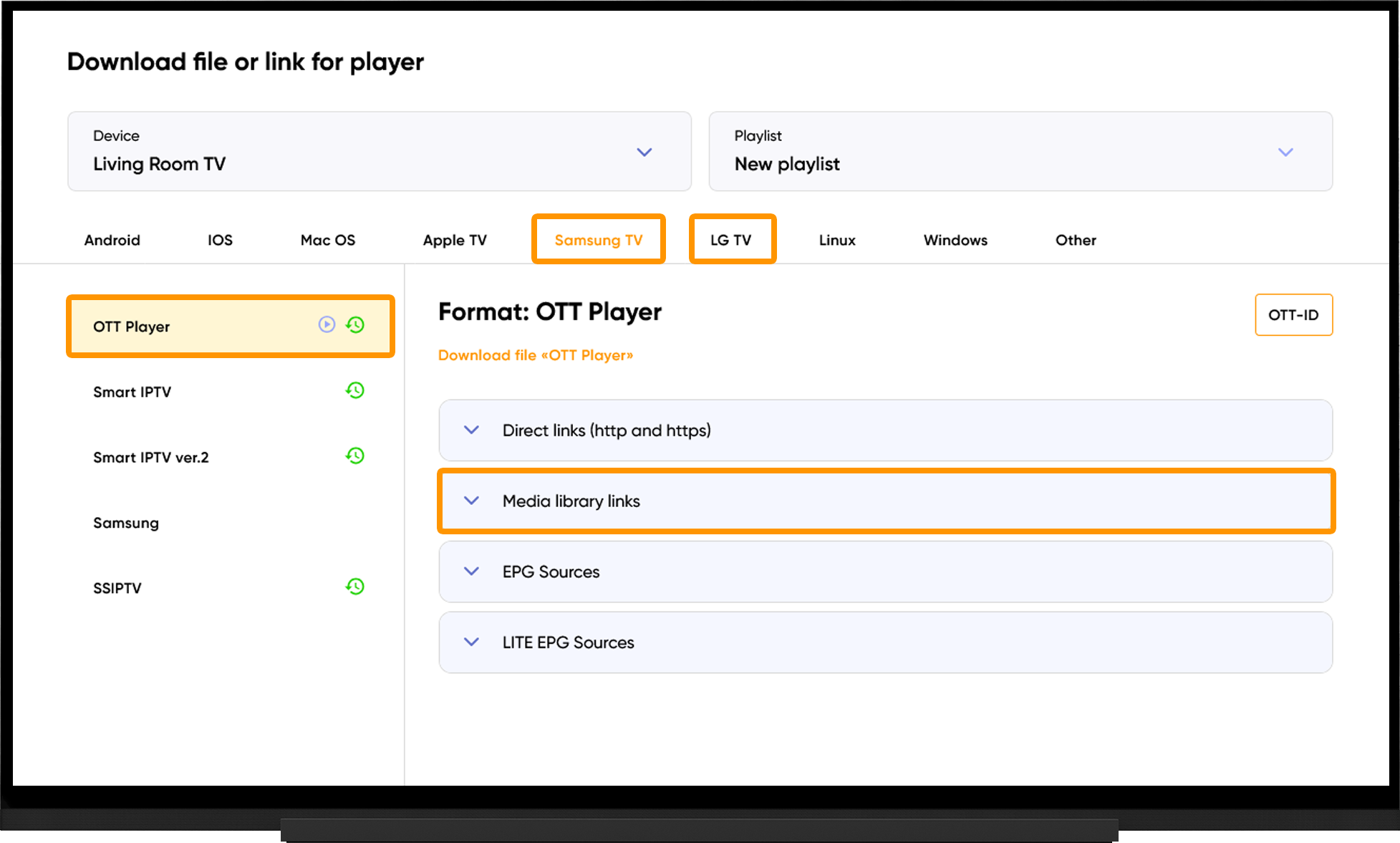
Note: To get your playlist link, go to the My Devices section and click "Download next to your device:
- Select your device type.
- Choose OTT Player.
- Copy one of the Direct Links (http or https).
Catch-up TV
When using a playlist uploaded to your OttPlayer account:
- Go to the Playlists section.
- Click the Edit icon next to your playlist.
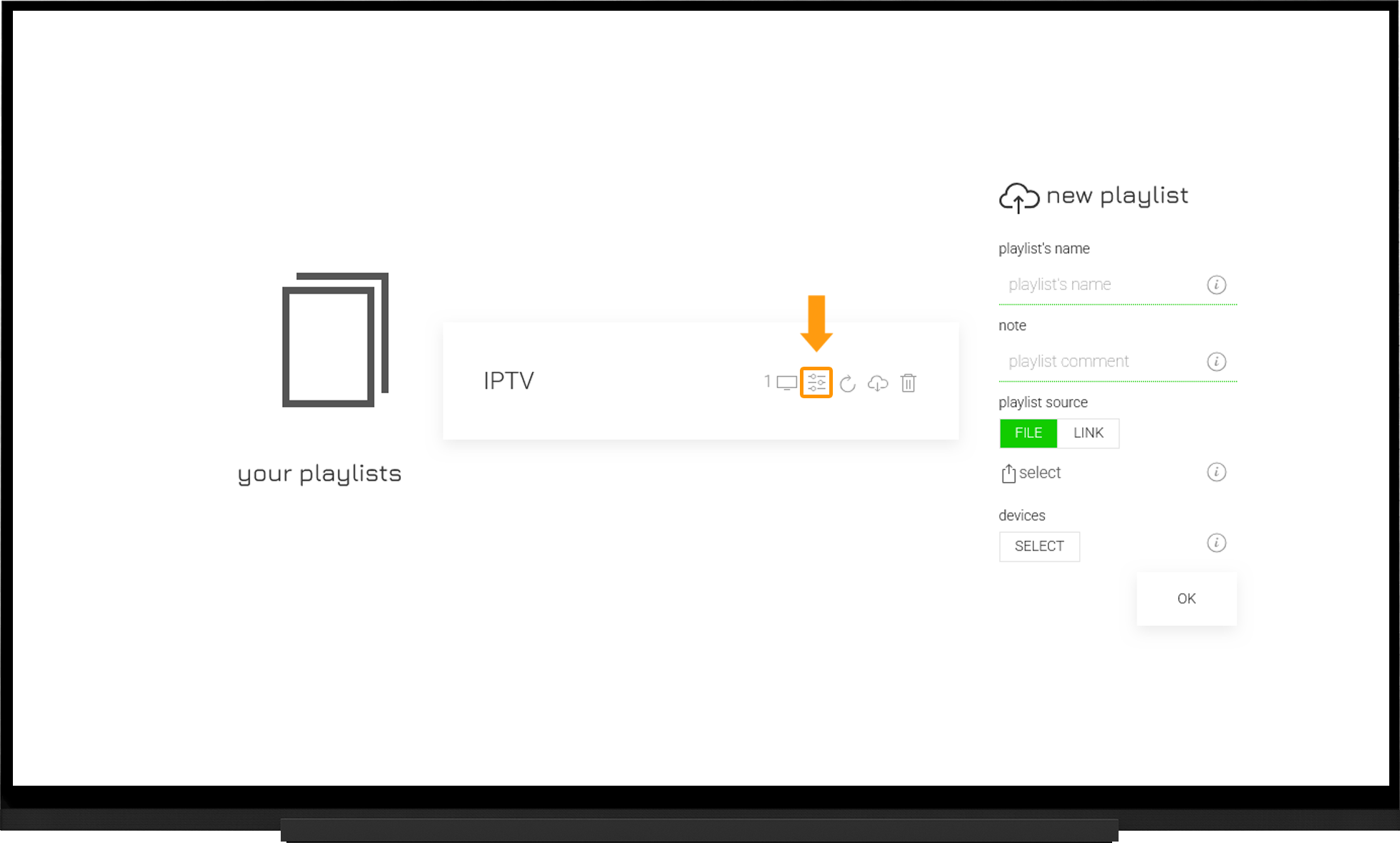
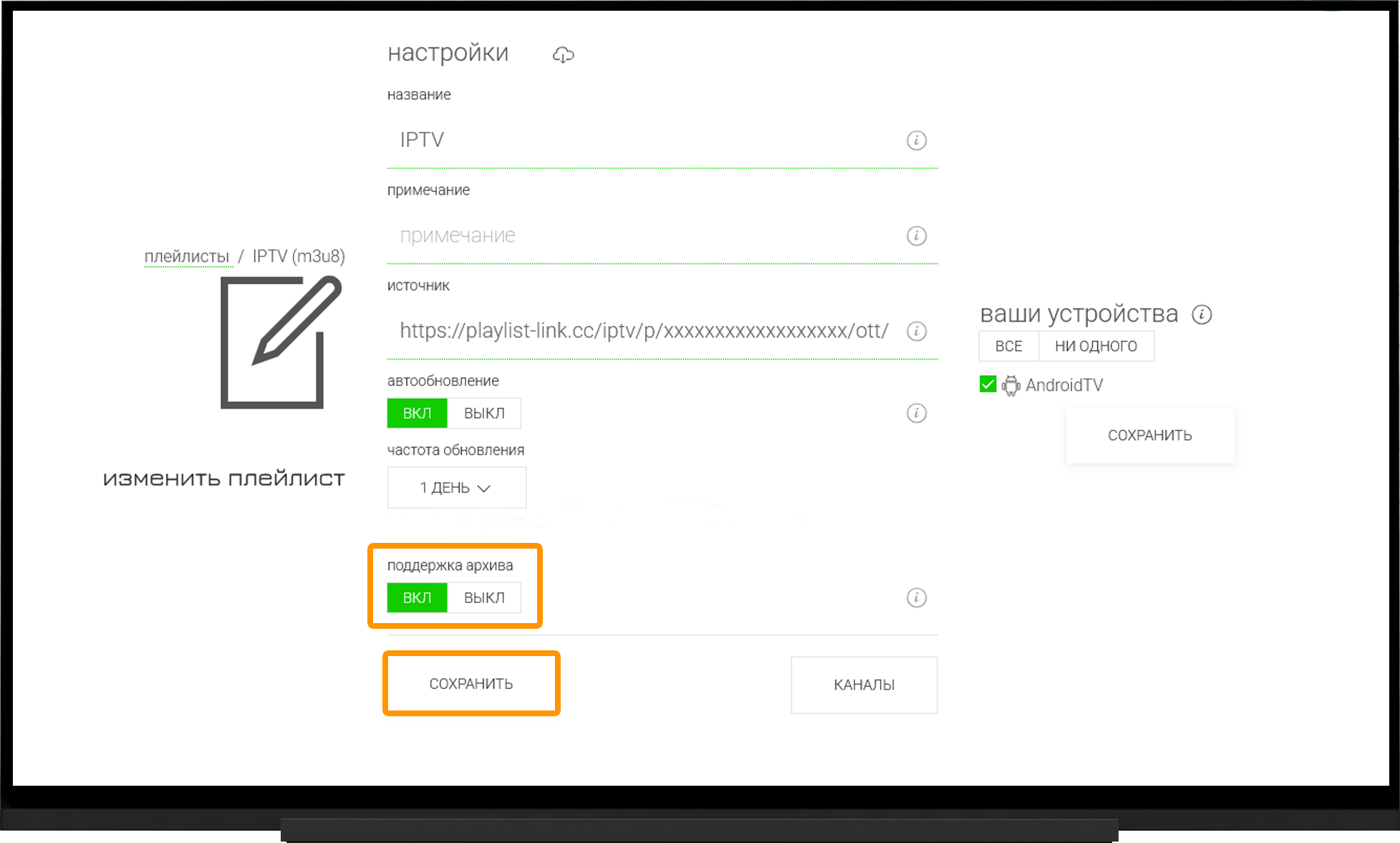
- Make sure Catch-up TV is enabled in the playlist settings.
Media library
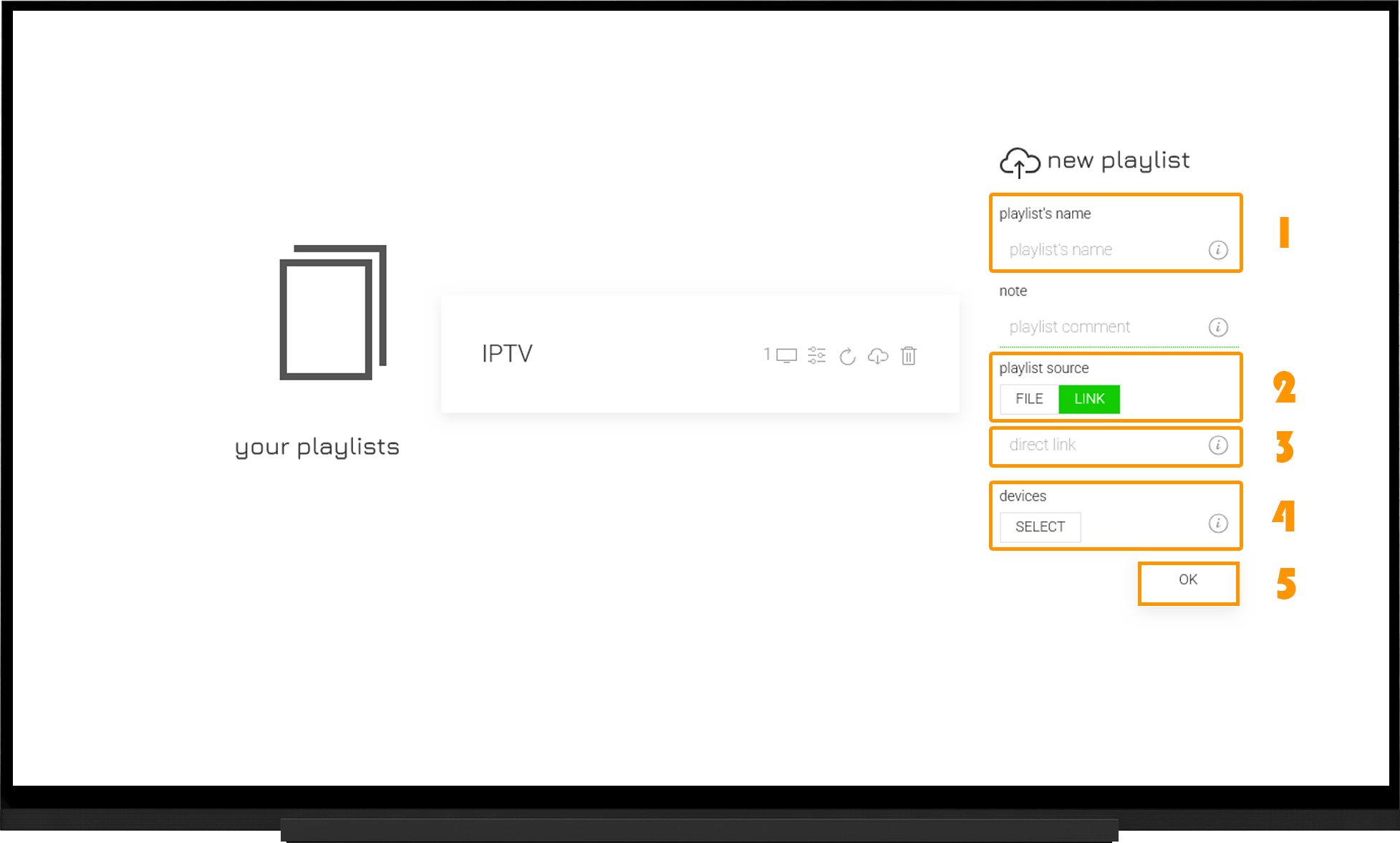
In your OttPlayer account, go to the Playlists section:
- Playlist Name - enter any name (for example, Media).
- Playlist Source – select Link.
- Direct Link - paste the Media Library playlist link for OttPlayer.
- Devices - click Select and choose the device you added earlier.
- Click OK and wait for the playlist to finish loading.
After the playlist is uploaded successfully, a green notification will appear at the top of the page.
If the playlist is not created after clicking OK, try creating it again.
Return to OttPlayer and, on the home screen, press the Sync button (the icon with two circular arrows). Once synchronization is complete, the Media Library playlist will appear at the bottom of the screen.
Note:
To get the Media Library playlist link, go to the My Devices section and click **Download** next to your device:
- Select your device type.
- Choose OTT Player.
- Copy the Media Library Link.
Frequently asked questions
Playlist Won't Load:
- Make sure your device is assigned to the playlist in your OttPlayer account.
- Refresh the playlist.
- Verify that the playlist was successfully saved on the OttPlayer website. If necessary, try creating it again.
- Restart your device.
Channels Won't Play:
Make sure the playlist link is correct. URLs are case-sensitive.
- Run the server selection tool, switch to the recommended server, and restart the application after 10 minutes.
- Remove the playlist and add it again.
- If you are using OttPlayer through Media Station X, try changing the IPTV Player setting between HTML5 and MediaPlayer.