
OttPlayer
Updated: August 03, 2026
Installation
OttPlayer is a free, cross-platform IPTV player that allows you to watch IPTV on a wide range of devices.
Installation
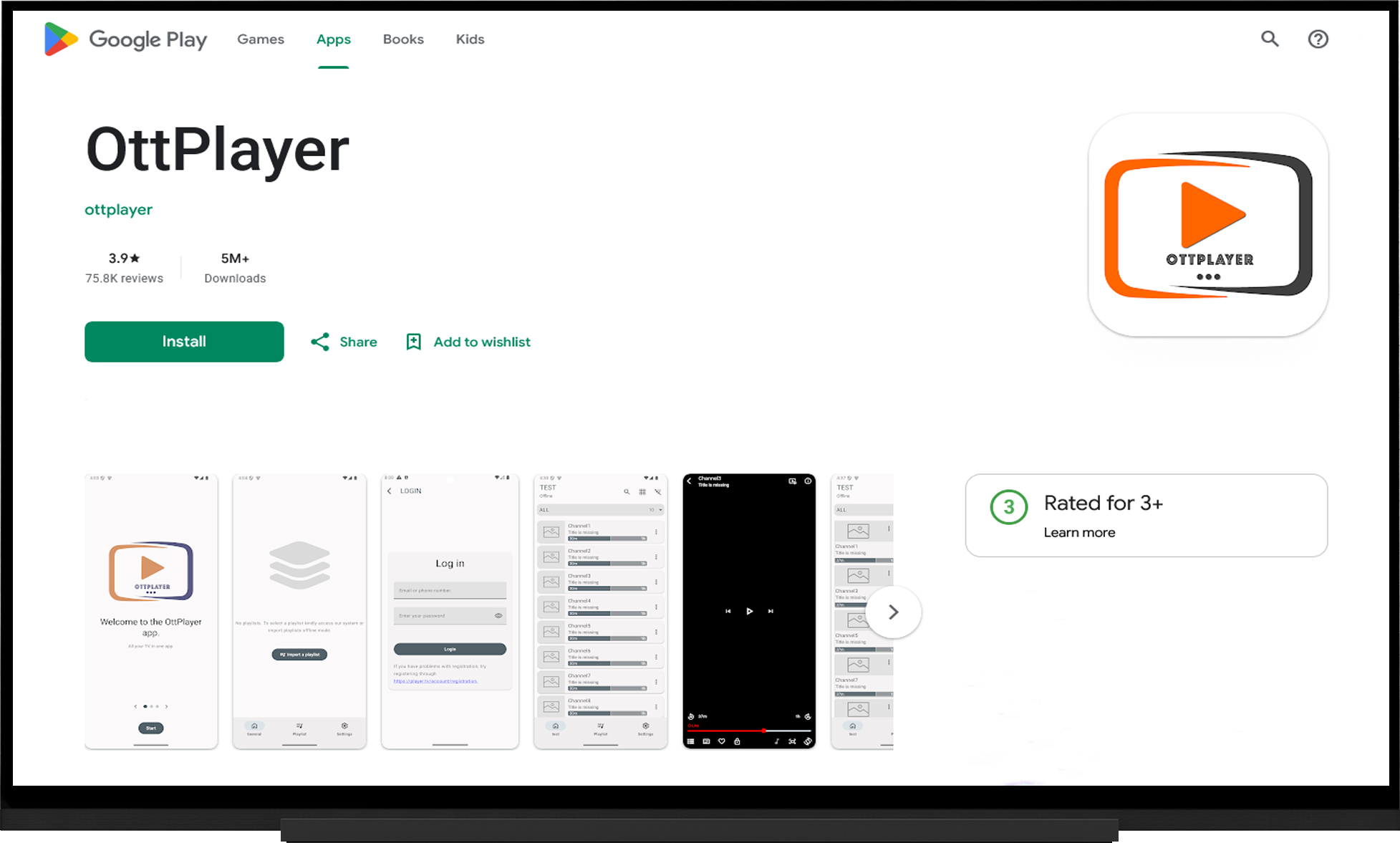
- Open the app store.
- Search for "OttPlayer".
- Install the application.
1. Adding a Playlist Through Your OttPlayer Account
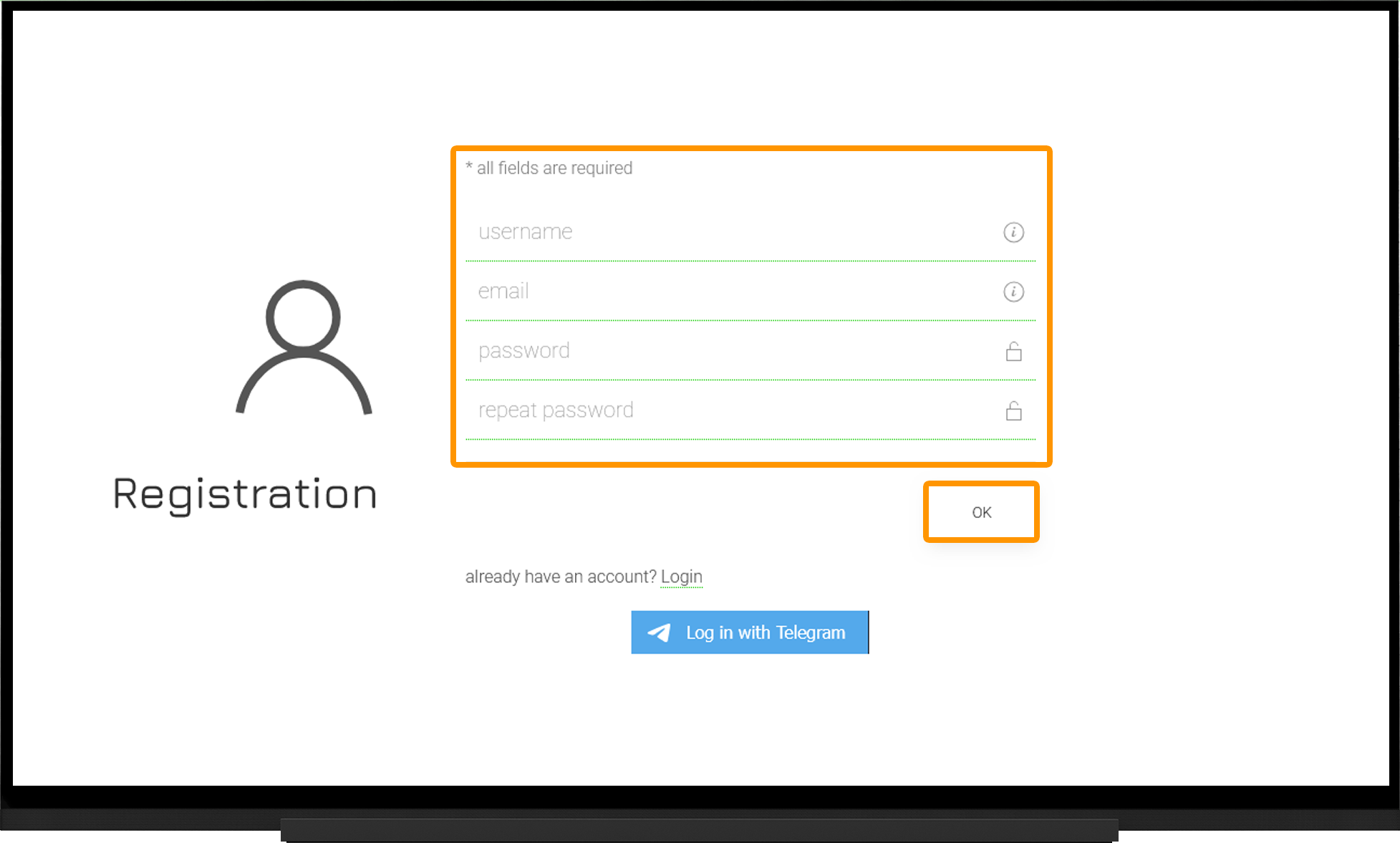
- Go to the official OttPlayer website and open the Registration page.
- Fill in the required information and click "OK".
- Confirm your registration by clicking the link in the email sent to the address you used to sign up.
- Sign in to the OttPlayer website using the email address and password you provided during registration.
- Launch the player on your device and choose either the "new" or "classic" interface. (You can switch between them later in the player settings.)
- Open the Playlists section and click the "+" button.
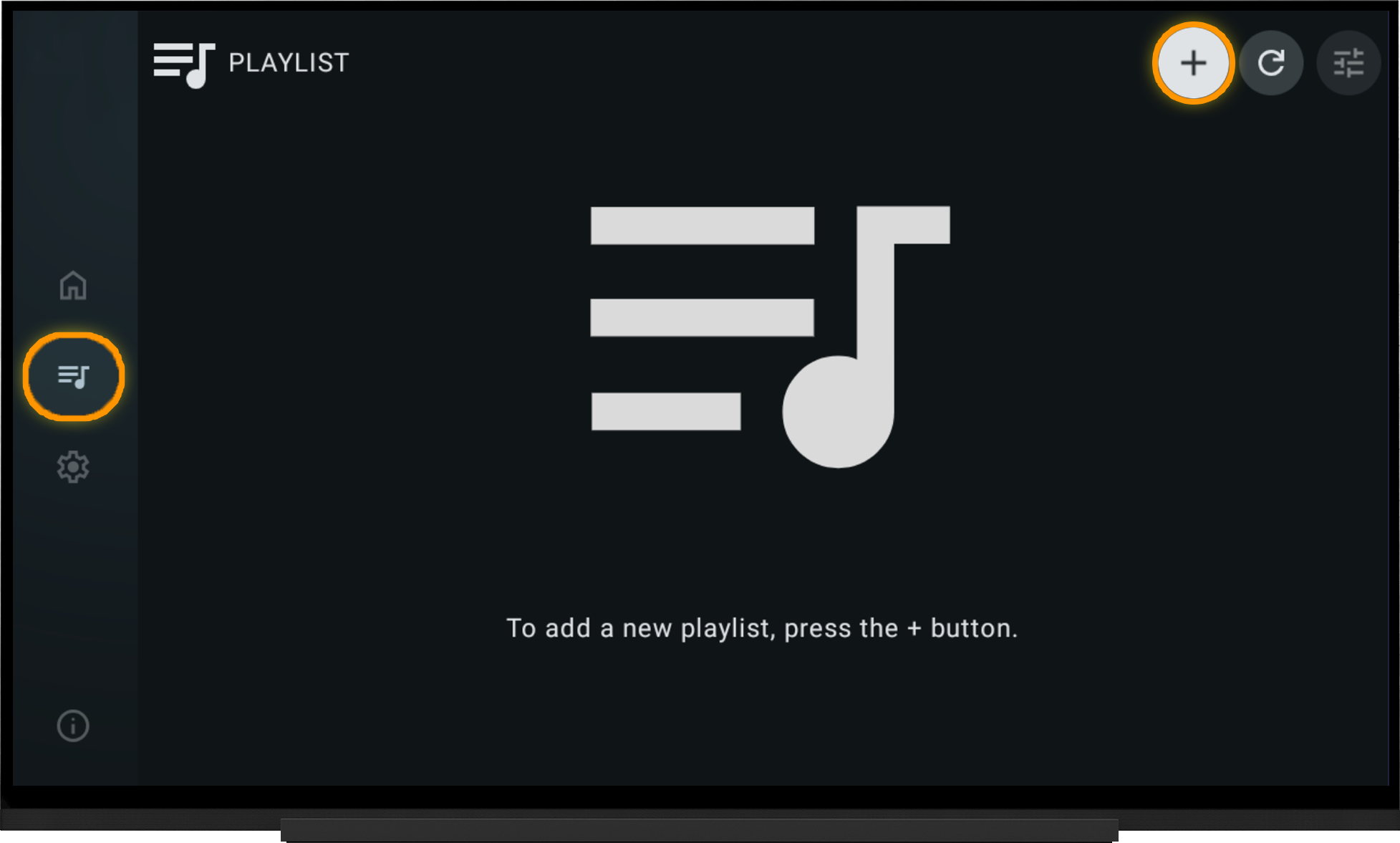
- Select "From the Server".
- Enter the email address and password you used to register on the OttPlayer website.
- Click the "+" button.
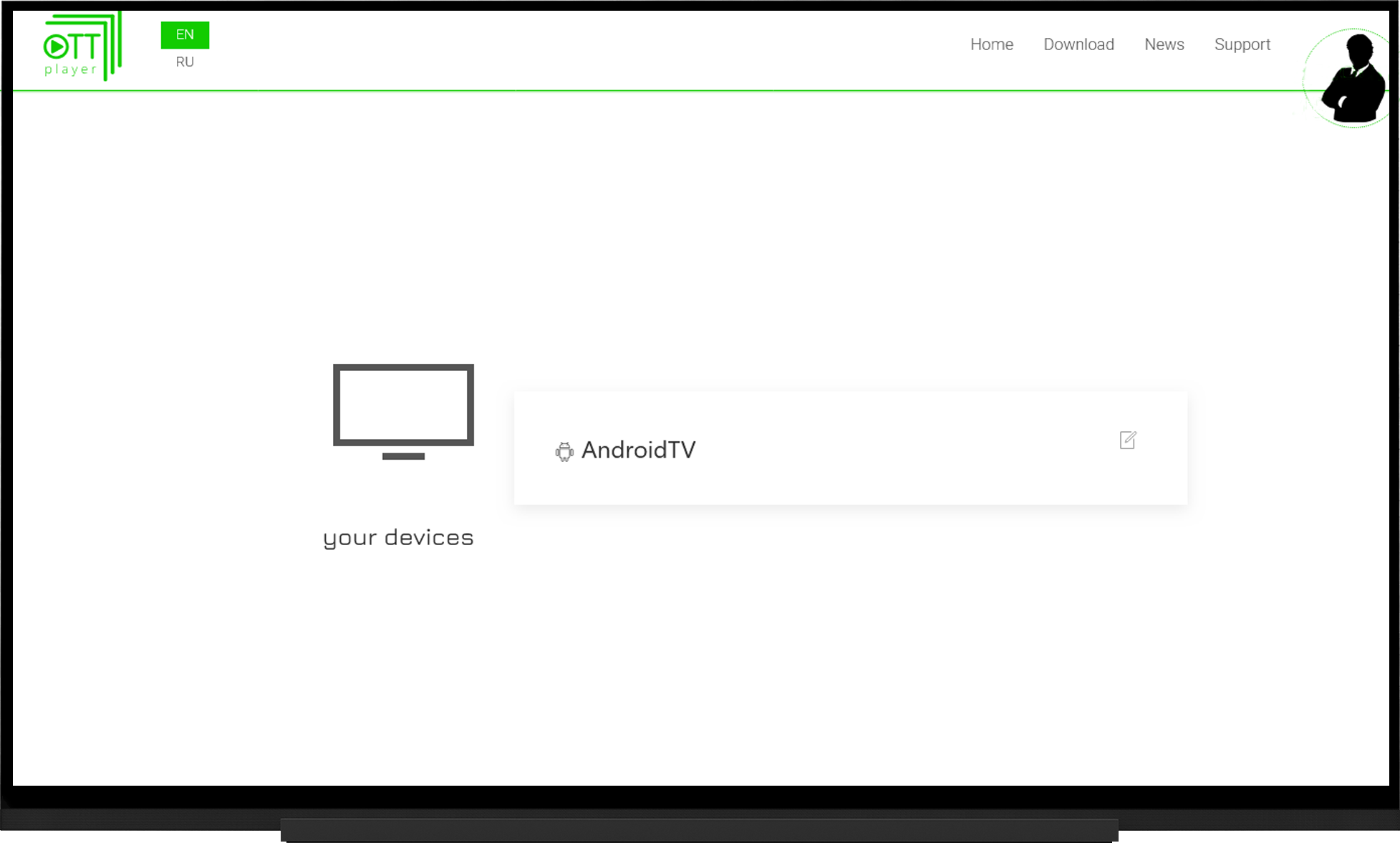
- Enter any name for the device (for example, "AndroidTV").
- Click "Add".
If everything was done correctly, the newly created device will appear in the Devices section of your OttPlayer account.
In your OttPlayer account, open the Playlists section:
- Playlist Name - enter any name (for example, "IPTV").
- Playlist Source - select "Link".
- Direct Link - paste the playlist URL for OttPlayer.
- Devices - click "Select" and check the device you added earlier.
- Click "OK" and wait for the playlist to load.
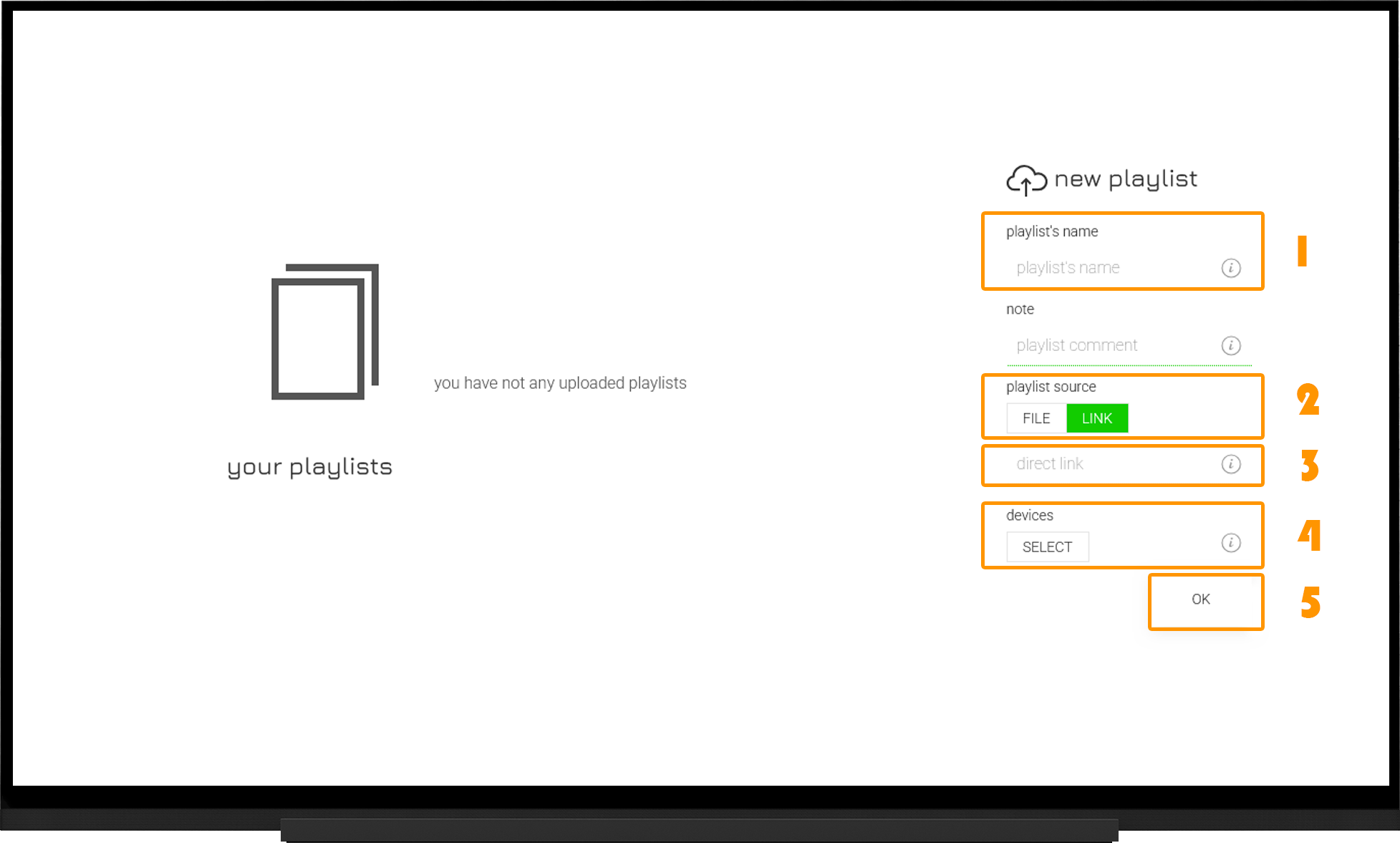
Please note that after the playlist has been uploaded successfully, a "green notification" will appear at the top of the screen.
If the playlist is not created after you click "OK", simply try creating it again.
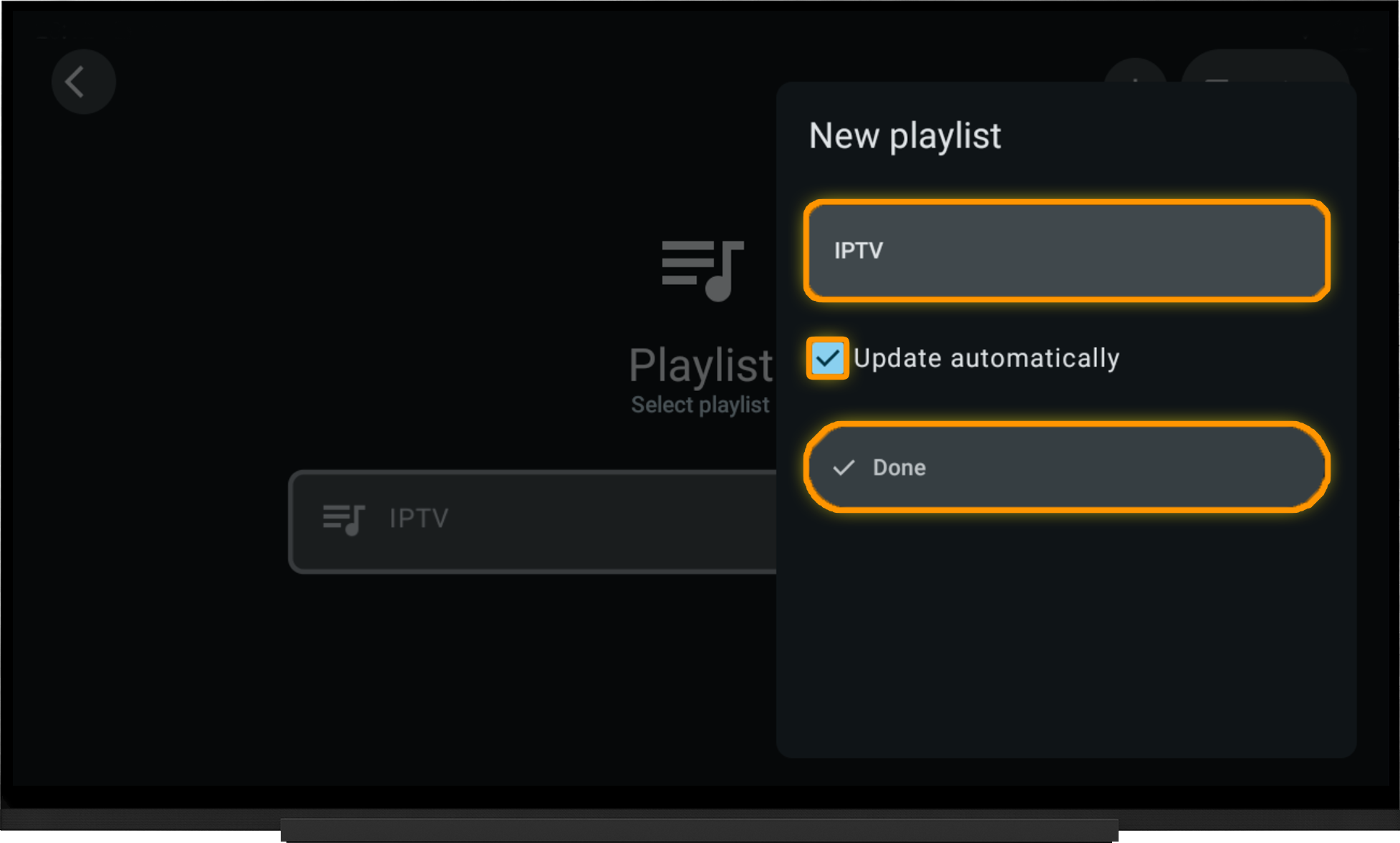
Next, add the playlist in the player:
- Open the "Playlist" section.
- Select "Import Your Playlist from the Server".
- Choose the playlist you created in your OttPlayer account.
- In the dialog that opens, enable "Update Automatically" and click "Done".
2. Adding a Local Playlist
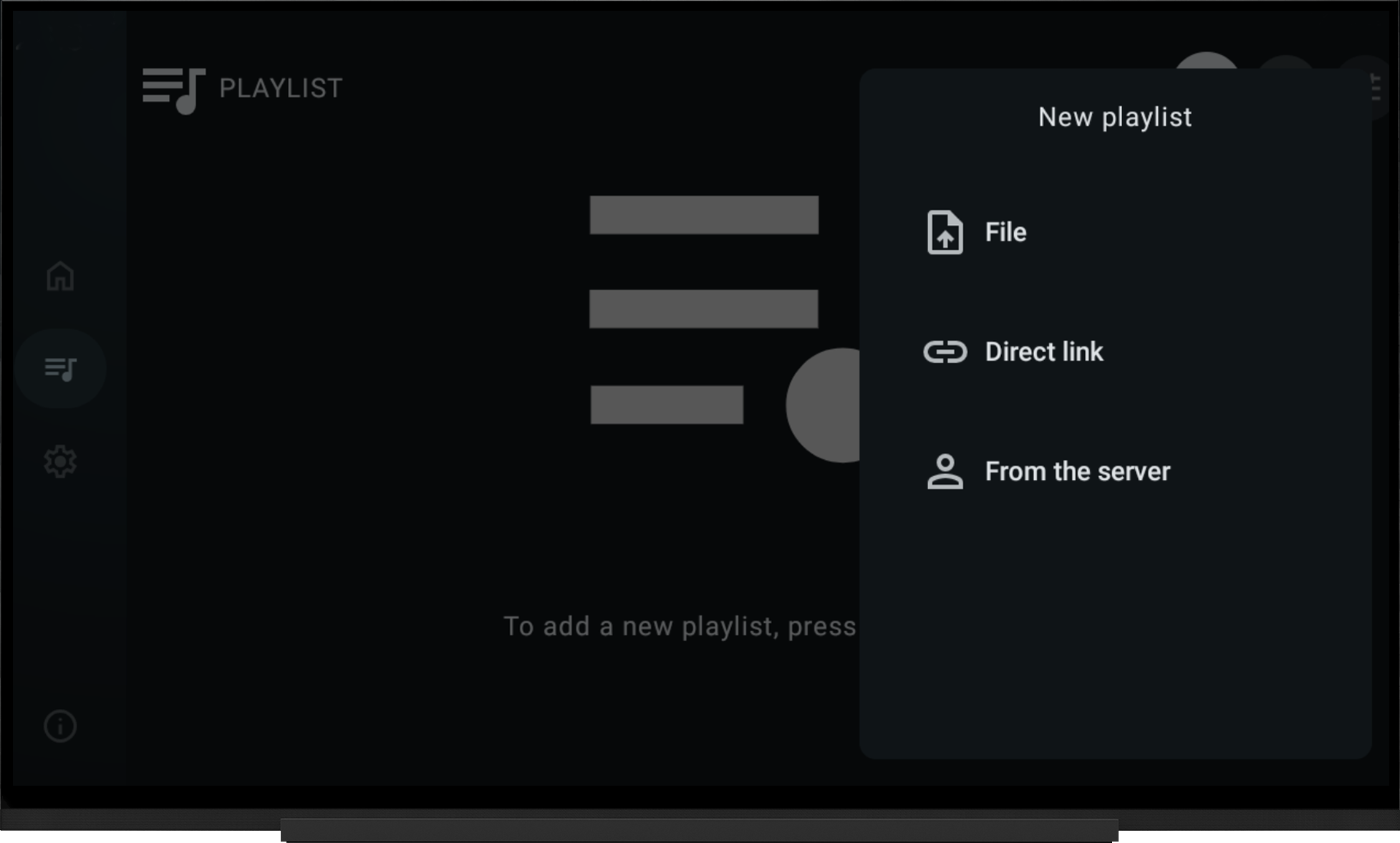
You can also add a playlist directly in the player settings:
- Open the Playlist section and click the "+" button.
- Select "Direct Link" or "File".
- Enter the playlist URL and a playlist name. If you are adding a playlist from a file, first download the playlist file to your device, select "File", and browse to its location.
- Click "Save".
Note:
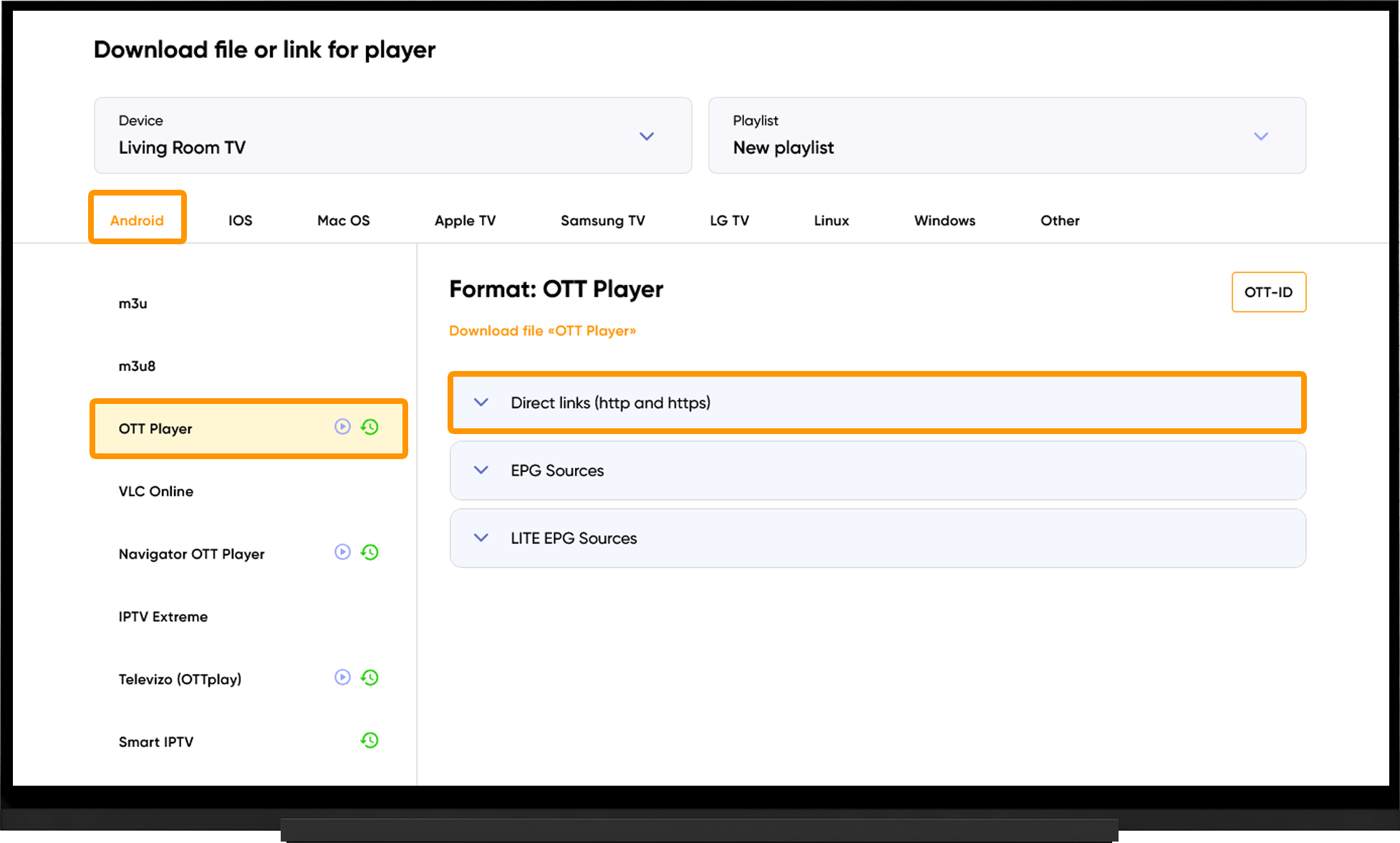
To obtain the playlist URL or playlist file, go to the My Devices section and click "Download" next to your device:
- Select Android.
- Select OTT Player.
- Under "Direct Links (http and https)", either copy the playlist URL or click "Download File", depending on your preferred method of adding the playlist.
Catch-up TV
When Uploading a Playlist in Your OttPlayer Account:
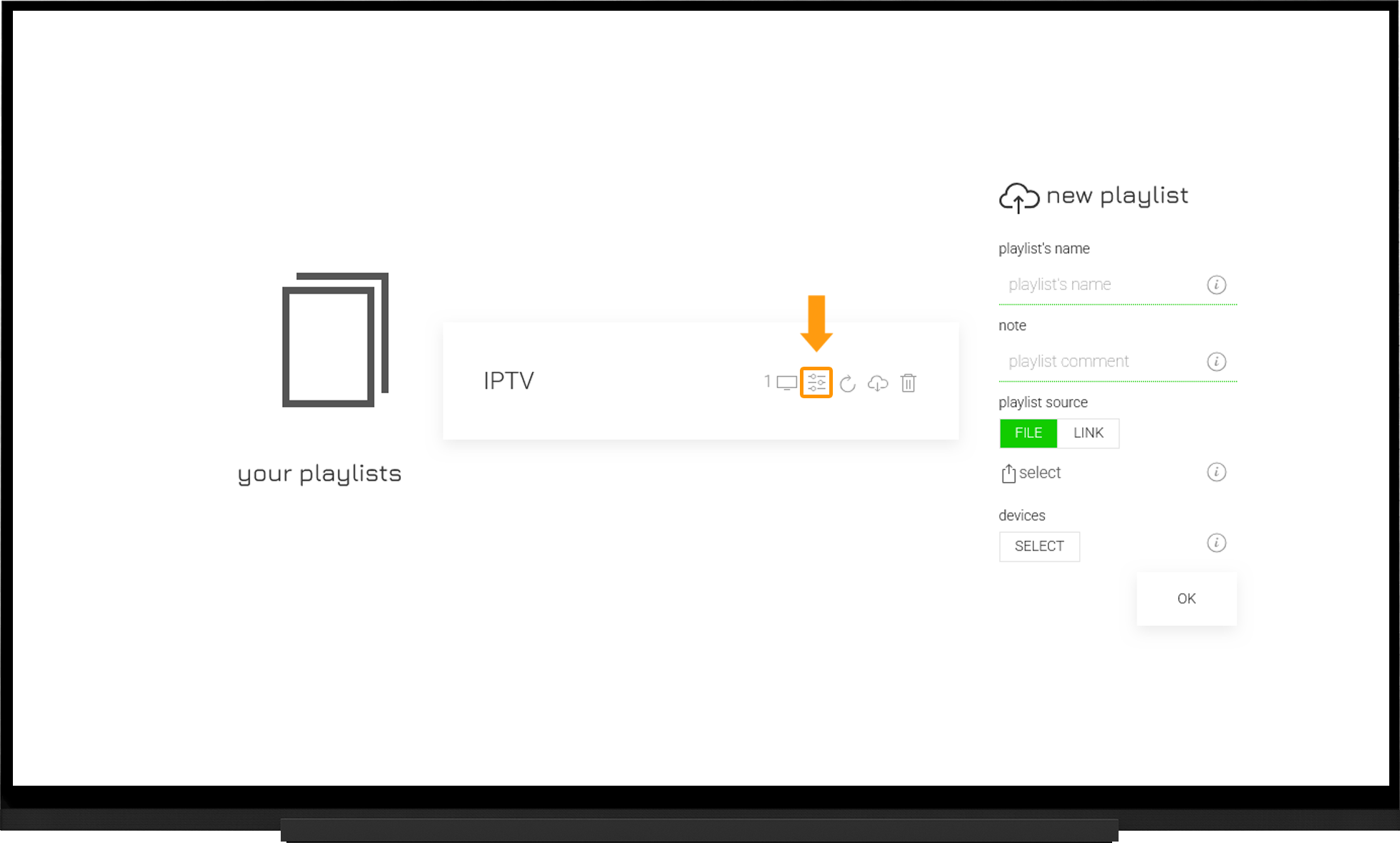
- Open the Playlists section.
- Click the Edit icon next to the playlist.
- Make sure that Catch-up is enabled in the playlist settings.
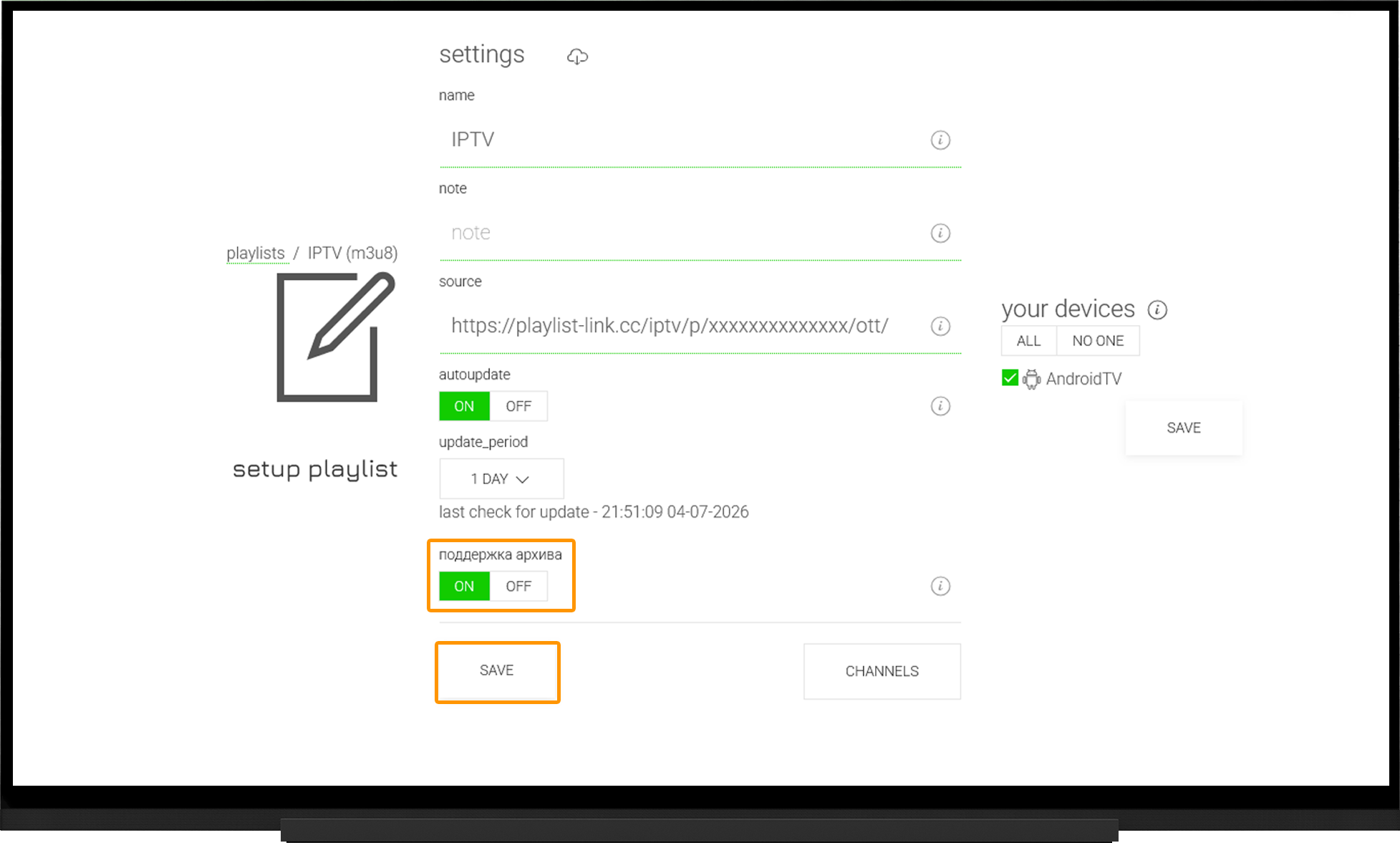
To enable Catch-up for a local playlist, you must first configure the EPG.
EPG (TV guide)
You can add a custom EPG source only if you are using a local playlist. If you added your playlist through your OttPlayer account on the website, the player will use its built-in EPG source automatically.
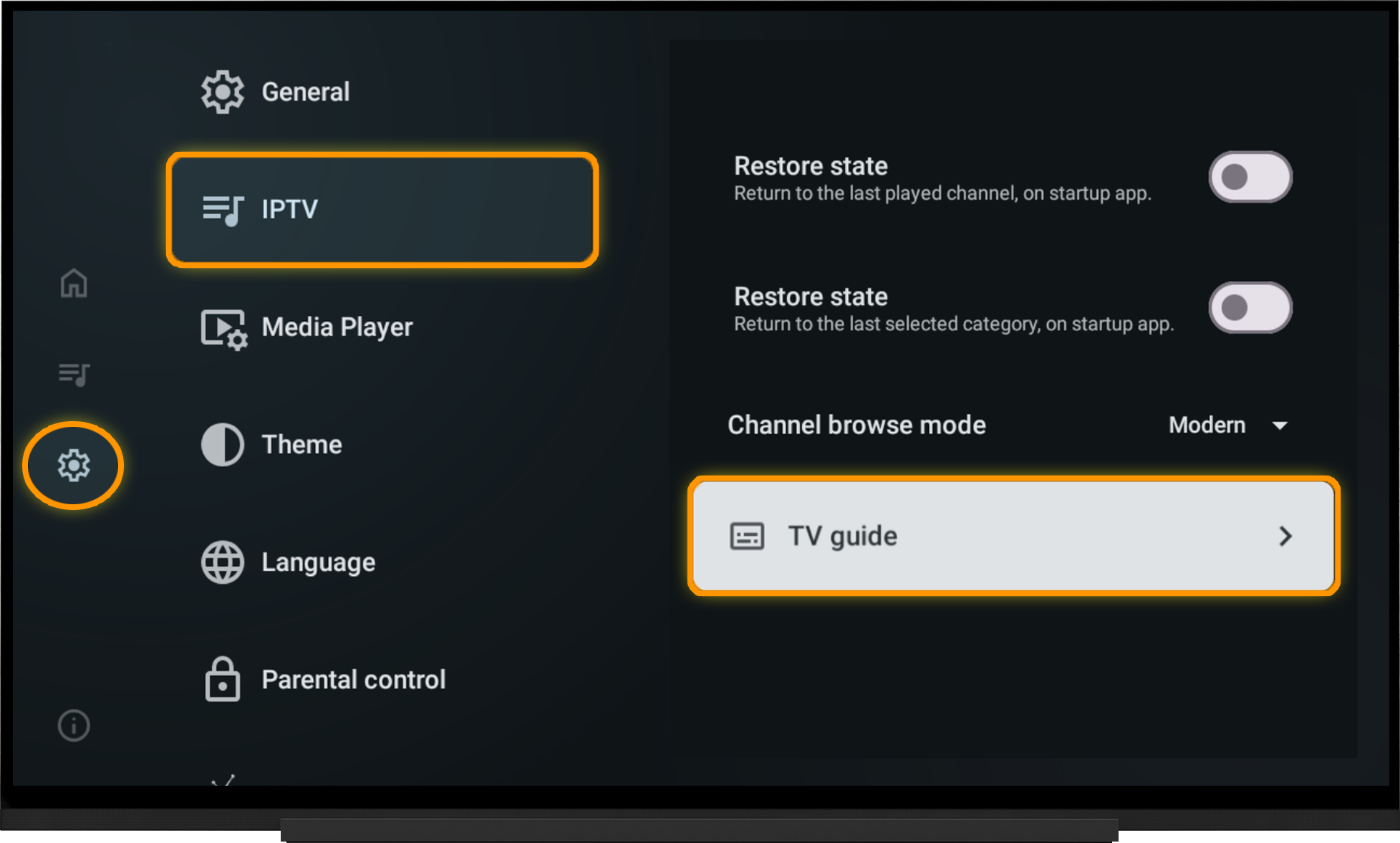
To add an EPG source manually, open the player settings:
- Go to "IPTV".
- Select "TV Guide".
- Click the "+" button in the upper-right corner.
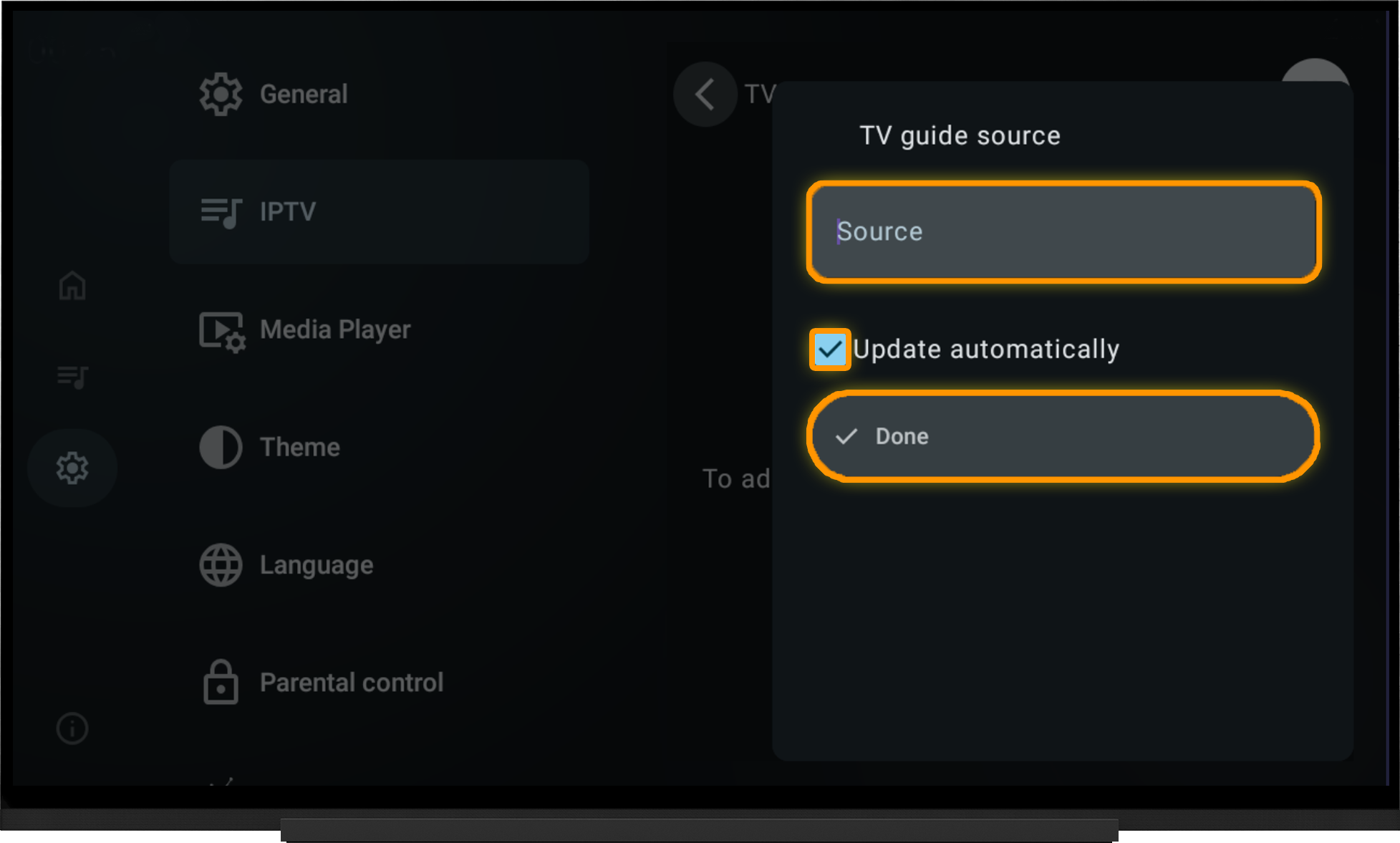
- Enter the EPG source link in the appropriate field.
- Enable "Automatically Update".
- Click Done.
After adding the EPG source URL, the TV guide will begin downloading automatically. Wait for the EPG download and conversion process to complete.
Media library
In your OttPlayer account, open the Playlists section.
- Playlist Name – enter any name (for example, "Media").
- Playlist Source - select "Link".
- Direct Link - paste the Media Library playlist link for OttPlayer.
- Devices - click "Select" and check the device you added earlier.
- Click "OK" and wait for the playlist to load.
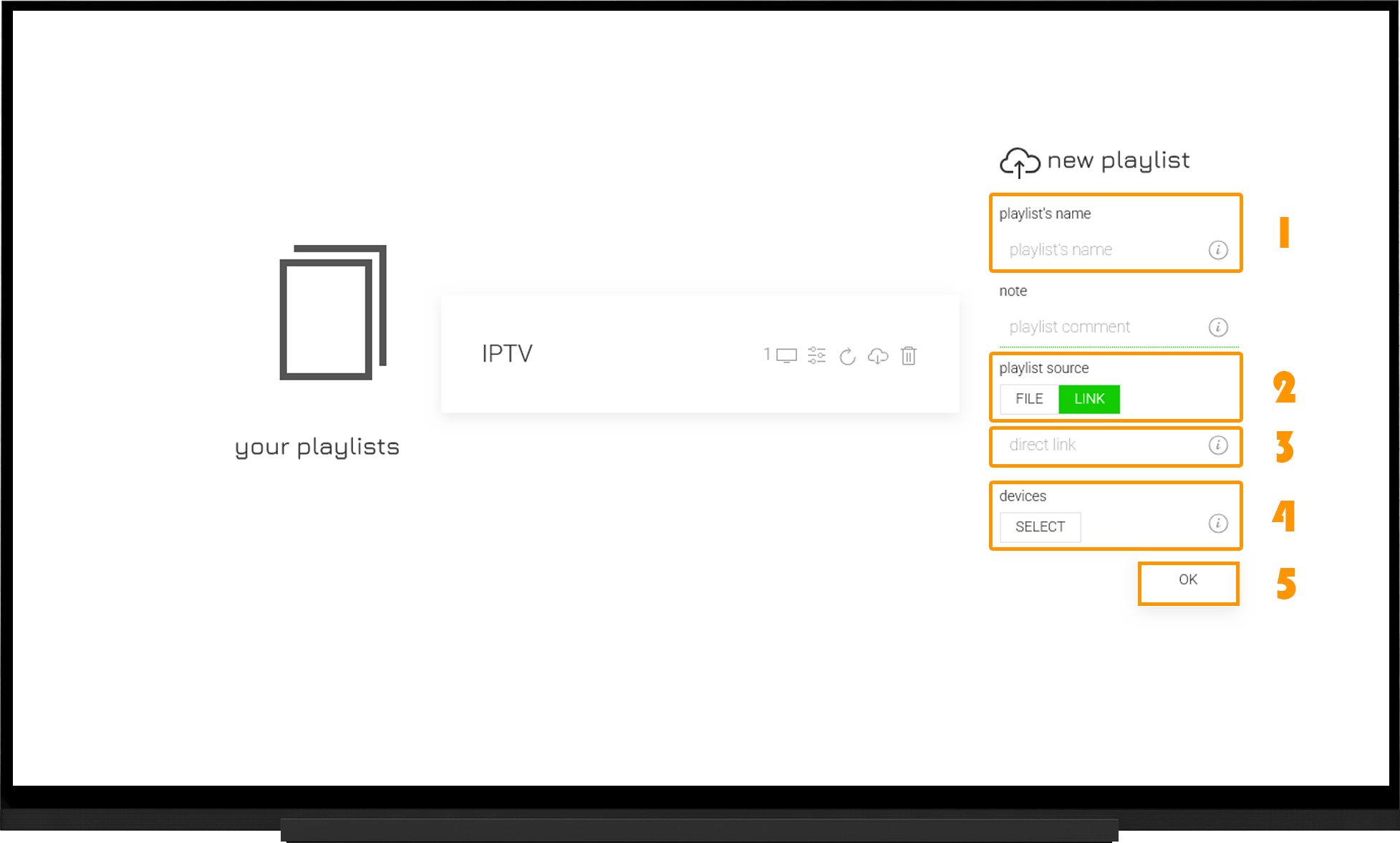
Please note that after the playlist has been uploaded successfully, a "green notification" will appear at the top of the screen.
If the playlist is not created after you click "OK", simply try creating it again.
Next, add the playlist in the player:
- Open Settings.
- Go to the Playlist section.
- Click the "+" button in the upper-right corner.
- Select "From the Server".
- Add the Media Library playlist you created earlier.
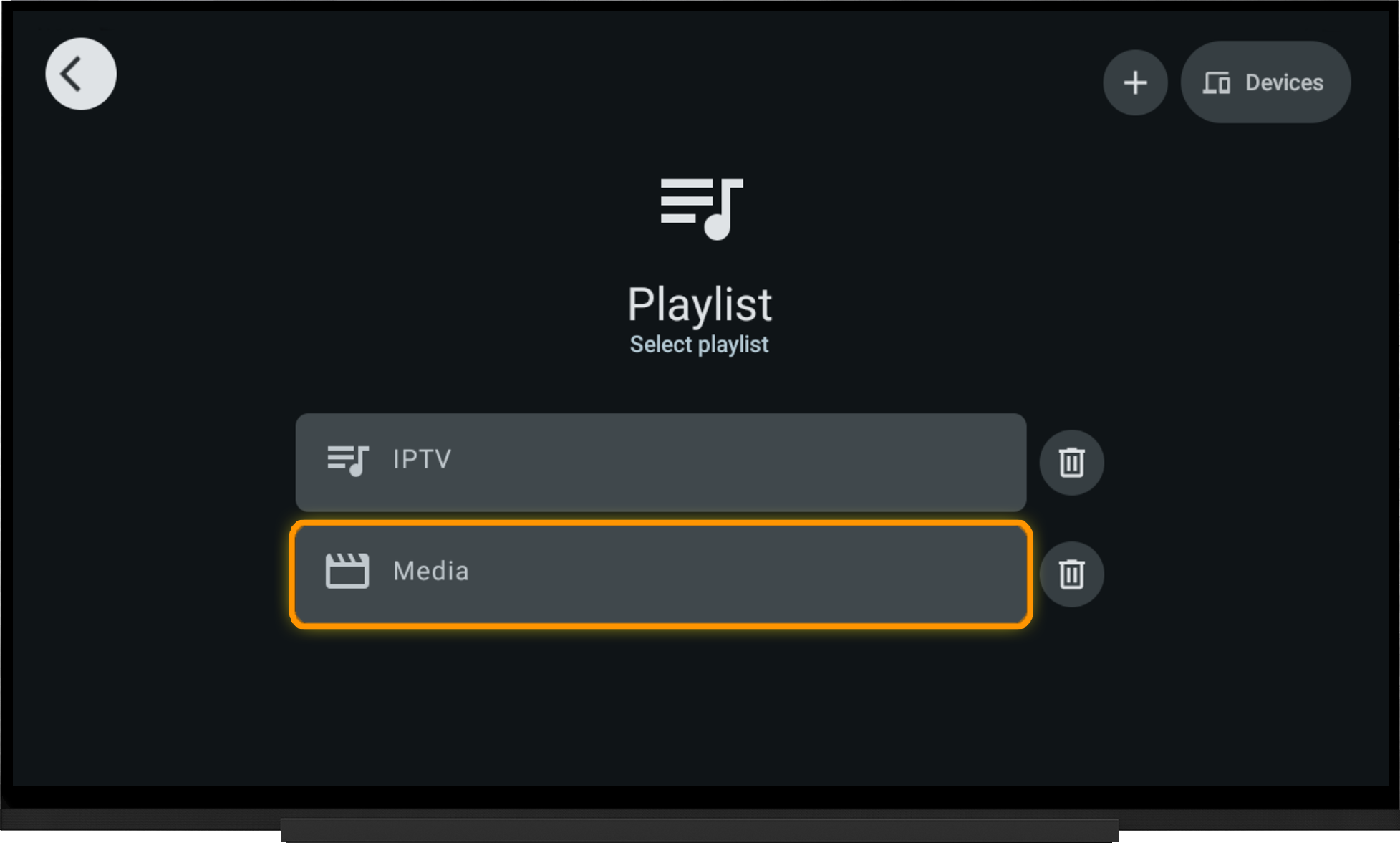
Note:
If the Media Library playlist does not work on your device, switch to the Classic Interface in the player settings:
- Open Settings.
- Enable Classic Interface.
- Sign in to the player again using the email address and password for your OttPlayer account.
- Select your device and the Media Library playlist.
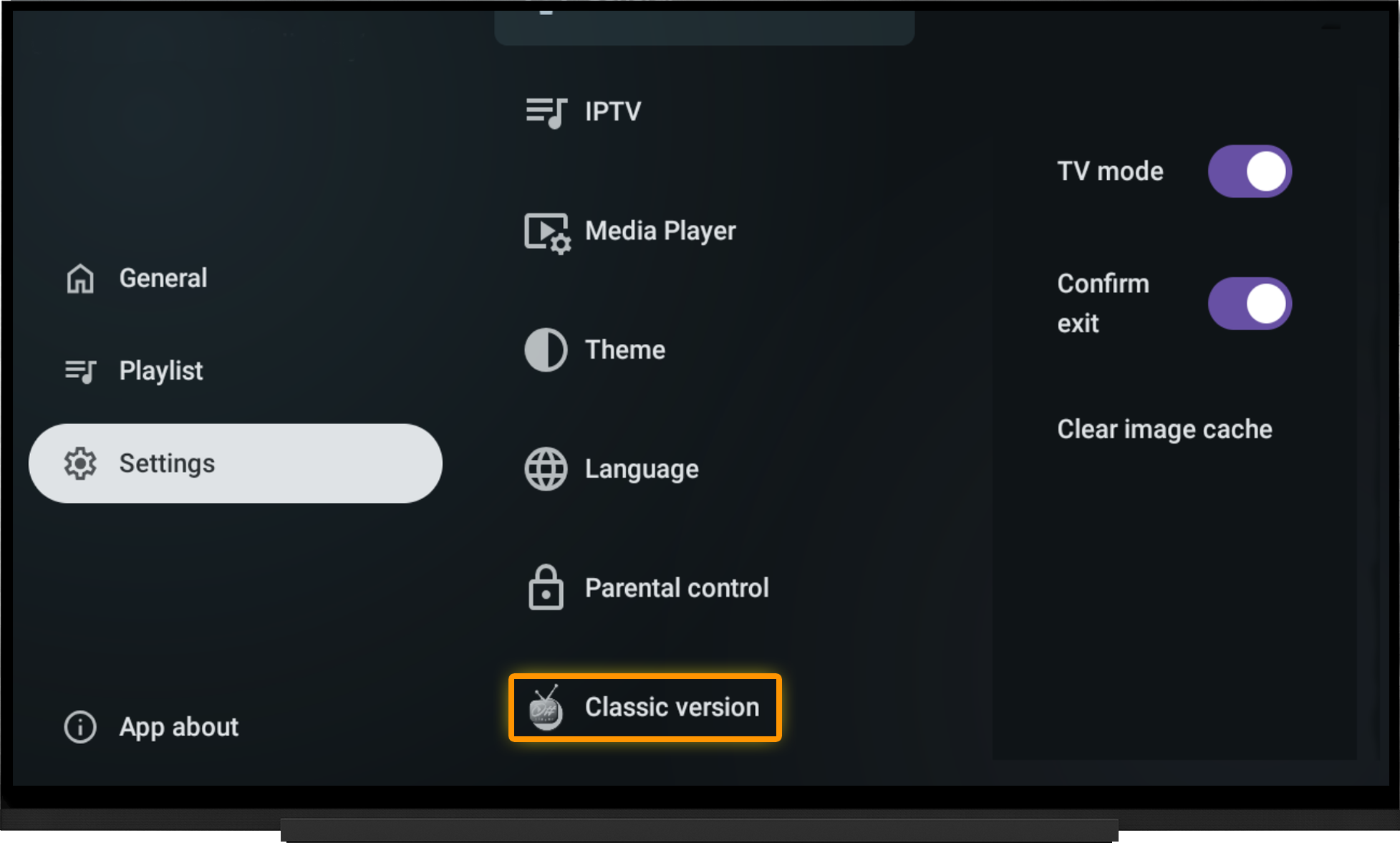
Note:
To obtain the media library link, username, and password, go to the My Devices section and click "Download" next to your device:
- Select Android.
- Select OTT Player.
- Expand the "Media Library Links" section.
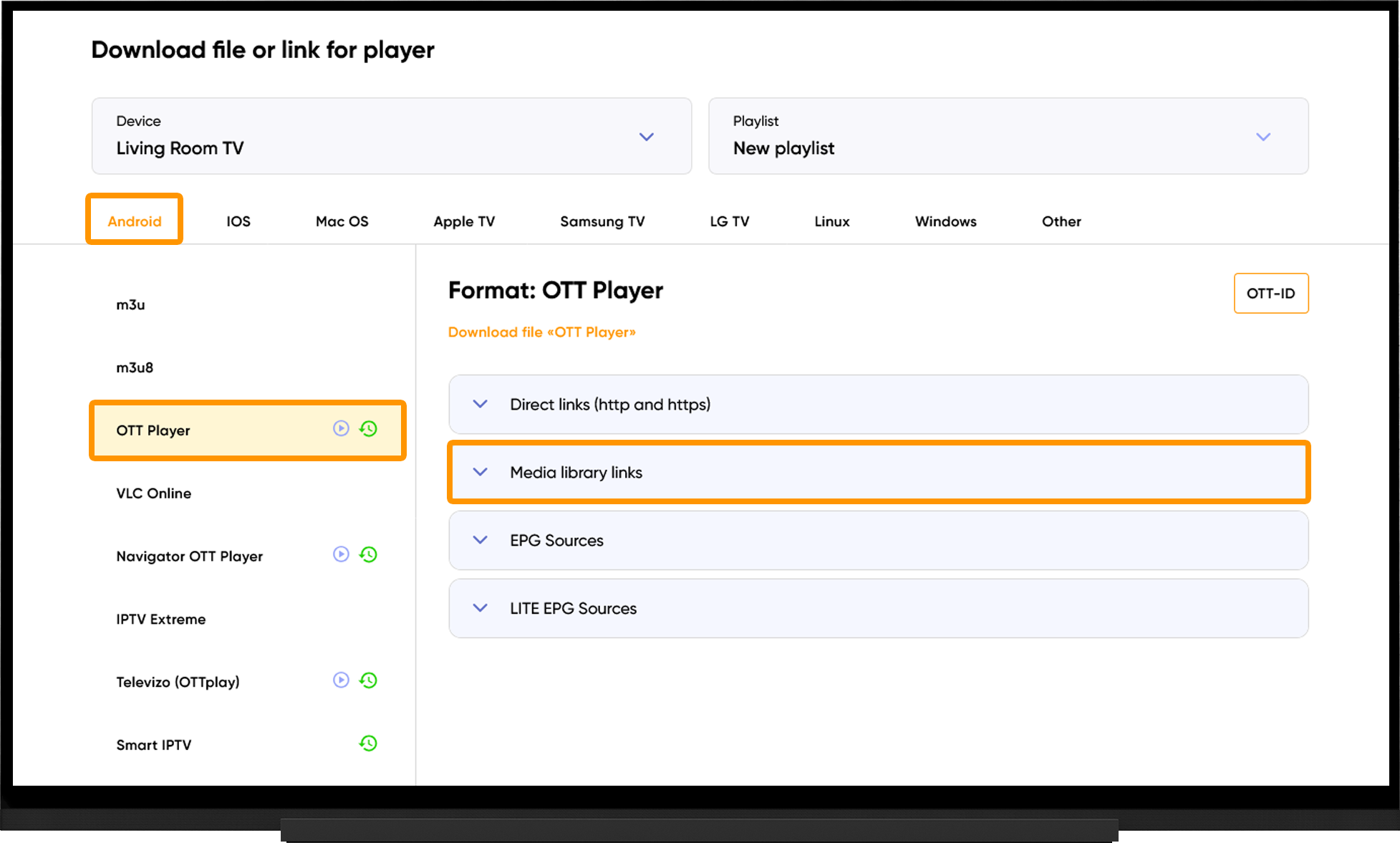
Frequently asked questions
Common Issues and Solutions
Playlist won't load:
- Make sure your device is assigned to the playlist in your OttPlayer account.
- Refresh the playlist.
- Verify that the playlist was successfully created and saved on the OttPlayer website. If necessary, try creating it again.
- Restart your device.
Channels won't play:
- Make sure the playlist link is correct. Links are case-sensitive.
- Run the server selection tool, switch to the recommended server, and restart the application after 10 minutes.
- Try removing the playlist and adding it again.