
Alice Player on Apple TV
Updated: October 28, 2026
Installation
Alice Player - an IPTV player for iPhone, iPad, Apple TV, and Mac with ARM processors.
It supports M3U playlists, EPG, and catch-up (archives). It features a simple interface and convenient controls for Apple devices. iCloud synchronization is also available.
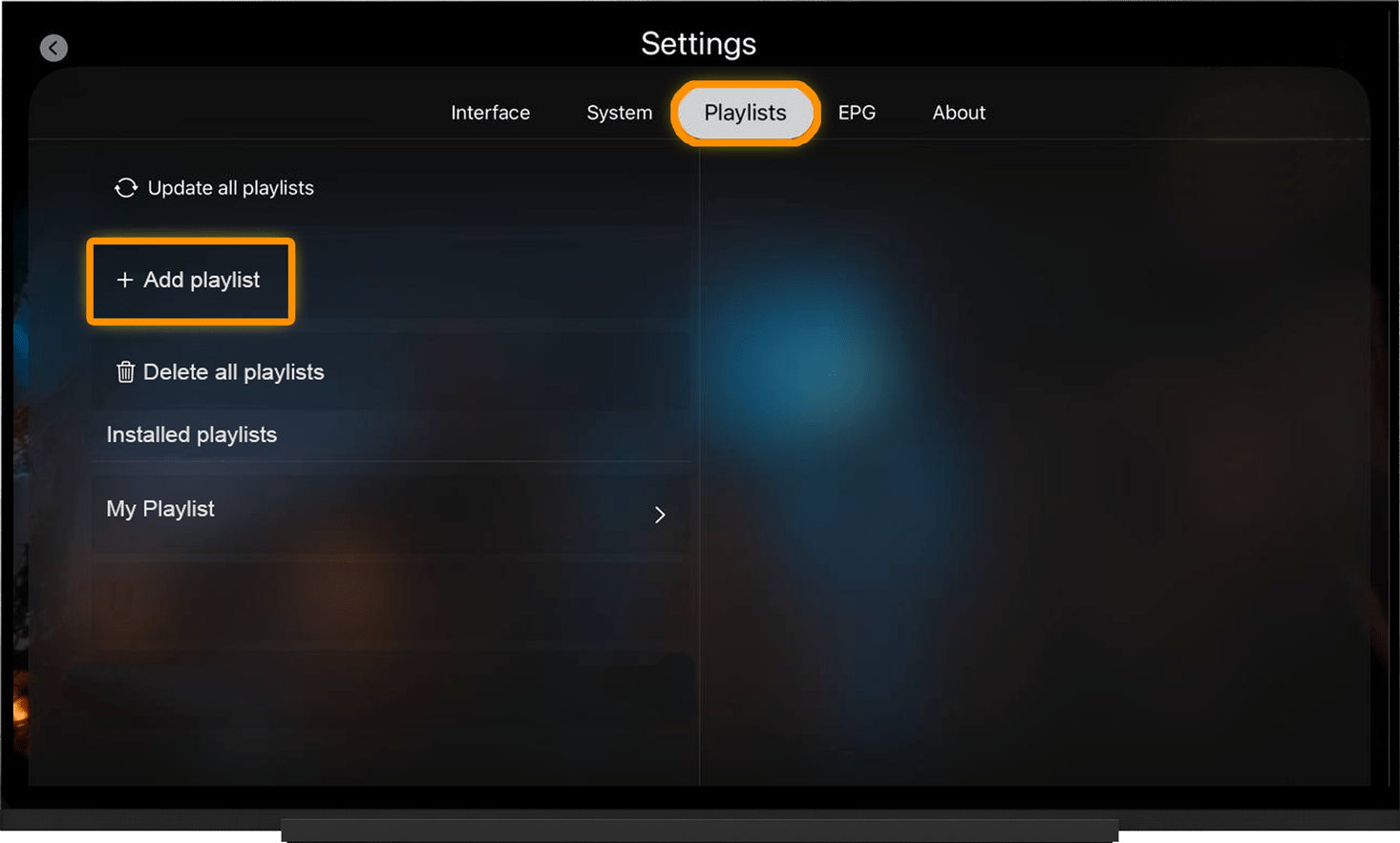
To add a playlist, open Settings:
- "Playlists" tab.
- "+ Add Playlist".
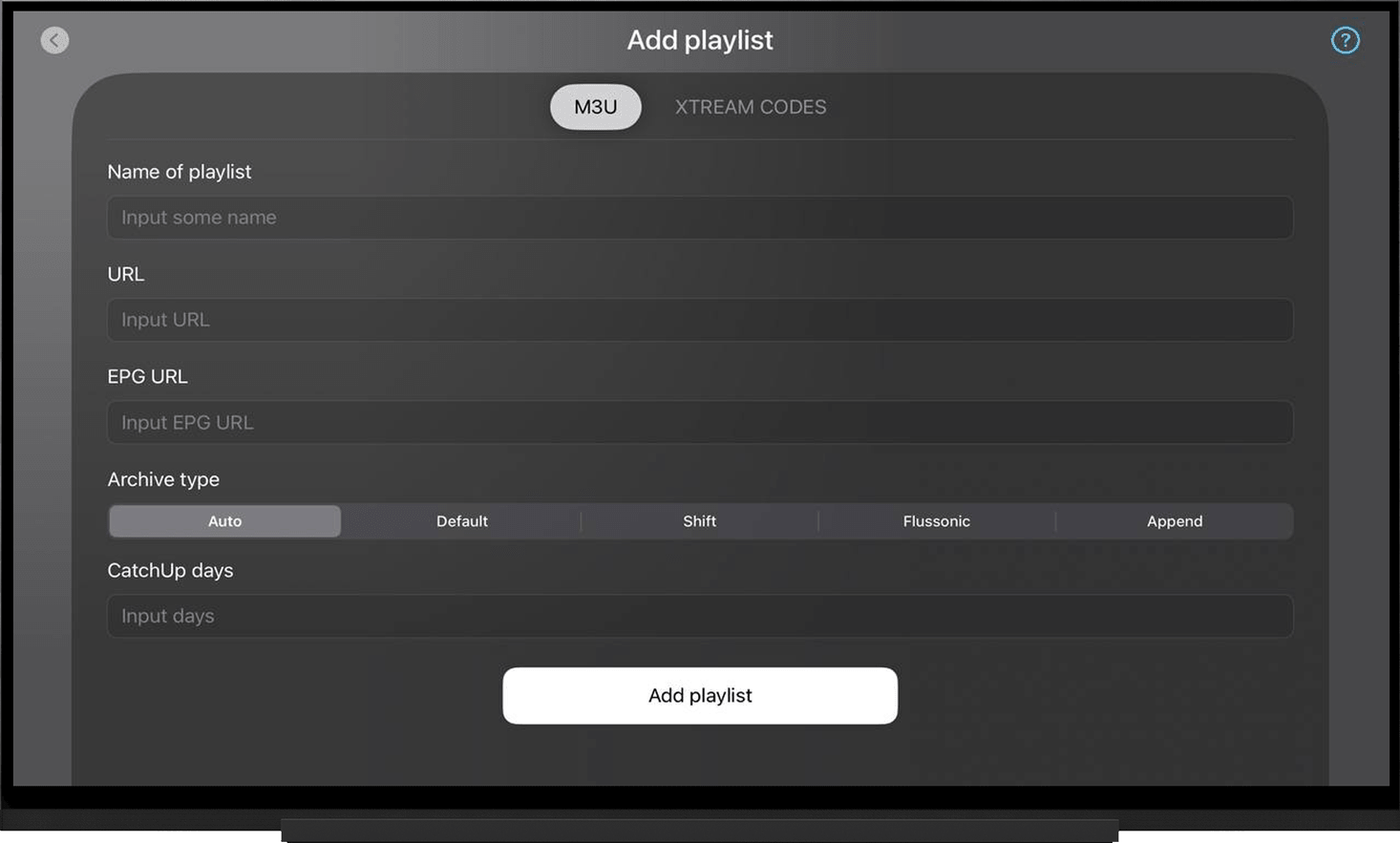
In the window that opens, select "M3U":
- Name of Playlist - enter any name.
- URL - enter the playlist URL.
- Click "Add Playlist" and wait for the playlist to finish loading.
Once the loading is complete, the first channel in the list will start playing automatically.
Note:
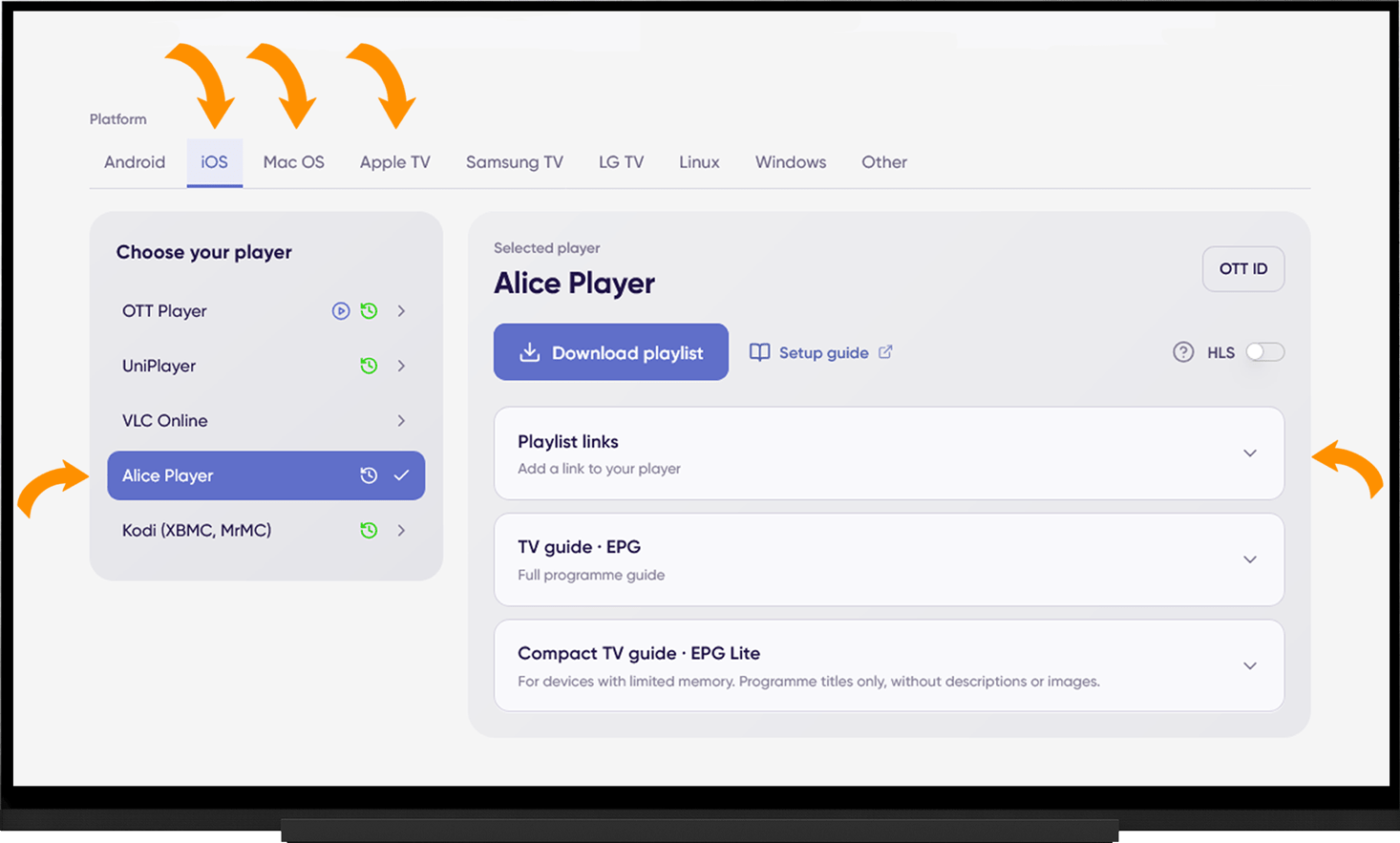
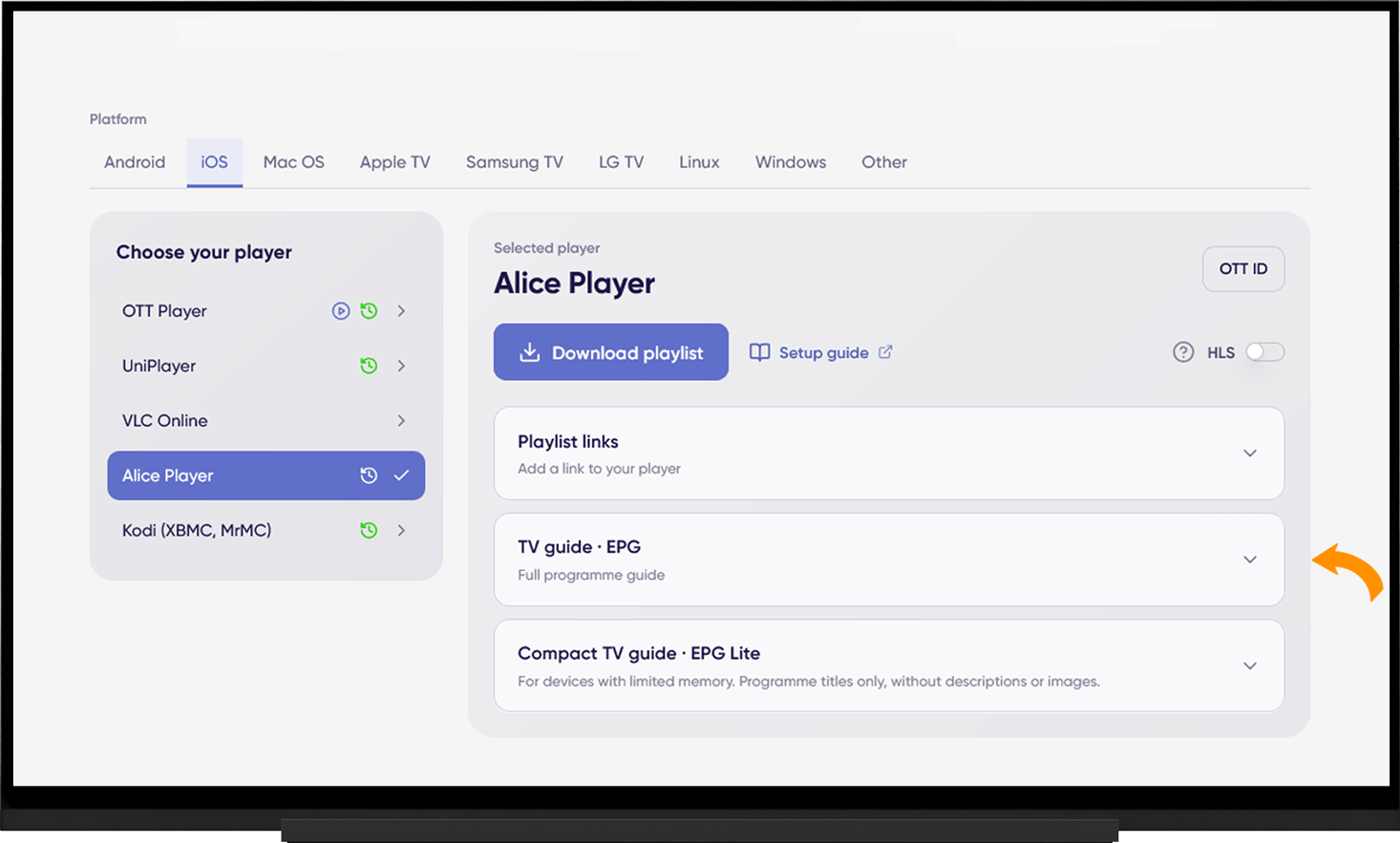
To get the playlist or file, go to the My Devices section and click the corresponding button to the right of your device name:
- Select your device type.
- Alice Player.
- "Playlist links" - copy the playlist URL.
Catch-up TV
When using the correct playlist URL for Alice Player, catch-up will be available without any additional settings.
If catch-up is not available after adding the playlist, go to Settings, select the added playlist, and change the following parameters:
- Archive Type - select Flussonic (sometimes selecting "Shift" helps).
- CatchUp days - enter 6.
- Save the changes.
EPG (TV guide)
The EPG source URL will be added automatically when using the correct playlist URL for Alice Player.
Please note that after adding the playlist, the EPG will start loading automatically and may take some time. If the EPG is not displayed, make sure that the EPG loading has finished.
If you prefer, you can add the EPG source URL manually. To do this, go to Settings:
- "Playlists" tab.
- Select the added playlist.
- Enter the EPG URL in the "EPG URL" field.
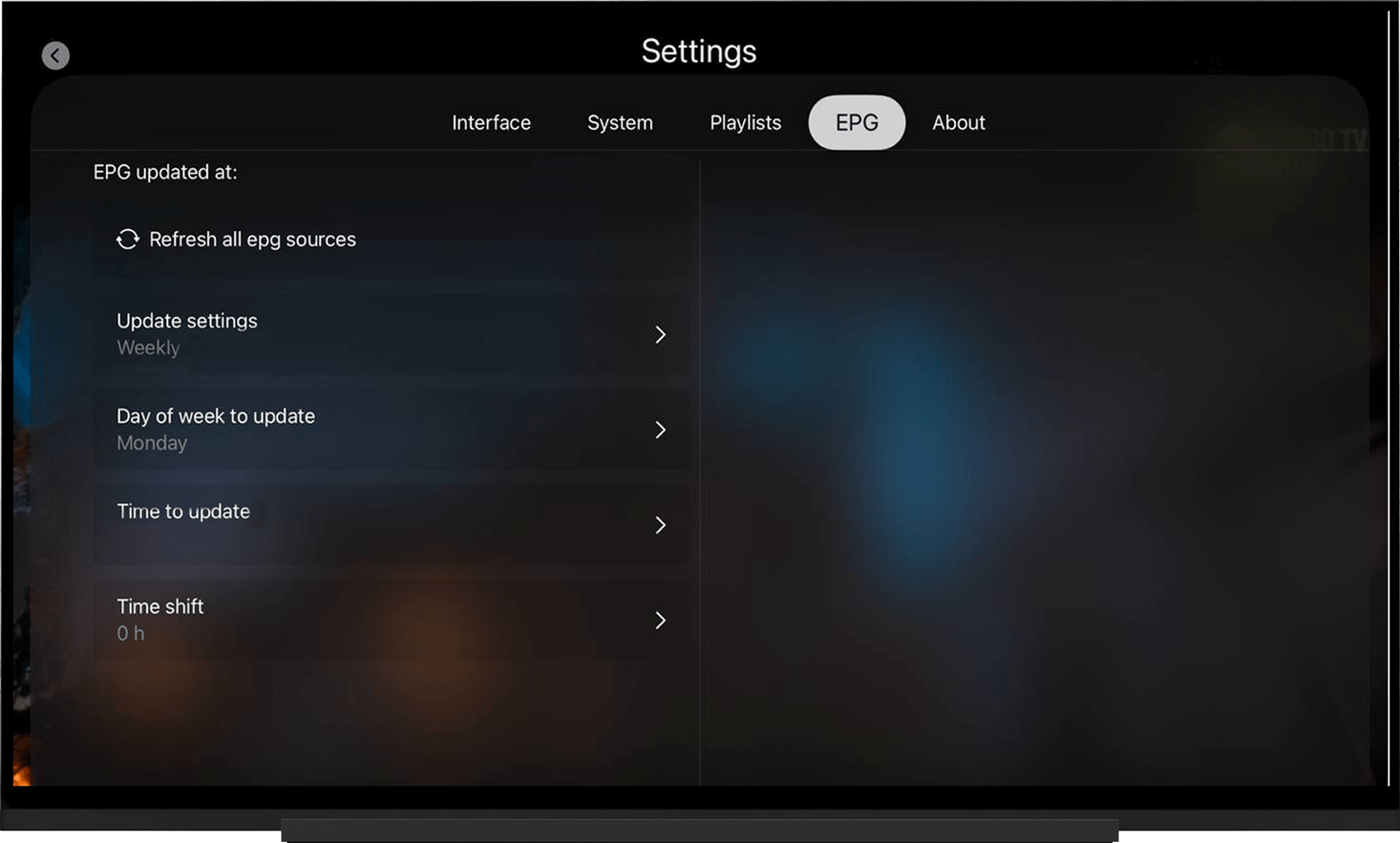
If the EPG is not displayed, try updating it manually. To do this, go to Settings - "EPG" tab and click "Update EPG.
Note:
To get the EPG source URL, go to the My Devices section and click the playlist button to the right of the device name.
On the playlist page, expand "TV Guide · EPG".
Frequently asked questions
Playlist does not load:
- Check that the URL is correct. Make sure you enter uppercase and lowercase letters exactly as shown.
- Try using different URL types: HTTP/HTTPS.
- Run the server selection test, switch to the optimal server, and restart the app after 10 minutes.
Video buffering:
- Run the server selection test, switch to the optimal server, and restart the app after 10 minutes.